TABLE OF CONTENTS
Overview
This guide covers how to configure the logs to be sent to a remote syslog server so that the disk space on the UTM is conserved. You can also monitor and analyze the logs on the syslog server independently. Before configuring the remote syslog server on the UTM appliance, you must ensure that the remote server is up and running and the UTM appliance is able to connect to the remote server.
Steps Of Configuration
Adding a remote syslog server
1. Navigate to Logs and Reports > Settings > Remote Syslog Server.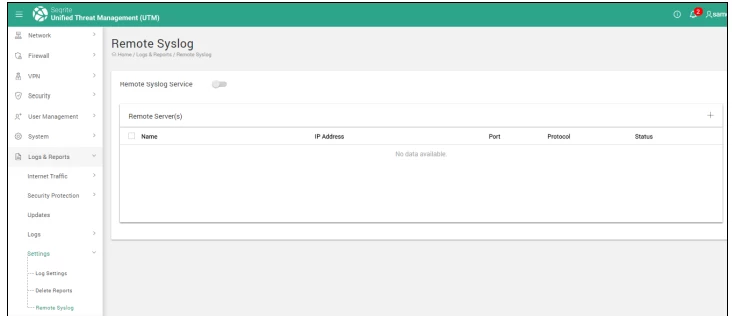
2. Click the + icon to add a new Syslog server. The Add server dialog box is displayed.
3. Enter the name and IP address of the server.
4. Enter the port number and select the type of protocol using which the log files would be sent to the Syslog server. You can select TCP, UDP or the TLS protocol from the drop-down list.
Note: To send log files securely, use the TLS protocol. Port number 6514 is automatically configured if you select TLS protocol. Similarly, Port 514 is selected if you select the TCP or UDP protocol
Logs and Reports
5. Browse and select the certificate file to be uploaded if you have selected the TLS protocol.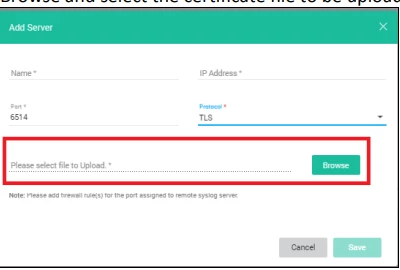
6. Click Save. The syslog server is added to the list.
Note: You can add only 2 syslog servers.
Note: In the Interzone firewall rules, you must allow the port number which is configured (default is 514) for the syslog communication to happen across the firewall zones if you select TCP and UDP protocols. Similarly, you must allow port 6514 to communicate across the firewall if you select TLS as the protocol.
Example
- If the SYSLOG server is running in the DMZ zone, then the firewall configuration is: ALLOW 514 for UDP protocol FROM UTM to DMZ.
- If the user has selected TCP protocol, then configure as ALLOW 514 for TCP protocol FROM UTM to DMZ.
Enabling the syslog service
1. Navigate to Logs and Reports > Settings > Remote Syslog Server.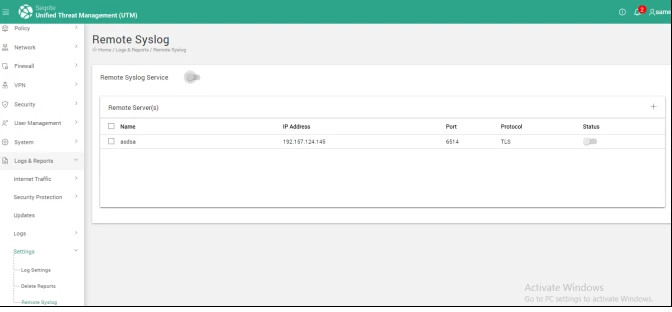
2. Enable the Syslog server from the displayed list of remote servers using the corresponding status toggle button.
3. Enable the Remote Syslog service by toggling the Remote Syslog Service status button
Verification of Configuration (MSSP Only)
Verification can be done either from CCE Server or from UI.
Using UI
STEP 1: Login to ADR UI >> SYSTEM
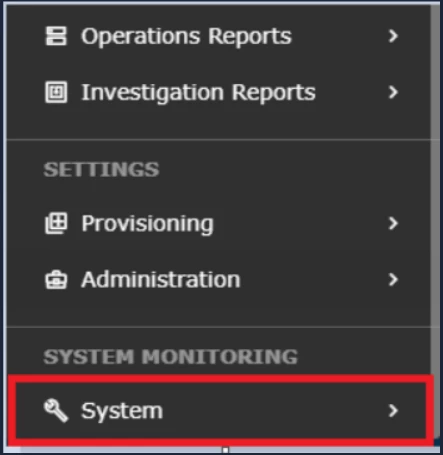
STEP 2: >> LOGS AND FLOWS COLLECTION STATUS.
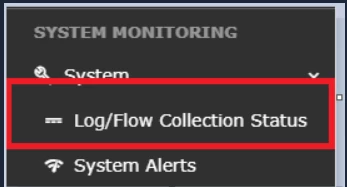
STEP 3: >> Inside SOURCE DEVICE IP, IP will reflect.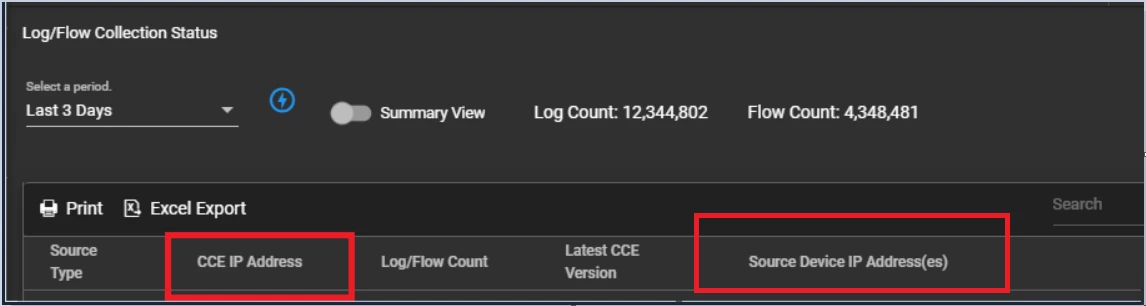
Using CCE SERVER
“sudo tcpdump -i any port 514 (for logs) and 9995 (for flows) and host <IP address> -AAA” command should be run on CCE server to check whether or not we are getting logs.
Was this article helpful?
That’s Great!
Thank you for your feedback
Sorry! We couldn't be helpful
Thank you for your feedback
Feedback sent
We appreciate your effort and will try to fix the article