TABLE OF CONTENTS
- Overview
- Prerequisites
- Integration Process
- Verification and Testing
- Troubleshooting
- Best Practices
- Support Resources
Overview
This guide provides step-by-step instructions for configuring log forwarding from CrowdStrike Falcon EDR (Endpoint Detection and Response) to the ADR Control and Collection Engine (CCE) Server. This integration enables centralised security event monitoring and analysis within the ADR platform.
CrowdStrike is a cloud-based endpoint protection platform that provides advanced threat detection and response capabilities. This integration allows ADR to collect and analyse security logs from CrowdStrike through API connectivity, enabling comprehensive threat monitoring and incident response across your security infrastructure.
The integration is configured through the ADR UI using API credentials generated from the CrowdStrike console, allowing seamless log ingestion and real-time monitoring.
Prerequisites
Before beginning the configuration process, ensure you have:
- CrowdStrike Falcon Console Access: Administrative privileges to configure log streaming
- ADR CCE Server: Running and accessible on your network
- ADR GUI Console: Administrative access to the ADR GUI Console
- Network Connectivity: Proper firewall rules allowing communication between CrowdStrike and ADR CCE, Firewall configuration allowing outbound HTTPS connections on port 443
- API Credentials: CrowdStrike API client ID and secret (if using API-based forwarding)
- Ensure the following domains are whitelisted in your firewall configuration based on your CrowdStrike hosting region:
- Firehose Endpoints (for streaming data)
firehose.crowdstrike.comfirehose.us-2.crowdstrike.comfirehose.laggar.gcw.crowdstrike.comfirehose.eu-1.crowdstrike.comAPI Endpoints (for authentication and data requests)
api.crowdstrike.com(required for authorisation)api.us-2.crowdstrike.comapi.laggar.gcw.crowdstrike.comapi.eu-1.crowdstrike.com
Port Requirements
- Port 443 (HTTPS) - Required for all API communications
Integration Process
Part 1: Generate API Credentials in CrowdStrike
1: Access CrowdStrike Console
- Log in to your CrowdStrike console with administrative privileges
- Navigate to the API client management section
2: Create New API Client
- Click Add new API client
- Provide the following information:
- Client Name: Enter a descriptive name (e.g., "ADR Integration")
- Description: Add a relevant description for the integration purpose
3: Configure Required API Scopes
For the current CrowdStrike → ADR integration, only one permission is required:
| Scope | Read | Write | Purpose |
|---|---|---|---|
| Alerts | ✅ Yes | ❌ No | Read-only access to fetch security alerts from CrowdStrike |
4: Generate and Save Credentials
- After configuring scopes, save the API client configuration
- Immediately copy and save the following generated credentials:
- Client ID
- Client Secret (this will not be visible again)
- Base URL (your CrowdStrike cloud region endpoint)
⚠️ Important: Save these credentials in a secure location immediately, as the Client Secret cannot be retrieved again.
Configure Integration in ADR
1: Access API Connect Interface
- Log in to your ADR platform
- Navigate to the tenant where you want to add CrowdStrike integration
- Follow the menu path: Administration > Add-On Store > CrowdStrike
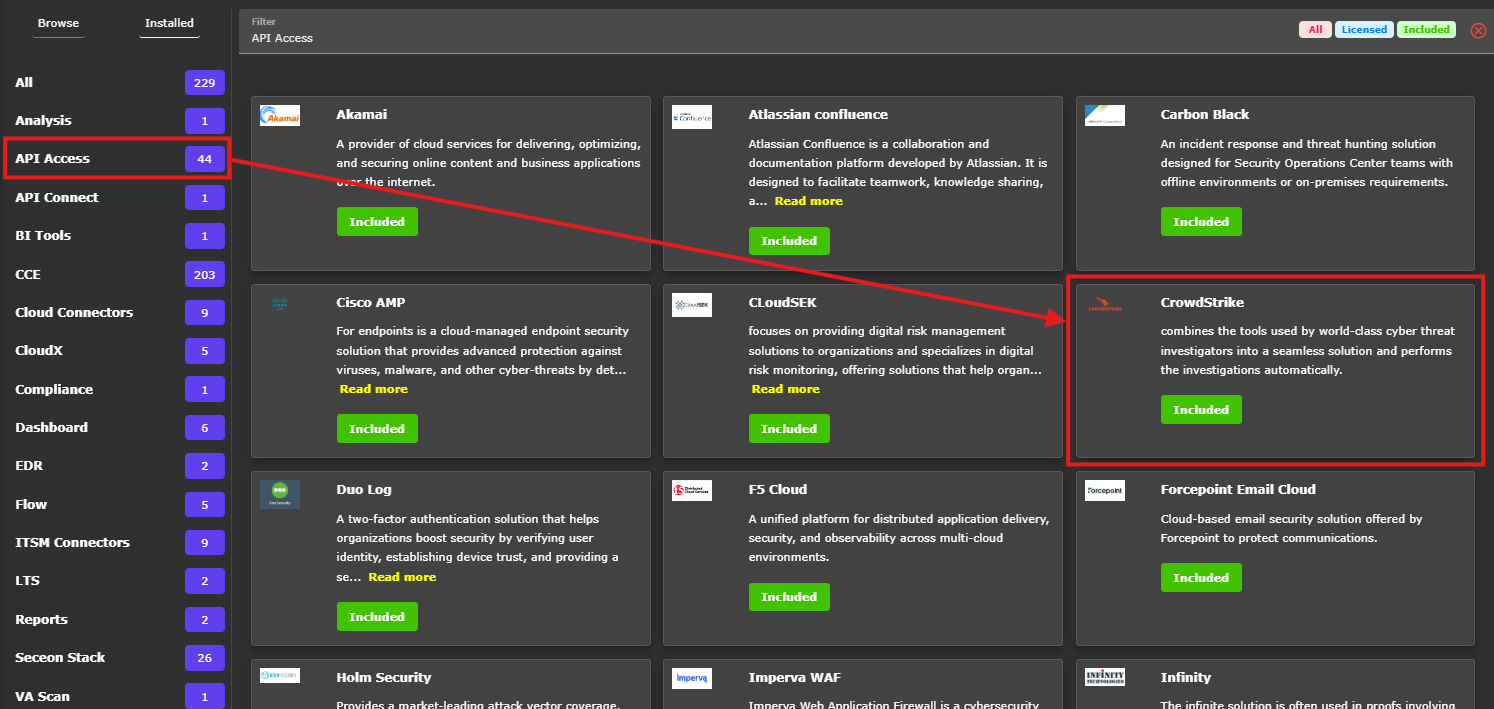
2: Initialize CrowdStrike Integration
- Click the Add CrowdStrike button
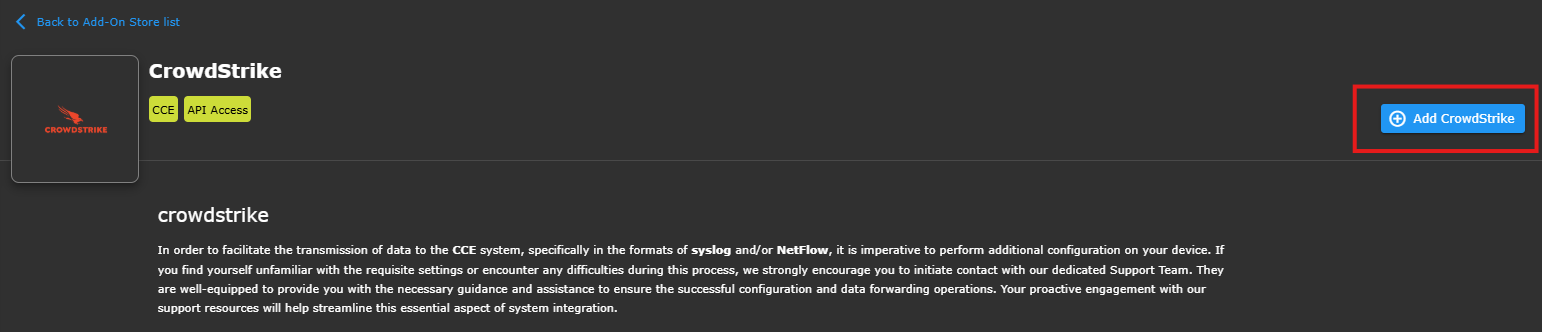
- The CrowdStrike device configuration form will open
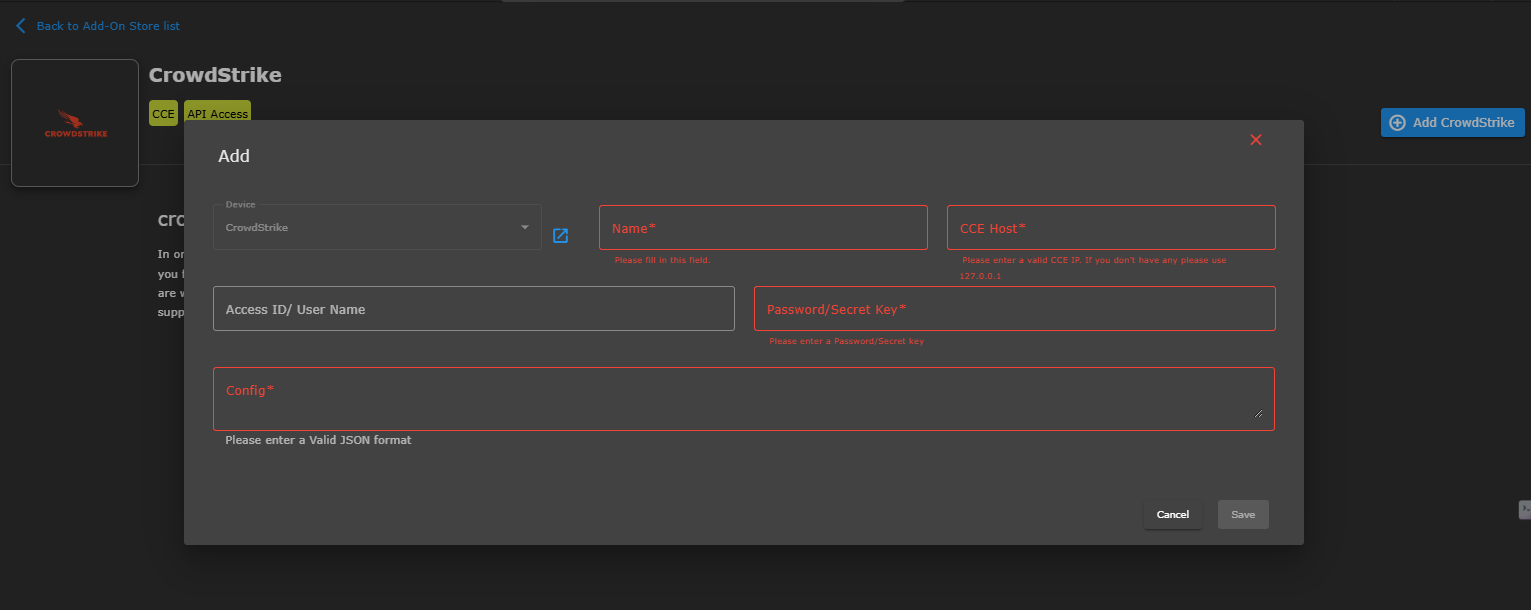
3: Basic Configuration Fields
- Device Name: Enter a descriptive name for this CrowdStrike integration
- CCE IP: Enter the appropriate CCE (Collection and Control Engine) IP address
- Access ID/User Name: Enter the Client ID from CrowdStrike
- Password/Secret Key: Enter the Client Secret from CrowdStrike
- Configure Base URL
In the Config field, enter the Base URL in JSON format:{"host": "your-crowdstrike-host"}
Example Configuration:
{"host": "api.us-2.crowdstrike.com"}
Available Host Values (choose based on your CrowdStrike region):
api.crowdstrike.com(US Commercial Cloud)api.us-2.crowdstrike.com(US Government Cloud)api.laggar.gcw.crowdstrike.com(US Government Cloud - GovCloud)api.eu-1.crowdstrike.com(European Union Cloud)
(Optional) ->Configuration for Proxy Environments
If the customer environment uses an outbound proxy, include proxy details in the same Config field as mentioned below.
HTTP Proxy Example
{  "host": "api.us-2.crowdstrike.com",  "http_proxy": "http://ip:port"
}
HTTPS Proxy Example
{  "host": "api.us-2.crowdstrike.com",  "https_proxy": "https://ip:port"
}
Important Notes
Always include the protocol (
http://orhttps://) in the proxy URLConfigure only one proxy type at a time
Incorrect proxy formatting may cause authentication failures
Finally Save Configuration
- Click the Save button to complete the integration setup.
VIP Note (Important)
Ensure that the following domain *.crowdstrike.com is allowed / whitelisted on the proxy or firewall for successful CrowdStrike API authentication and log ingestion:
Verification and Testing (MSSP Only)
On CCE (Command-Line Verification)
Login with the ADR user account.
Run:
otmdoc -mEnter the add-on device container:
otmdoc -s cce-addon-devicesCheck scheduled tasks:
crontab -lRun the Seqrite Python script and review outputs.
On ADR GUI Console
- Log in to ADR with appropriate administrative rights
- Navigate to SYSTEM
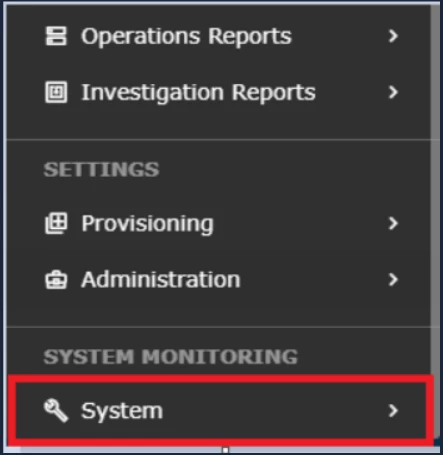
Check Collection Status
- Go to Logs / Flow Collection Status
- Verify the CrowdStrike integration status
Verify Source Device
- In the SOURCE DEVICE IP section
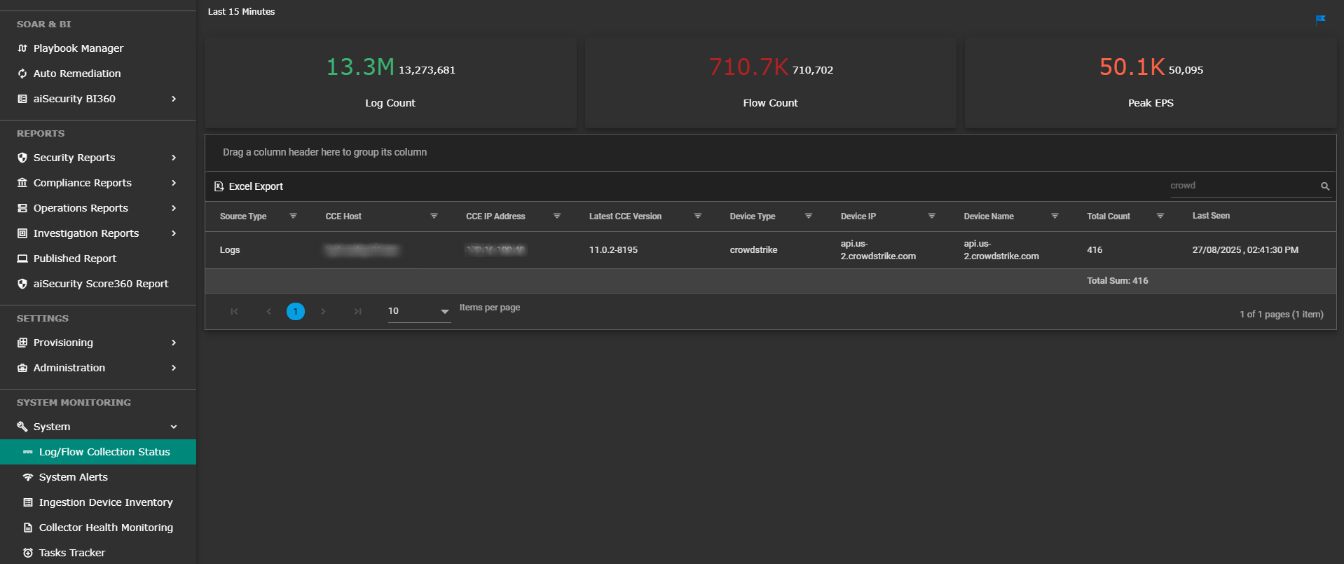
- Confirm that the CrowdStrike device IP is reflected and showing an active status
- Check for successful log ingestion
Success Indicators
Integration Successful:
- CrowdStrike device appears in the source device list
- Log collection status shows "Active" or "Running"
- CrowdStrike logs are appearing in ADR
- No authentication errors in the system logs
Troubleshooting
Common Issues and Solutions
Authentication Failures:
- Verify Client ID and Client Secret are entered correctly
- Ensure the API client has all required scopes enabled
- Check if the API client is active in the CrowdStrike console
Connection Issues:
- Verify the correct Base URL format in the Config field
- Ensure the proper CrowdStrike region endpoint is used
- Check firewall whitelist configuration
- Confirm network connectivity to CrowdStrike endpoints
No Data Collection:
- Verify API scopes include necessary read permissions
- Check CrowdStrike has active detections and alerts
- Confirm integration status in ADR system logs and the flow collection status tab.
JSON Format Errors:
- Ensure proper JSON syntax in the Config field:
{"host": "api.us-2.crowdstrike.com "} - Remove any extra spaces or characters
- Verify double quotes around keys and values
Best Practices
Security Recommendations
- Store API credentials securely
- Monitor integration logs for suspicious activity
Maintenance Tasks
- Regularly verify integration status
- Monitor log ingestion rates
- Keep the API client active and updated
- Review and update firewall rules as needed
Support Resources
Documentation Links
- CrowdStrike API Documentation
- ADR Integration Guide
- CrowdStrike Cloud Region Information
Support Contacts
- CrowdStrike Support: Contact through the CrowdStrike support portal
- ADR Support: Contact your ADR support representative for integration issues
Document Version: 2.0
Last Updated: [10-02-2026]
Integration Type: Cloud-based API Integration
Was this article helpful?
That’s Great!
Thank you for your feedback
Sorry! We couldn't be helpful
Thank you for your feedback
Feedback sent
We appreciate your effort and will try to fix the article