TABLE OF CONTENTS
- Overview
- Types of Remediation
- Benefits of Remediation
- Prerequisites
- Configuration Steps
- How It Works (Execution Flow)
- Verification
Overview
Remediation in ADR refers to the process of taking corrective action against identified threats, either automatically or manually, using connected enforcement devices such as Firewalls, EDRs, NACs, and Identity Providers.
It is the final stage of the Detect → Analyze → Respond workflow, enabling organizations to contain, block, or neutralize malicious activity in real time.
The Auto Remediation in ADR allows the platform to automatically execute remediation actions in response to alerts, based on pre-defined policies. This ensures real-time containment of threats without requiring manual intervention, helping security teams reduce dwell time and minimize potential damage.
Types of Remediation
1. Manual Remediation– Security analysts manually trigger actions on alert from the ADR Dashboard.
Example: The analyst reviewed the alert and initiated remediation, resulting in the endpoint being successfully isolated through the EDR solution.
2. Auto-Remediation– Policies or playbooks trigger actions without human intervention , if analyst configures auto-remediation.
Example: An IP flagged as malicious is automatically blocked on the firewall.
Selected alert types are automatically remediated based on configuration.
Benefits of Remediation
- Faster containment of threats.
- Reduced Mean Time to Respond (MTTR).
- Unified orchestration across Firewalls, EDR, NAC, and Identity platforms.
- Flexibility to mix manual and automated responses.
Prerequisites
- ADR / EDR deployed and running.
- Admin access to the ADR UI.
- At least one Remediator device (Firewall, EDR, NAC, or Identity provider) configured and tested.
With remediation enabled, ADR can
- Block / Unblock IPs, Domains, or Hosts on firewalls.
- Isolate / Unisolate endpoints on EDR solutions.
- Disable / Enable user accounts on identity providers.
List of Supported Alert Types for Remediation
| Alert Type Name | Remediation Type |
|---|---|
| Botnet Detected | Block Blacklisted IP, URL, Domain on firewall |
| Compromised Credential | User will disable |
| Dns Tunneling | Suspicious Dns Domain will block on firewall |
| Potential Zero Day | Block Blacklisted IP, URL, Domain on firewall |
| Insider Threat/ Compromised Credential | User will disable on AD |
| Insider Threat | User will disable on AD |
| Policy Voilation | Prohibited Country or Prohibited IP will block on firewall |
| Potential Ransomware | Blacklisted IP will block on firewall |
| Password Spraying / Dictionary Attack | Block Client Public IP on firewall. |
| Potential DoS Attack | Block Src IP on firewall |
| Potential Data Exfiltration | Block Destination public IP on firewall |
| Potential Vulnerability Exploit | Block Blacklisted IP, URL, Domain on firewall |
| Potential Web Exploit | Block Client Public IP on firewall. |
| Potential Ransomware | Block Blacklisted IP, URL, Domain on firewall |
| Unusual Login Failure | Disable AD user on AD |
| Potential Malware Infected Host | Block Blacklisted IP, URL, Domain on firewall |
Configuration Steps
Step 1: Login
- Open the ADR dashboard
- Enter your username and password.
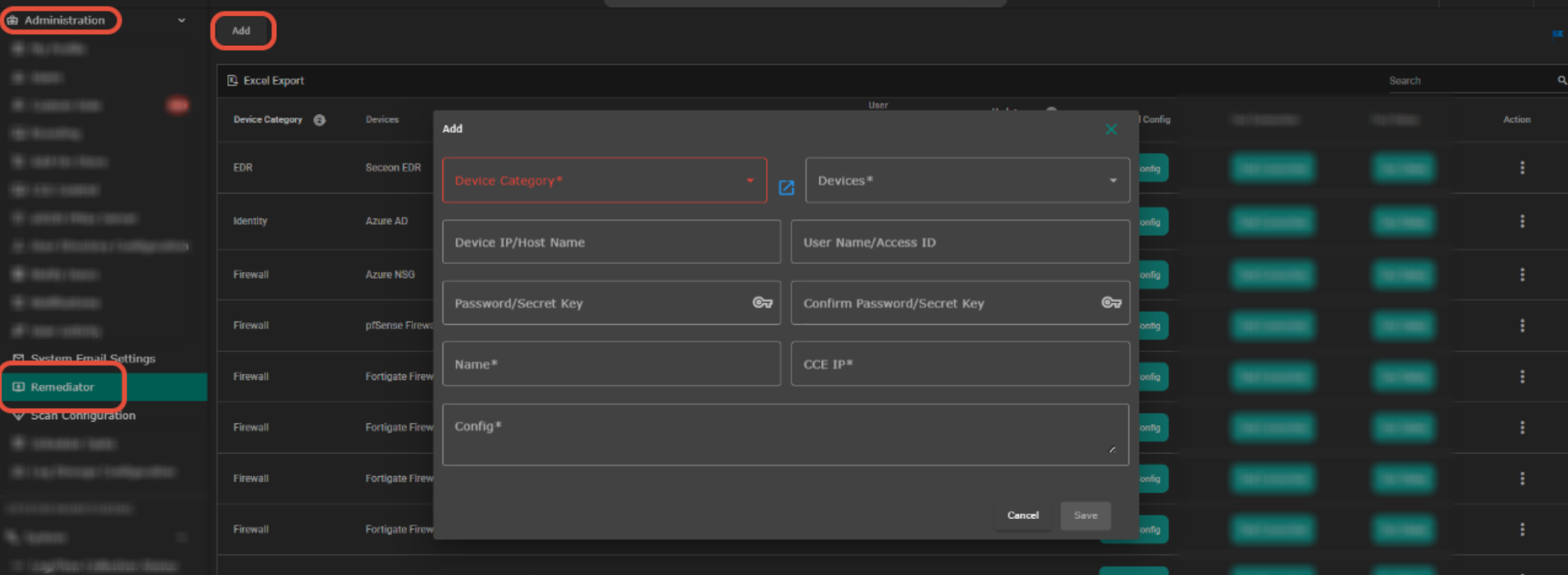
Step 2: Configure Remediator
- Navigate to Settings → Administration → Remediator
- Click Add
- Choose device type and device name (e.g., Palo Alto, FortiGate, CrowdStrike, Azure AD)
- Enter required details:
Device IP / Hostname
Username / API Key / Password
CCE IP
Config - Port (default: 443; custom example: {“port”:”8443”})
Additional configuration fields (if required by device type) - Click Save
Step 3: Test Connection
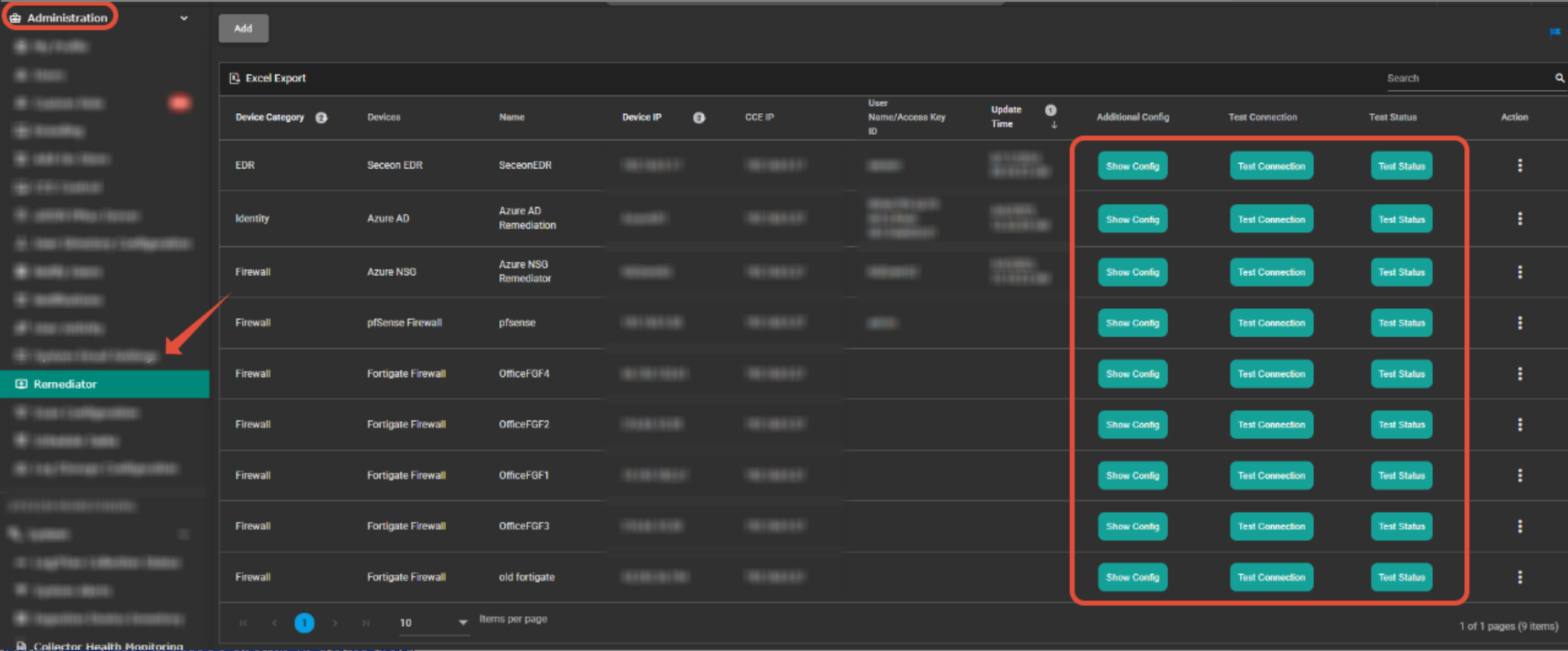
- In the Remediator list, select the newly added device
- Click Test Connection
- Wait for results:
- Success → Device is ready for remediation
- Failure → Error message shown in status field
Step 4: Access Auto Remediation
- From the side menu, navigate to SOAR & BI → Auto Remediation.
- Click Add to create a new auto remediation policy.
Step 5: Configure Policy
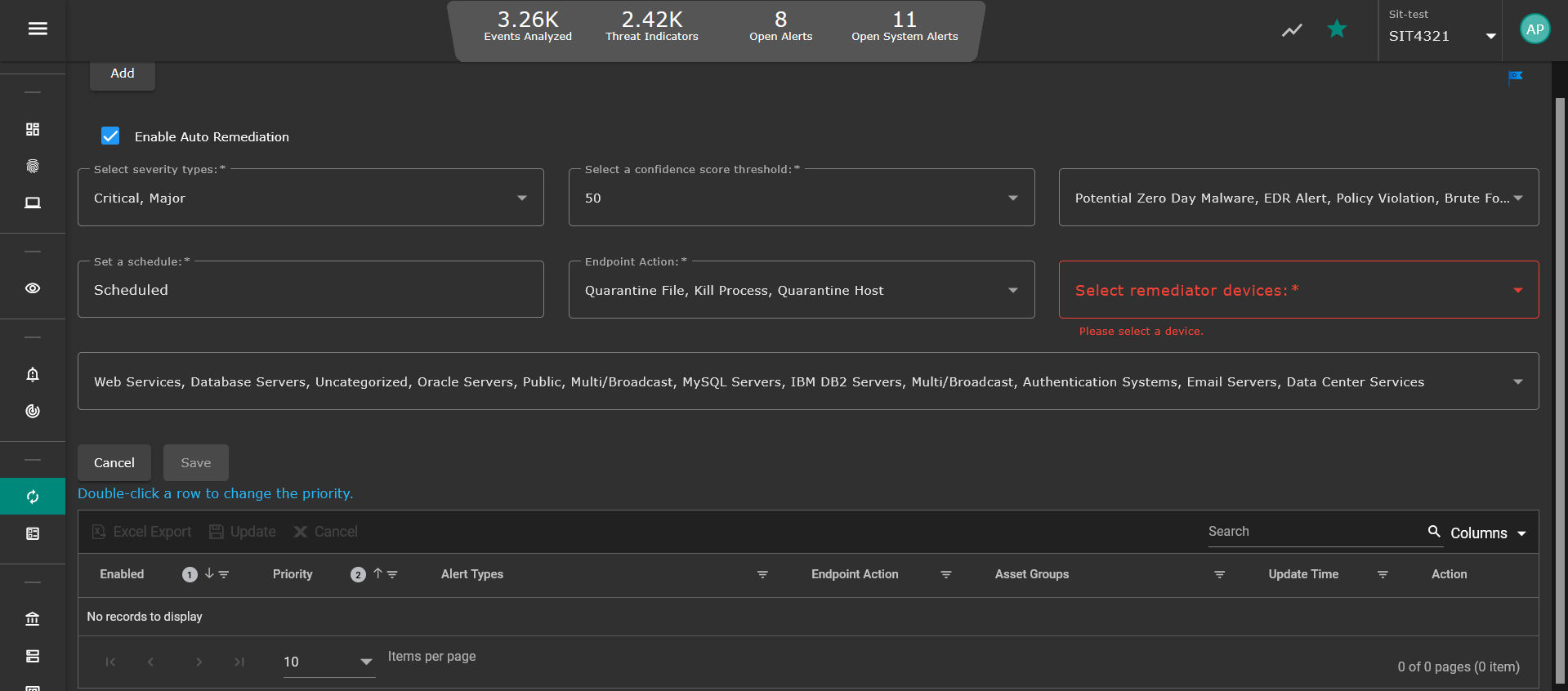
- Enable Auto Remediation – check the box.
- Alert Severity – choose severity levels for auto-remediation:
- Critical
- Major
- Confidence Score Threshold – define the minimum threshold (e.g., 80%).
- Alert Types – select from supported alert categories (e.g., Policy Violation, Potential Malware Infected Host, etc.).
- Schedule – define specific days and time windows for enforcement.
- Endpoint Actions – (ADR EDR-specific):
- Quarantine File
- Kill Process
- Quarantine Host
Note - ADR EDR supports up to three actions. For other EDR devices, only Quarantine Host is supported.
- Remediator Device – select the appropriate device(s) added under Administration → Remediator.
- Asset Group – assign the asset group(s) where this policy should apply.
- Click Save.
Step 6: Verify Configuration
- Confirm that the new policy appears under Auto Remediation.
- Review and validate parameters: severity, alert types, schedule, device, and asset group.
How It Works (Execution Flow)
- An alert matching the configured policy criteria (e.g., Policy Violation) is triggered.
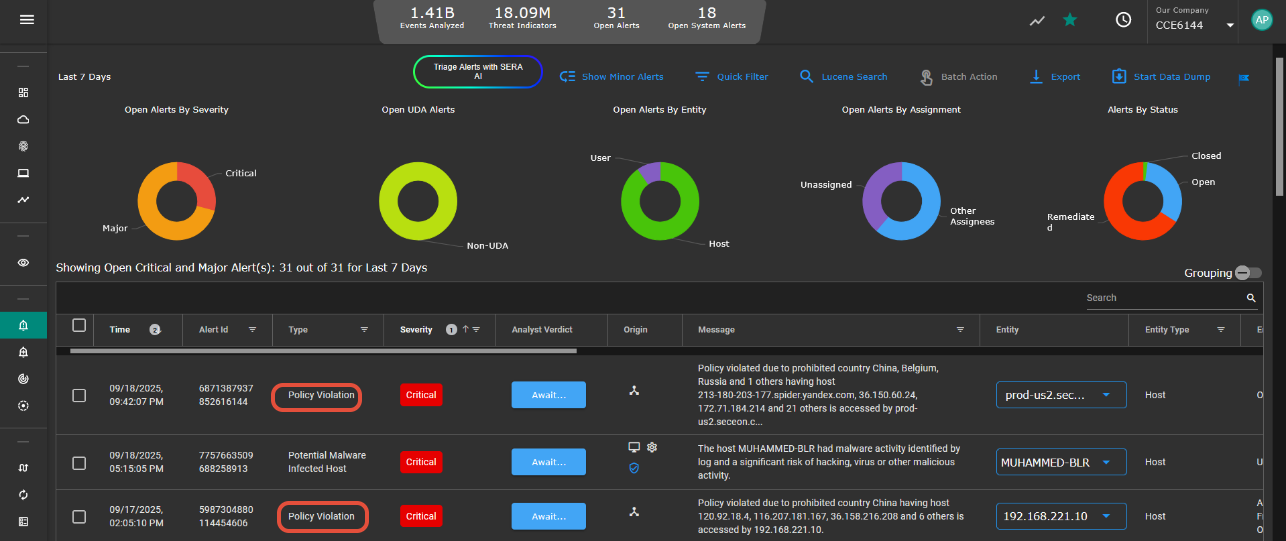
- ADR automatically initiates the remediation action.
- If successful → the alert moves to Remediated state.
- If unsuccessful → the alert remains in Open state, with failure details shown in Alert History.
Verification
- Trigger a test alert matching your configured policy (e.g., simulate malicious IP).
- Confirm the following:
- Alert state changes: Remediated (success) or Open (failure).
- Logs confirm remediation request was sent to the device.
- Enforcement device (Firewall/EDR) console reflects the applied action.
Was this article helpful?
That’s Great!
Thank you for your feedback
Sorry! We couldn't be helpful
Thank you for your feedback
Feedback sent
We appreciate your effort and will try to fix the article