TABLE OF CONTENTS
Overview
This guide provides step-by-step instructions for configuring sFlow on Aruba switches and integrating it with the ADR Control and Collection Engine (CCE) for centralized monitoring, threat detection, and proactive visibility into network traffic.
Aruba supports sFlow monitoring, which samples packets and forwards them to collectors. ADR ingests this flow data via CCE and processes it in the Analytics and Policy Engine (APE) for real-time anomaly detection and security analytics.
Prerequisites
Before configuration, ensure:
Aruba switch supports sFlow (enabled in firmware and licensed if required).
Administrative access to Aruba Fabric Composer.
ADR CCE server is reachable from the switch.
UDP port 6343 is open between Aruba switch and ADR CCE.
Decide sampling rate and polling interval as per bandwidth requirements.
⚠️ Important: If you specify an sFlow Agent IP address, it must be unique per switch. If left unspecified, the agent uses the management interface IP. Agent and Collector IP versions must match (IPv4/IPv6).
Configuration Steps
Step 1: Access Aruba Fabric Composer
Log in to the Aruba Fabric Composer.
Navigate to Configuration → System → sFlow.
Step 2: Create sFlow Configuration
Click Actions → Add.
In the Name page, provide:
Name → Descriptive name (e.g.,
Aria-sFlow).Description → (Optional) Purpose of the configuration.
Click Next.
Step 3: Configure sFlow Settings
Fill in the following fields in the Settings page:
Enable sFlow → ✅ (Checked).
Agent IP Address → Enter IPv4/IPv6 of the switch agent (or leave blank to use management IP).
Collector IP Address → Enter the CCE IP address.
Collector Port Number →
6343(default sFlow port).Polling Interval → Between 5–300 seconds (default 20).
Sampling Rate → Between 1–1,000,000 (default 20,000 → 1 packet sampled per 20,000).
Click Next.
Step 4: Assign to Fabrics and Switches
Select the Fabric(s) to apply this configuration.
All switches in the selected fabric inherit the configuration.
If a new switch is added later, it will auto-inherit.
If applying only to specific switches, manually select them from the drop-down list.
Switch-specific configs override fabric-level configs.
If a switch-specific config is deleted, the fabric-level config applies.
Click Next.
Step 5: Apply and Save Configuration
On the Summary page, review configuration.
If correct, click Apply to activate.
If changes are required, click Back to edit.
Once applied, sFlow configuration begins forwarding data to ADR CCE.
Verification (MSSP Only)
On ADR CCE (Command-Line)
Run the following command to confirm flow data is received:
sudo tcpdump -i any port 6343 and host <Switch_IP> -s0 -AAAReplace
<Switch_IP>with Aruba switch management IP.Packets displayed confirm sFlow traffic is being ingested.
On ADR SIEM UI
Log in to ADR SIEM UI.
Navigate to: System → Logs and Flows Collection Status.
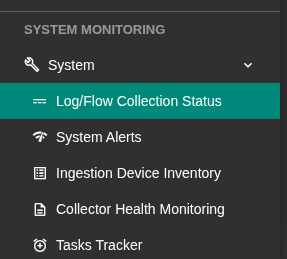
Confirm the Aruba Switch IP is listed under Source Device IP.
Was this article helpful?
That’s Great!
Thank you for your feedback
Sorry! We couldn't be helpful
Thank you for your feedback
Feedback sent
We appreciate your effort and will try to fix the article