Overview
This article explains how to onboard Carbon Black Cloud (VMware Carbon Black) into ADR SIEM. It covers UI provisioning steps, configuration details (including config JSON), verification, troubleshooting, security considerations. Use this article as a reference for operations, onboarding, and documentation handoffs.
Carbon Black Cloud is a software as a service (SaaS) solution that provides next-generation anti-virus (NGAV), endpoint detection and response (EDR), advanced threat hunting, and vulnerability management within a single console using a single sensor.
Pre-requisite
- Active Carbon Black subscription with administrative access
- ADR platform access with administrative privileges
- Network connectivity between ADR and Carbon Black cloud services
- Firewall configuration allowing outbound HTTPS connections on port 443
Steps to add the Carbon Black (Cloud) support
Part 1: Generate API Credentials in Carbon black
Reference: Generate an API Key for Your Appliance (vmware.com)
Part 2: Configure Integration in ADR
- Log into your ADR platform
- Navigate to the tenant where you want to add Carbon Black integration
- Follow the menu path: Administration > Add-On Store > Carbon Black
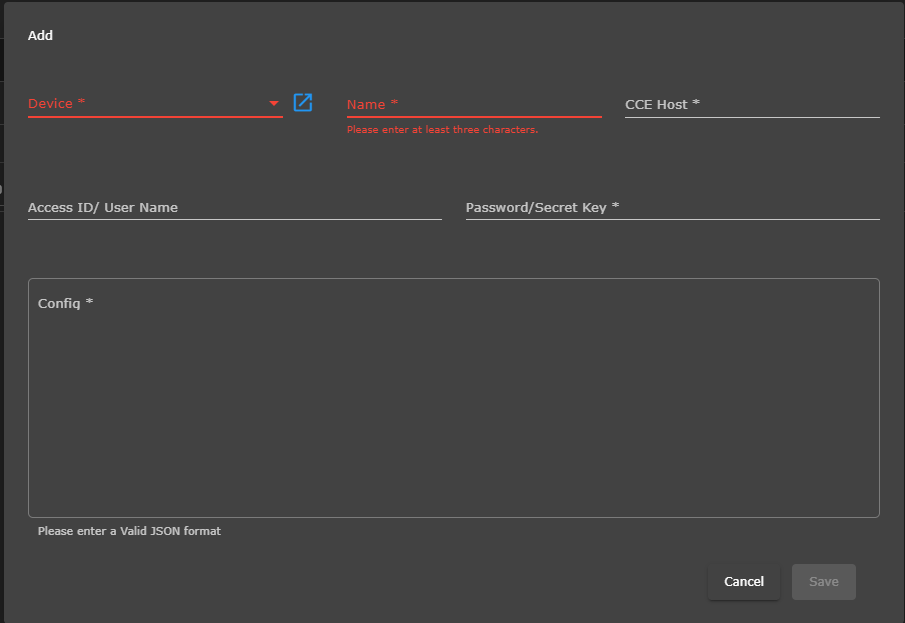
Enter the name of the device.
Enter the CCE IP.
Now enter the generated API ID in Access ID/user name and API Secret Key in the password/Secret Key section.
Now invalid JSON Format in the last field, enter config as e.g. { "host": "Value", "org_key": "1234abc" }
Note: The value of host can be one of mentioned below (Reference:
 Carbon Black Cloud API Access - Carbon Black Developer Network ) (Sometimes, if the configuration is not working, please configure Carbon Black with the default settings through the console. )
EAP01 - defense-eap01.conferdeploy.net
Prod 01 - dashboard.confer.net
Prod 02 - defense.conferdeploy.net
Prod 05 - defense-prod05.conferdeploy.net
Prod 06 - defense-eu.conferdeploy.net
Prod NRT - defense-prodnrt.conferdeploy.net
Prod Syd - defence-prodsyd.conferdeploy.net
Click on the Save button.
Verification (MSSP Only)
From CCE:
To verify it from CCE Please go to ADR CCE and run below cmd:
otmdoc -s addondevice
crontab -l
Make sure the cronjob is running without any error.
From UI:
In UI go to the System tab, we will check that we are seeing Carbon Black
STEP 1: Log in to UI >> SYSTEM>> LOGS AND FLOWS COLLECTION STATUS.
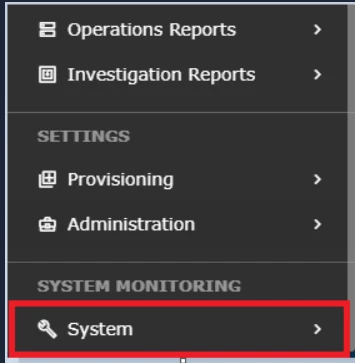
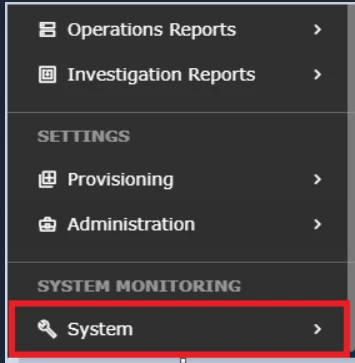
STEP 2: >> LOGS AND FLOWS COLLECTION STATUS.
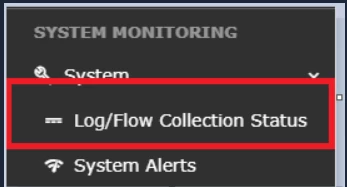
Integration Successful:
- Carbon Black device appears in the source device list
- Log collection status shows "Active" or "Running"
- CrowdStrike logs are appearing in ADR
- No authentication errors in the system logs
Was this article helpful?
That’s Great!
Thank you for your feedback
Sorry! We couldn't be helpful
Thank you for your feedback
Feedback sent
We appreciate your effort and will try to fix the article