Table of Contents
Overview
This Knowledge Base Article provides step-by-step instructions for configuring eScan antivirus software to forward security events to SIEM systems or Syslog servers. eScan's SIEM integration enables real-time monitoring of security events, including hardware changes, application installations/uninstallations/upgrades, and other security-related activities.
Prerequisites
- eScan Management Console version 22 or later
- Administrative access to eScan Management Console
- Syslog protocol supported by SIEM (UDP port 514).
- Network connectivity between eScan endpoints and SIEM/Syslog server
- Firewall rule to allow outbound traffic from EMC to SIEM on the specified port.
Steps to Enable Syslog Forwarding from eScan
Login to eScan Management Console
Open your browser and login to the eScan Management Console using admin credentials.Navigate to SIEM Event Settings
Go to:Admin Settings→SIEM Events.Enable Syslog Event Forwarding
Check the box labeled "Enable SIEM Event Forwarding".
Choose the Event Type you want to forward (e.g., Virus Detected, Device Control Violation, Firewall Logs, etc.).
Refer to the official documentation for the complete list of supported event types.
Configure Syslog Destination
Syslog Server IP: Enter the IP address of the ADR CCE Server.
Port: Enter the port number 514.
Protocol: Choose UDP.
Format: Default is plain syslog; no additional customization is required.
Save and Apply Settings
Click on Apply/Save to push the settings.
Related Documentation
Verification (MSSP Only)
Verification through ADR GUI Console
Open the ADR GUI Console with appropriate administrative rights user.
Navigate to System Monitoring and drop down to System >> Logs/flows Collection Status.
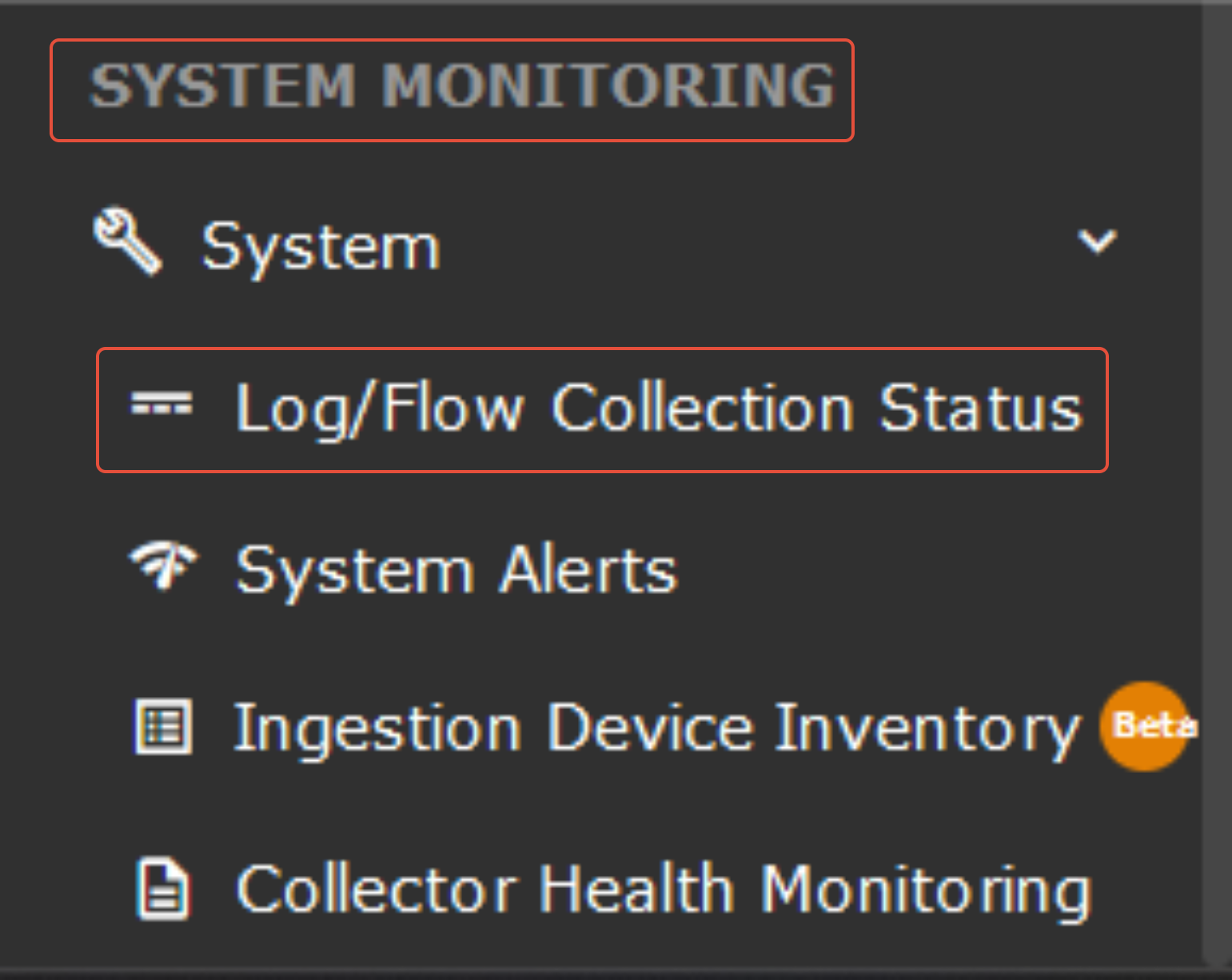
Under the Source device IP address section, the device "escan" configured will be reflected.
Verification Through the CCE server
The following command should be run on the CCE server to check whether or not we are getting logs.
sudo tcpdump -i any port 514 and host <Device IP address> -s0 -AAA
Was this article helpful?
That’s Great!
Thank you for your feedback
Sorry! We couldn't be helpful
Thank you for your feedback
Feedback sent
We appreciate your effort and will try to fix the article