TABLE OF CONTENTS
- Overview
- Prerequisites
- Required Credentials
- Step 1: Obtain API Credentials from Huawei Cloud
- Step 2: Configure Integration in ADR
- Validation and Testing
- Troubleshooting
- Best Practices
- Additional Resources
Overview
Huawei Cloud is a comprehensive cloud computing platform that provides various security services and logging capabilities. This integration enables ADR to collect and analyze security logs from Huawei Cloud services through API connectivity, providing centralized monitoring and threat detection across your cloud infrastructure.
The integration uses Huawei Cloud's API authentication mechanism with Access Key (AK) and Secret Key (SK) credentials, along with project-specific configuration parameters to establish secure communication between Huawei Cloud and ADR.
Prerequisites
- Active Huawei Cloud account with appropriate permissions
- Access to Huawei Cloud console with IAM (Identity and Access Management) privileges
- ADR platform access with administrative rights
- Network connectivity between ADR and Huawei Cloud services
- Understanding of your Huawei Cloud project structure and regional deployment
Network Requirements
Firewall Configuration
- Allow outbound HTTPS connections (port 443)
- Whitelist Huawei Cloud API endpoints for your region
- Ensure DNS resolution for Huawei Cloud domains
Required Credentials
To complete this integration, you will need to obtain the following information from your Huawei Cloud environment:
- Project ID: Unique identifier for your Huawei Cloud project
- Region: Huawei Cloud region where your resources are deployed
- Access Key ID (AK): Public key for API authentication
- Secret Access Key (SK): Private key for API authentication
Step 1: Obtain API Credentials from Huawei Cloud
1.1 Retrieve Project ID
The Project ID is a unique identifier for your Huawei Cloud project and is required for API calls.
Process:
- Log into your Huawei Cloud console
- Follow the detailed instructions provided in the official Huawei Cloud documentation:
- Reference Link: How to Obtain a Project ID
Key Steps:
- Navigate to the project management section
- Locate your target project
- Copy the Project ID (typically a long alphanumeric string)
- Save this value for configuration
1.2 Identify Your Region
The region parameter specifies the geographical location of your Huawei Cloud resources.
Process:
- Determine your Huawei Cloud service region
- Refer to the official Huawei Cloud documentation for region codes:
- Reference Link: Regions and Endpoints
Common Region Examples:
cn-north-1(Beijing)cn-east-2(Shanghai)ap-southeast-1(Hong Kong)me-east-1(Middle East)eu-west-101(Europe)
1.3 Generate Access Key and Secret Key
Access Keys (AK/SK) are used for programmatic access to Huawei Cloud APIs.
Process:
- Access the IAM service in your Huawei Cloud console
- Navigate to Access Key management
- Follow the detailed instructions in the official documentation:
- Reference Link: Creating an Access Key
Important Security Notes:
- ⚠️ Save the Secret Key immediately - it cannot be retrieved after creation
- Store credentials securely and never share them
- Consider using IAM users with minimum required permissions
Required Permissions: Ensure the IAM user or role has appropriate permissions for:
- Log access and retrieval
- Security service monitoring
- API access to relevant Huawei Cloud services
Step 2: Configure Integration in ADR
2.1 Access Device Configuration
- Log into your ADR platform
- Navigate to device integration settings Administration-->Add On store-->Huawei Cloud
- Select "Add New Device" or similar option
- Choose "Huawei Cloud" from the device type list
2.2 Basic Configuration Fields
Device Information:
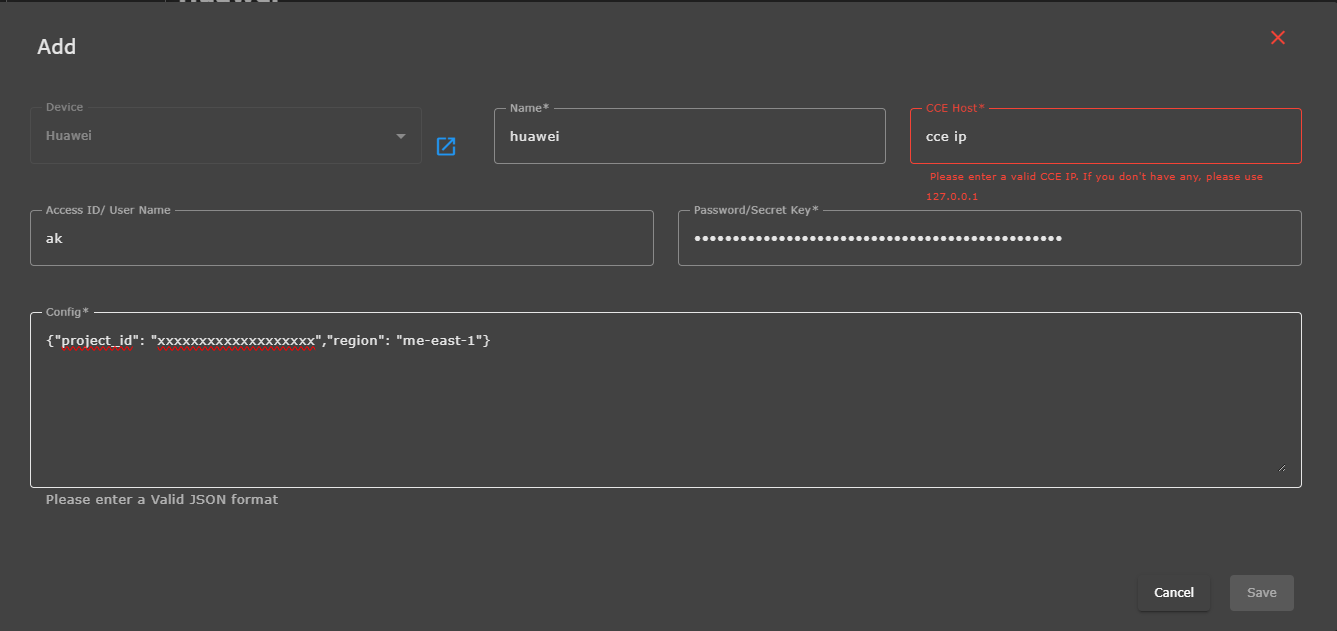
- Device Name: Enter a descriptive name for this integration (e.g., "Huawei Cloud Production")
- Device Type: Select "Huawei Cloud"
2.3 Authentication Configuration
Credential Mapping:
- Access ID/User Name: Enter your Access Key ID (AK) from Huawei Cloud
- Password/Secret Key: Enter your Secret Access Key (SK) from Huawei Cloud
2.4 Advanced Configuration
In the Config section, enter the Project ID and Region in JSON format:
Required Format:
{ "project_id": "your_project_id_here", "region": "your_region_code_here" }
Example Configuration:
{ "project_id": "a1b2c3d4e5f6g7h8i9j0k1l2m3n4o5p6", "region": "me-east-1" }
Configuration Guidelines:
- Use double quotes for both keys and values
- Ensure proper JSON syntax (no trailing commas)
- Replace placeholder values with your actual credentials
- Verify the region code matches your Huawei Cloud deployment
2.5 Complete Configuration Steps
- Device Type: Select "Huawei Cloud"
- Name: Enter descriptive name (e.g., "Huawei Cloud Production")
- Access ID/User Name: Paste your Access Key ID (AK)
- Password/Secret Key: Paste your Secret Access Key (SK)
- Config: Enter JSON configuration with Project ID and Region
- Save: Click Save to complete the integration
Validation and Testing
Connection Verification
- Save Configuration: Complete the setup and save the integration
- Monitor Status: Check the integration status in ADR -->System-->Logs and Flow Collection Status
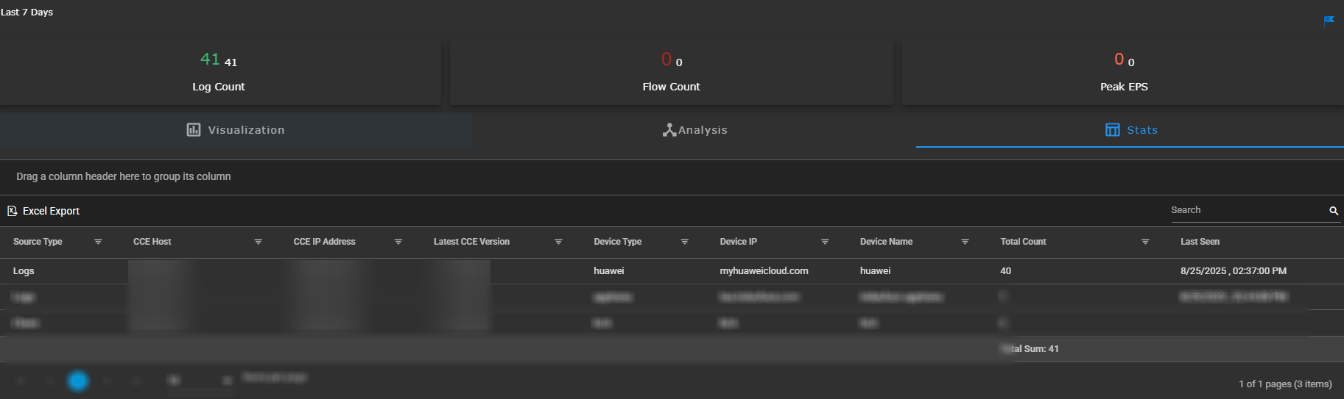
- Log Verification: Confirm that Huawei Cloud logs are being received
- Error Checking: Review any error messages in the system logs-->System Alert
Success Indicators
✅ Successful Integration:
- Integration status shows "Active"
- Huawei Cloud logs appear in ADR -->System-->Logs and Flow Collection Status
- No authentication errors in system logs--> System Alert
- Data ingestion metrics show activity
Troubleshooting
Common Issues and Solutions
Authentication Failures:
- Issue: Invalid credentials or access denied
- Solutions:
- Verify Access Key ID and Secret Access Key are correct
- Ensure IAM user has appropriate permissions
- Check if access keys are active and not expired
- Confirm IAM policies include necessary service access
Configuration Errors:
- Issue: JSON format errors in Config section
- Solutions:
- Validate JSON syntax using online JSON validators
- Ensure double quotes around keys and values
- Remove any trailing commas or extra characters
- Verify Project ID format and length
Regional Issues:
- Issue: Unable to connect to Huawei Cloud services
- Solutions:
- Verify the region code is correct for your deployment
- Ensure services are available in the specified region
- Check network connectivity to Huawei Cloud endpoints
- Confirm firewall rules allow outbound HTTPS connections
Data Collection Issues:
- Issue: No logs or limited data being collected
- Solutions:
- Verify logging is enabled on Huawei Cloud services
- Check IAM permissions for log access
- Ensure target services are generating logs
- Review Huawei Cloud service status
Network Requirements
Firewall Configuration:
- Allow outbound HTTPS connections (port 443)
- Whitelist Huawei Cloud API endpoints for your region
- Ensure DNS resolution for Huawei Cloud domains
Best Practices
Security Recommendations
Credential Management:
- Use dedicated IAM users for API access
- Implement principle of least privilege
- Monitor API usage and access patterns
Configuration Management:
- Document integration configurations
- Implement change management procedures
Additional Resources
Documentation References
- Huawei Cloud Project ID Documentation
- Huawei Cloud Regions and Endpoints
- Huawei Cloud Access Key Management
Support Contacts
- Huawei Cloud Support: Contact through Huawei Cloud support portal
- ADR Support: Contact your ADR support representative for integration assistance
Document Version: 1.0
Last Updated: [29-08-2025]
Integration Type: Cloud API Integration
Supported Services: Huawei Cloud Security Services
Was this article helpful?
That’s Great!
Thank you for your feedback
Sorry! We couldn't be helpful
Thank you for your feedback
Feedback sent
We appreciate your effort and will try to fix the article