TABLE OF CONTENTS
- Overview
- Prerequisites
- Integration Process
- Verification and Testing
Overview
AWS GuardDuty is a threat detection service that uses machine learning, anomaly detection, and integrated threat intelligence to identify malicious activity and unauthorized behavior in AWS environments. This integration enables ADR to collect and analyse security findings from AWS GuardDuty, providing comprehensive visibility into cloud-based threats and security events.
The integration leverages AWS S3 storage for findings export and uses AWS API credentials to establish secure communication between GuardDuty and ADR for centralised threat monitoring and incident response.
Prerequisites
AWS Requirements
- Active AWS account with GuardDuty service enabled
- IAM permissions for GuardDuty findings export configuration
- S3 bucket for findings storage (will be configured during setup)
- AWS Access Key ID and Secret Access Key with appropriate permissions
- Administrative access to AWS Console
ADR Requirements
- ADR platform Access --> Administrative access to ADR UI
- CCE (Collection and Control Engine) is configured and accessible
- Network connectivity between ADR CCE and AWS services
IAM Permissions Required
The AWS IAM user must have the following managed policies attached:
- CloudWatch Logs ReadOnlyAccess: Required for accessing CloudWatch log groups and streams
- Amazon S3 ReadOnlyAccess: Required for reading S3 bucket contents and configurations
Additional Permissions for GuardDuty:
guardduty:GetFindingsguardduty:ListFindingsguardduty:GetDetectors3:GetObjects3:ListBuckets3:GetBucketLocation
Integration Process
Part 1: AWS GuardDuty Configuration
Step 1: Configure GuardDuty Findings Export
AWS GuardDuty requires configuration to export findings to S3 for ADR integration. Follow the comprehensive setup process outlined in the official AWS documentation:
Reference: Exporting GuardDuty Findings
Key Configuration Steps:
-
Access AWS GuardDuty Console:
- Log into AWS Console with administrative privileges
- Navigate to AWS GuardDuty service
- Select your GuardDuty detector
-
Configure Findings Export:
- Enable findings export to S3
- Configure export frequency (recommended: every 6 hours)
- Set up appropriate IAM roles and policies for S3 access
-
S3 Bucket Configuration:
- Create or select S3 bucket for findings storage
- Configure bucket permissions for GuardDuty service access
- Enable versioning and appropriate lifecycle policies
-
Verify Export Setup:
- Confirm findings export is active
- Test that findings are being written to S3
- Validate S3 bucket accessibility
Step 2: Prepare Integration Credentials
Gather Required Information:
- AWS Access Key ID: For API authentication
- AWS Secret Access Key: For API authentication
- AWS Region: Region where GuardDuty and S3 are configured
- S3 Bucket Name: Name of the S3 bucket receiving GuardDuty findings
Part 2: ADR Configuration
Step 1: Access AWS Configuration Interface
- Log in to ADR: Access your ADR platform with administrative privileges
- Navigate to AWS Configuration: Go to the AWS Configuration section
- Select GuardDuty Integration: Choose the Configure Guard Duty option
- Initiate Configuration: Click Add to start a new GuardDuty integration
Step 2: AWS GuardDuty Configuration Form
Based on the ADR configuration interface, complete the following fields:
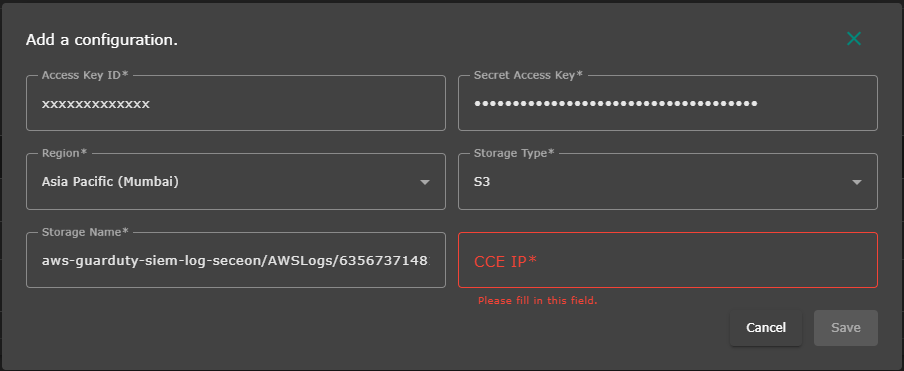
The screenshot above shows the ADR "Add a configuration" interface for AWS GuardDuty integration
Step 3: Enter AWS Credentials
Authentication Fields:
-
Access Key ID: Enter your AWS Access Key ID
- Input the Access Key ID with GuardDuty and S3 permissions
-
Secret Access Key: Enter your AWS Secret Access Key
- Input the corresponding Secret Access Key (will be masked for security)
Step 4: Configure AWS Regional Settings
Regional Configuration:
-
Region: Select your AWS region from the dropdown
- Choose the region where GuardDuty is enabled and S3 bucket is located
- Example regions: "Asia Pacific (Mumbai)", "US East (N. Virginia)", etc.
Step 5: Configure Storage Settings
Storage Configuration:
-
Storage Type: Select "S3" from the dropdown
- S3 is the required storage type for GuardDuty findings export
-
Storage Name: Enter the S3 bucket name
- Input the exact name of the S3 bucket receiving GuardDuty findings
- Example format:
aws-guarduty-siem-log-seceon/AWSLogs/635673714814/GuardDuty/ap-south-1
Step 6: ADR Infrastructure Configuration
CCE Configuration:
-
CCE IP: Enter your Collection and Control Engine (CCE) IP address
- Input the IP address where ADR's CCE is hosted
- This field is mandatory for proper data collection routing
Configuration Summary
| Field | Value | Description |
|---|---|---|
| Access Key ID | [Your AWS Access Key] | AWS API authentication credentials |
| Secret Access Key | [Your AWS Secret Key] | AWS API authentication credential (masked) |
| Region | [Your AWS Region] | AWS region for GuardDuty and S3 |
| Storage Type | S3 | Amazon S3 storage service |
| Storage Name | [S3 Bucket Name] | S3 bucket receiving GuardDuty findings |
| CCE IP | [CCE IP Address] | Collection and Control Engine (CCE) IP |
Step 7: Save Configuration
- Validate Configuration: Ensure all fields are completed correctly
- Save Settings: Click Save to finalize the GuardDuty integration
- Confirm Setup: Verify configuration is saved successfully
Verification and Testing
Step 1: Verify Integration Status
- Monitor Connection Status: Verify connection status shows as active in the Device Ingestion Tab
- Review System Logs: Check for any authentication or connection errors in System-->System Alert Tab
Step 2: Validate Data Collection
- GuardDuty Findings: Ensure GuardDuty is generating findings (may require test scenarios)
- S3 Export: Verify findings are being exported to the configured S3 bucket
- ADR Collection: Confirm GuardDuty findings are appearing in ADR-->Logs and Flow Collection Status Tab

- Data Parsing: Validate that findings are being parsed and categorised correctly under Deep Tracker
Success Indicators
✅ Integration Successful:
- Configuration saved without errors
- GuardDuty findings visible in ADR under Logs and Flow Collection Status Tab

- No authentication errors in the system alert Tab
- S3 bucket shows regular GuardDuty exports
Document Version: 1.0
Last Updated: [06-09-2025]
Integration Type: Cloud Security Service Integration
Data Source: AWS GuardDuty via S3 Export
Was this article helpful?
That’s Great!
Thank you for your feedback
Sorry! We couldn't be helpful
Thank you for your feedback
Feedback sent
We appreciate your effort and will try to fix the article