TABLE OF CONTENTS
- Overview
- Storing logs in S3 bucket
- Enable Logging to Your Own S3 Bucket
- Prerequisites
- Enable Logging
- JSON Bucket Policy
- Enable Logging to Cisco Managed S3 Bucket
- Configuring Cisco Umbrella S3 bucket in ADR
- Verification (MSSP Only)
Overview
Cisco Umbrella is a SaaS product that stores its logs in the S3 bucket. The overall process of integration is to
- Ensure that the logs are stored in the S3 bucket provided by Cisco or owned by the customer.
- Providing these S3 bucket credentials to integrate these logs in the ADR product.
This document describes both of these steps. Ref. Link: https://docs.umbrella.com/deployment-umbrella/docs/log-management
Storing logs in S3 bucket
The logs are stored in the S3 bucket that can be owned by either Cisco itself or the Cisco Umbrella subscriber (your own). We will go through Cisco Umbrella configuration for both of these ownerships.
Enable Logging to Your Own S3 Bucket
Prerequisites
- Full administrative access to the Cisco Multi-org console
- A login to AWS Management Console. If you don't have an account, Amazon provides free sign up for S3.
Note: Amazon requires a credit card in case your usage exceeds free plan usage.
- A bucket configured in Amazon S3 to be used for storing logs. For more information, see Amazon S3 documentation.
Enable Logging
- Navigate to Console Settings > Log Management and select Use your company-managed Amazon S3 bucket.
- In the Bucket Name field, type or paste the exact bucket name you created in Amazon S3 and click Verify.
Umbrella verifies your bucket, connects to it, and saves a README_FROM_UMBRELLA.txt file to your bucket. - Open the README_FROM_UMBRELLA.txt file Umbrella saved to your bucket, copy and paste the token listed in it into Token Number, and click Save.
Manage Logs < Enable Logging to Your Own S3 Bucket > Set up an Amazon S3 Bucket
Set up an Amazon S3 Bucket.
Before you can configure the Multi-or console to store your organization's logs to your own self-managed Amazon S3 bucket, you must first set up an Amazon S3 bucket. For information about how to do this, see Amazon's S3 documentation.
JSON Bucket Policy
When setting up your bucket, you are required to add a bucket policy so that your bucket can accept uploads from your organizations' Umbrella dashboards. Copy and paste the following JSON string, which contains the preconfigured Umbrella bucket policy, into your Amazon S3 policy.
{
"Version": "2008-10-17",
"Statement": [
{
"Sid": "",
"Effect": "Allow",
"Principal": {
"AWS": "arn:aws:iam::568526795995:user/logs"
},
"Action": "s3:PutObject",
"Resource": "arn:aws:s3:::bucketname/*"
},
{
"Sid": "",
"Effect": "Deny",
"Principal": {
"AWS": "arn:aws:iam::568526795995:user/logs"
},
"Action": "s3:GetObject",
"Resource": "arn:aws:s3:::bucketname/*"
},

{
"Sid": "",
"Effect": "Allow",
"Principal":

{ "AWS": "arn:aws:iam::568526795995:user/logs" }

,
"Action": "s3:GetBucketLocation",
"Resource": "arn:aws:s3:::bucketname"
},

{
"Sid": "",
"Effect": "Allow",
"Principal": {
"AWS": "arn:aws:iam::568526795995:user/logs"
},
"Action": "s3:ListBucket",
"Resource": "arn:aws:s3:::bucketname"
}
]
}
Enable Logging to Your Own S3 Bucket < Set up an Amazon S3 Bucket > Enable Logging to a Cisco-managed S3 Bucket
Enable Logging to Cisco Managed S3 Bucket
Steps of Configuration
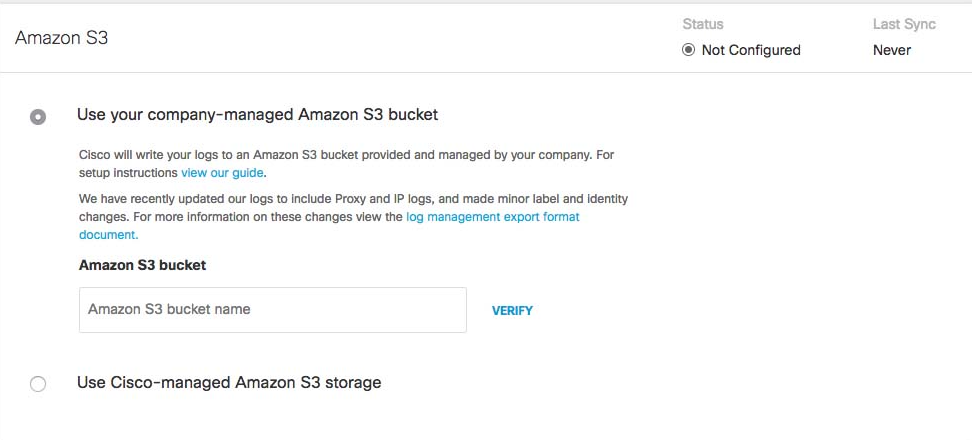
- Select a Region and a Retention Duration.
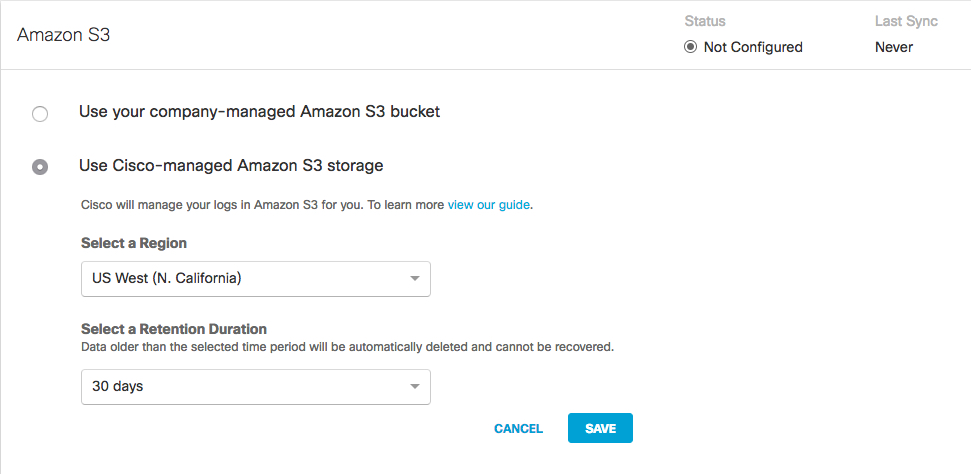
Select a Region: Regional endpoints are important to minimize latency when downloading logs to your servers. The regions match those available in Amazon S3; however, not all regions are available. For example, China is not listed.
Pick the region that's closest to you from the dropdown. If you wish to change your region in the future, you will need to delete your current settings and start over.
Select a Retention Duration: Select 7, 14, or 30 days. Beyond the selected time period, all data will be purged and cannot be retrieved. We recommend a smaller time period if your ingestion cycle is regular. The retention duration can be changed at any time.
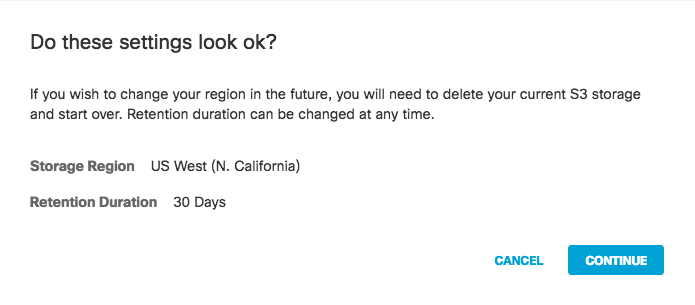
- Click Save and then Continue to confirm your settings.
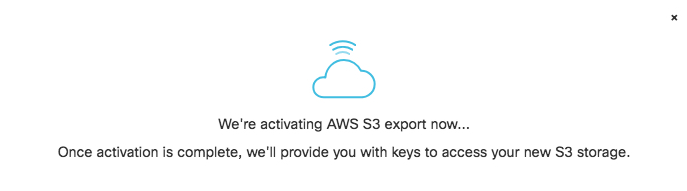
Umbrella activates its ability to export to an AWS S3 account. When activation is complete, the Amazon S3 Summary page appears.
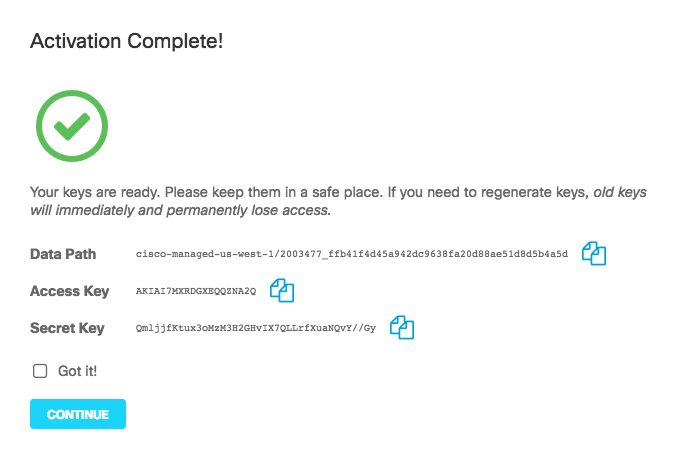
- Copy credentials from this page and store them in a safe place. This is the only time that the Access and Secret keys are made available to you. These keys are required to access your S3 bucket and download logs. If you lose these keys, they must be regenerated.
- Once keys are copied and safe, check Got it and then click Continue.
Note: Continue is unavailable until you check Got it.
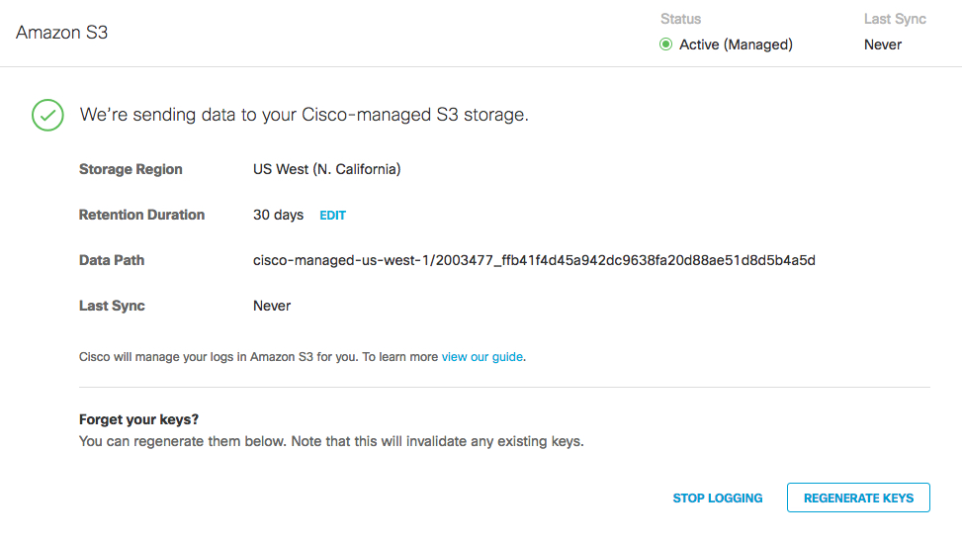
The Umbrella Amazon S3 Summary page provides the Data Path to your Amazon bucket. An Umbrella data path contains the following path fields:
<AWS S3 bucket name>-<AWS region>/<AWS S3 bucket directory prefix>
AWS S3 bucket name and AWS region—the name of the AWS S3 bucket managed by Cisco (cisco-managed), a dash (-), and the AWS region.
AWS S3 bucket directory prefix—the directory prefix (customer folder name) to the Cisco-managed AWS S3 bucket.
Sample S3 Bucket Data Path
cisco-managed-us-west-1/2069997_6ff2802af17337def701c2e7816cf14913zf848aEnable Logging to Your Own S3 Bucket < Enable Logging to a Cisco-managed S3 Bucket > Change the Location of Event Data Logs. Reference Link: https://docs.umbrella.com/deployment-umbrella/docs/manage-logs
Configuring Cisco Umbrella S3 bucket in ADR
- Log in to ADR SIEM UI as an administrator.
- Navigate to Provisioning > Cloud Devices > AWS Configuration.
- Click Add to create a new AWS Flows Cloud Log Device.
- Enter the following settings:
Field Value Access Key ID AWS Access Key (Cisco-managed) or IAM user Access Key (customer-managed) Secret Access Key Corresponding AWS Secret Key Region AWS region (e.g., us-west-2) Storage Type S3 Bucket Storage Name cisco-managed-us-west-1/2069997_6ff2802af17337def701c2e7816cf14913zf848a CCE IP IP Address of CCE Server - Click on Save
Path: Settings / Provisioning / Cloud Devices / AWS Configuration
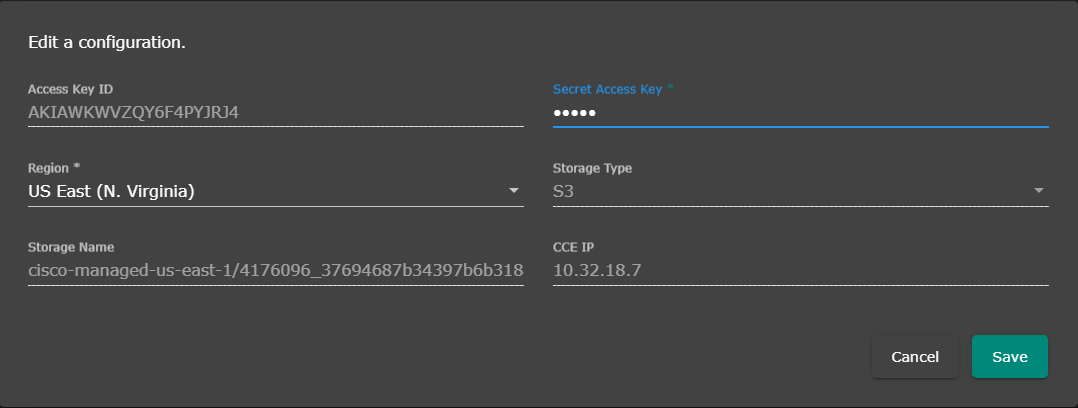
Note: We have to add the configuration for two time in the UI and all the credential is same except storage name below is the example for the same. Don't use S3:// as prefix of below examples
First storage in last you have to add dnslogs- example like-> cisco-managed-us-west-1/2069997_6ff2802af17337def701c2e7816cf14913zf848a/dnslogs
Second storage in last you have to add proxylogs- example like-> cisco-managed-us-west-1/2069997_6ff2802af17337def701c2e7816cf14913zf848a/proxylogs
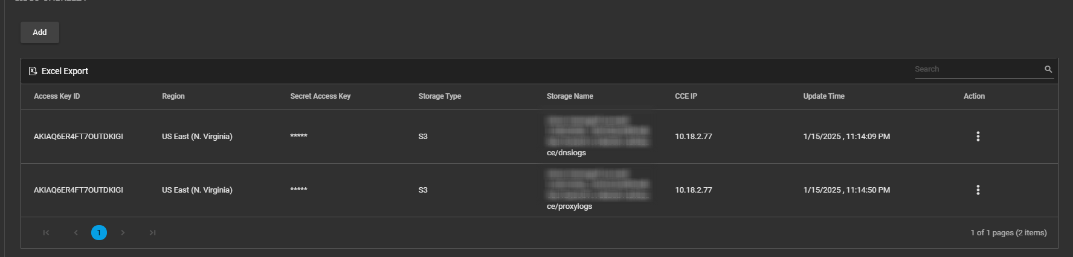
At this point, the system will start to get the Cisco Umbrella logs from the S3 Bucket that you configured.
Verification (MSSP Only)
On ADR SIEM UI
- Navigate to System Logs and Flows > Collection Status.
- Verify that entries for Cisco Umbrella DNS and proxy logs appear as active source devices with correct ingestion counts.
Was this article helpful?
That’s Great!
Thank you for your feedback
Sorry! We couldn't be helpful
Thank you for your feedback
Feedback sent
We appreciate your effort and will try to fix the article