TABLE OF CONTENTS
- Overview
- Prerequisites
- Syslog Configuration via CLI
- Syslog Configuration via GUI
- Verification (MSSP Only)
Overview
FortiManager is a centralized management platform for Fortinet devices such as FortiGate and FortiAnalyzer. Configuring Syslog on FortiManager allows forwarding of logs to the ADR SIEM for centralized security monitoring and analysis.
Prerequisites
- Administrative access to FortiManager Web UI or CLI.
- ADR CCE IP address as the Syslog destination.
- Ensure firewall rules allow UDP port 514 (or TCP 514 if chosen) between FortiManager and ADR CCE.
Syslog Configuration via CLI
- Log in to FortiManager via SSH with an administrator account.
- Enter the following commands to configure Syslog settings (replace
CCEIPwith your ADR CCE IP address):
config log syslogd setting
    set status enable
    set server <CCE_IP>
    set mode udp
    set port 514
    set facility local7
    set format default
end- UDP is the standard mode; TCP can be used if required.
- Facility is commonly set to
local7but can be adjusted. - Format is typically
default;CEFcan be selected if Cisco Event Format is needed.
Syslog Configuration via GUI
Log in to FortiManager Web UI.
Go to: System Settings → Advanced → Syslog.
Enable Syslog.
Enter details:
Server IP:
<CCE_IP>Port:
514Protocol: UDP
Facility: Local7
Choose Log severity level (recommended: Information or Warning).
Save and apply changes.
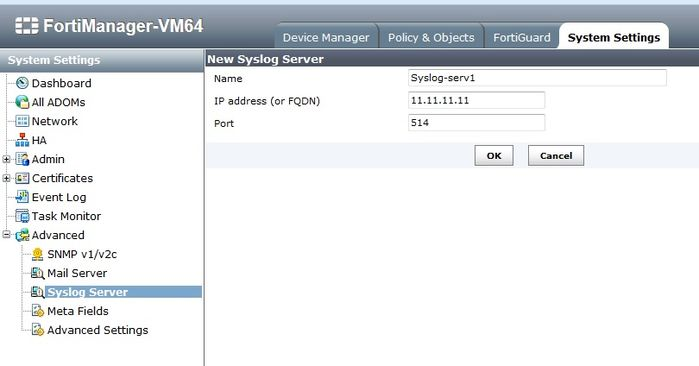
FortiManager v5.0.7 and above.
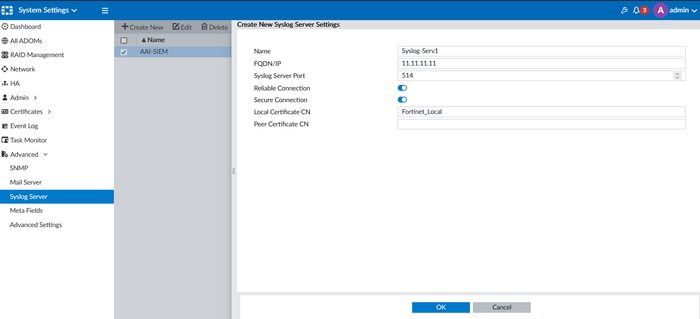
FortiManager v7.0.x and v7.2.x.
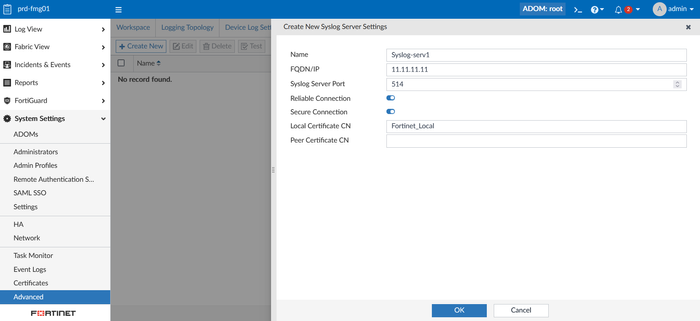
FortiManager v7.4.x and above.
Verification (MSSP Only)
On ADR CCE
Run:
sudo tcpdump -i any port 514 and host <FortiManager_IP> -AAA
You should see syslog packets arriving from FortiManager.
On ADR SIEM UI
Log in to ADR SIEM UI.
Navigate: System → Logs and Flows Collection Status.
Confirm that FortiManager IP appears under Source Device IP.
Was this article helpful?
That’s Great!
Thank you for your feedback
Sorry! We couldn't be helpful
Thank you for your feedback
Feedback sent
We appreciate your effort and will try to fix the article