Table of Contents
- Overview
- Prerequisites
- Install the SentinelOne Certificate on Your CCE Server
- Configuration Steps
- Verification (MSSP Only)
Overview
This guide provides step-by-step instructions to configure SentinelOne EDR to export syslogs to ADR via the CCE (Collection and Control Engine). This integration ensures that security events, alerts, and notifications from SentinelOne are ingested into aiSIEM for advanced analytics, correlation, and threat detection.
Prerequisites
- SentinelOne EDR is installed and operational.
- ADR CCE (Collection and Control Engine) is installed and accessible.
- Root access on the CCE server.
- SentinelOne certificate installed on your CCE server (recommended with ADR assistance).
Install the SentinelOne Certificate on Your CCE Server
It is advised to install the SentinelOne certificate on the CCE server with ADR’s assistance. Follow the instructions here: Configure TCP over TLS Log Forwarding to the CCE (SSL Certificate and Key Creation)
Configuration Steps
Configure SentinelOne to Send Syslogs to aiSIEM (CCE Component)
- Log in to the SentinelOne Admin Console.
- Select your Site.
- In the left-side menu, click the slider icon to open Settings.
-
Navigate to the INTEGRATIONS tab and configure:
- Type: Select SYSLOG
- Enable SYSLOG: Toggle ON
- Host: Enter your CCE server IP address and port (e.g.,
CCE_IP:514). - TLS: Enable TLS
- Formatting: Select CEF2
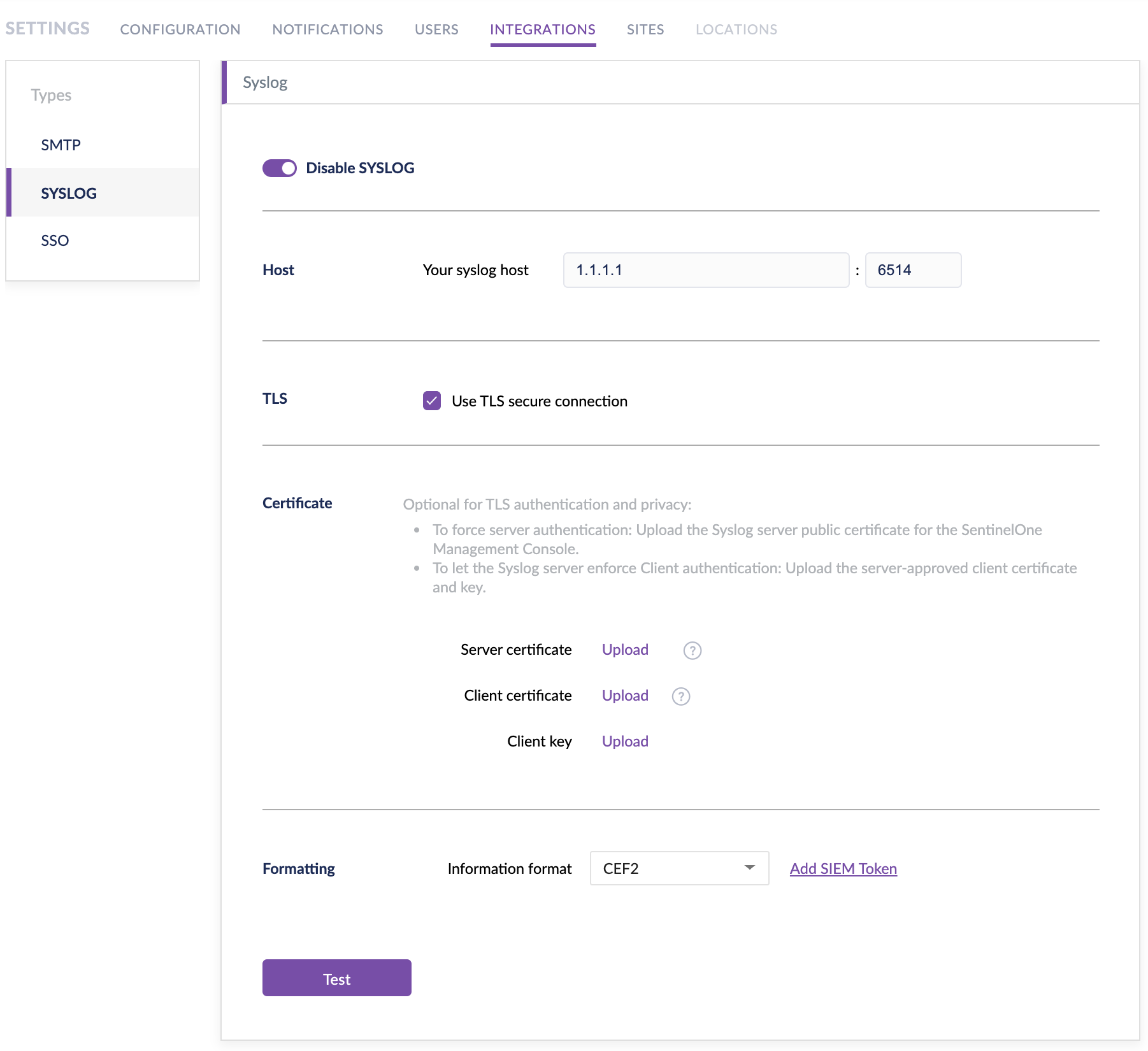
- Click Save to apply changes.
Configure Syslog Notifications in SentinelOne
- On the same settings screen, go to the NOTIFICATIONS tab.
- Under Notification Types, check all options for Syslog Notifications to ensure comprehensive logging (optional but recommended).
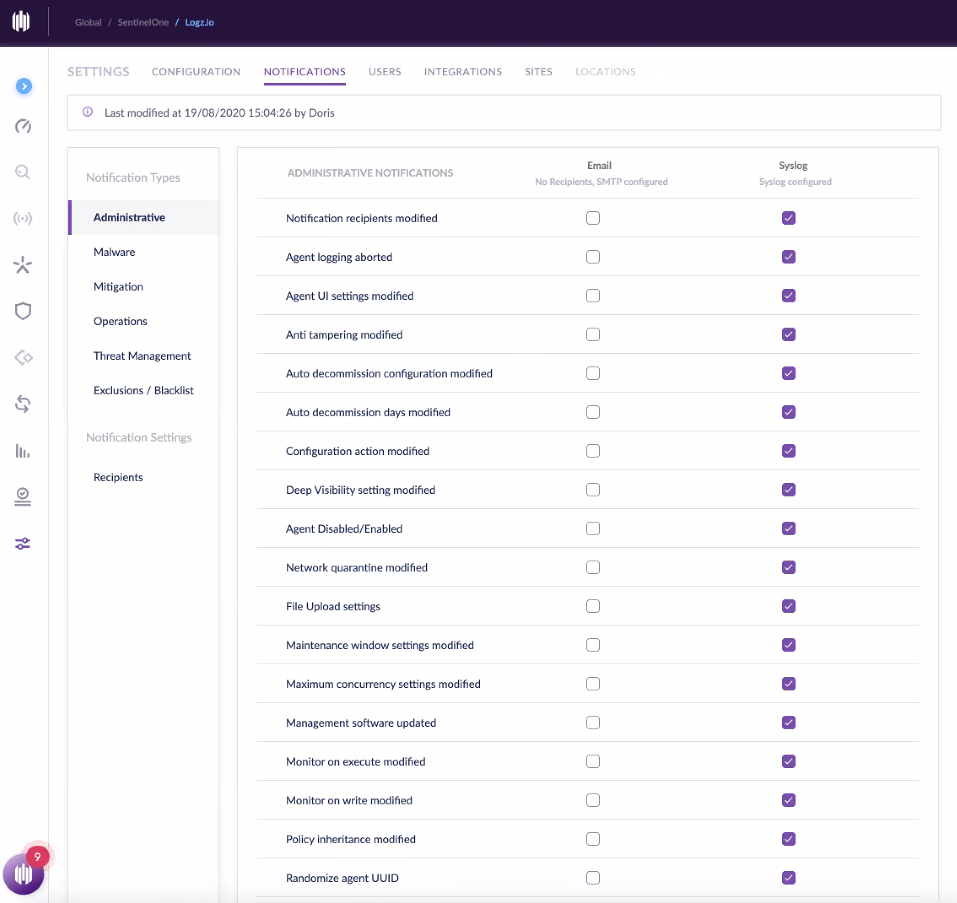
- Click Save if required.
Verification (MSSP Only)
- Allow time for logs to propagate from SentinelOne to aiSIEM.
- In the aiSIEM UI, navigate to Logs and Flows > Collection Status or the syslog monitoring panel to confirm log reception.
Was this article helpful?
That’s Great!
Thank you for your feedback
Sorry! We couldn't be helpful
Thank you for your feedback
Feedback sent
We appreciate your effort and will try to fix the article