TABLE OF CONTENTS
Overview
This article explains how to install and configure Sysmon. Sysmon is a service and device driver that, once installed on a system, logs indicators that can greatly help track malicious activity in addition to helping with general troubleshooting. It is part of a popular set of troubleshooting tools called Sysinternals.
Prerequisites
- Sysmon Official Download (from Microsoft): https://docs.microsoft.com/en-us/sysinternals/downloads/sysmon
- Sysmon Configuration: Sysmon_configuration.xml
- Port 5154 must be allowed through the firewall.
Steps of Configuration
- Download both Sysmon and the Sysmon configuration file. The configuration is a locally hosted XML file.
- Extract Sysmon to a directory and place the configuration XML file in the same directory.
- Open the Windows command prompt in "Run as Administrator" mode and navigate to the Sysmon directory.
- Use the following command to install and enable the Sysmon service:
.\Sysmon.exe -i .\config_v14.xml -accepteula
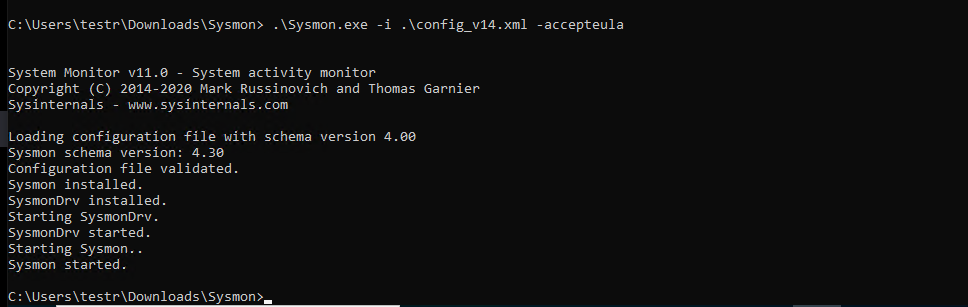
Wait for the installation to finish.
Note:
- Sysmon is an agent that needs to be installed on each Windows system that needs to be monitored.
- Sysmon will generate events that are visible in Windows Event Viewer.
- NXLog must be configured to send the Sysmon events to the CCE using an updated configuration.
Sysmon-Specific NXLog Configuration
## This is a sample configuration file. See the nxlog reference manual about the
## configuration options. It should be installed locally and is also available
## online at http://nxlog.org/docs/
## Please set the ROOT to the folder your nxlog was installed into,
## otherwise it will not start.
define ROOT C:\Program Files\nxlog

#define ROOT C:\Program Files (x86)\nxlog
#define ROOT C:\Program Files (x86)\nxlog

Moduledir %ROOT%\modules
CacheDir %ROOT%\data
Pidfile %ROOT%\data\nxlog.pid
SpoolDir %ROOT%\data
LogFile %ROOT%\data\nxlog.log

<Extension _json>
  Module xm_json
</Extension>
define aisiem \
1,2, 3, 4, 5, 6, 7, 8, 9, 10, 11, 12, 13, 14, 15, 17, 18, 19, 20, 21, 41, 104, \
257, 258, 259, 260, 261, 262, 500, 520, 592, 600, 601, 602, 1001, 1006, 1007,\
1008, 1015, 1074, 1102, 1116, 1117, 1118, 1119, 1125, 2003, 2100, 4103, 4104,\
4608, 4609, 4616, 4618, 4624, 4625, 4634, 4647, 4648, 4649, 4656, 4657, 4657,\
4659, 4660, 4661, 4662, 4663, 4670, 4672, 4685, 4688, 4688, 4690, 4697, 4697,\
4698, 4698, 4699, 4700, 4702, 4703, 4704, 4705, 4707, 4717, 4718, 4719, 4720,\
4722, 4723, 4724, 4725, 4726, 4727, 4728, 4729, 4730, 4731, 4732, 4733, 4734,\
4735, 4737, 4738, 4739, 4740, 4741, 4742, 4743, 4744, 4745, 4746, 4747, 4748,\
4749, 4750, 4751, 4752, 4753, 4754, 4755, 4756, 4757, 4758, 4759, 4760, 4761,\
4762, 4763, 4764, 4765, 4767, 4769, 4772, 4776, 4777, 4778, 4779, 4780, 4781,\
4782, 4783, 4784, 4785, 4786, 4787, 4788, 4789, 4790, 4791, 4794, 4797, 4798,\
4799, 4800, 4801, 4802, 4803, 4946, 4947, 4950, 4954, 4964, 4985, 5001, 5004,\
5007, 5010, 5012, 5012, 5025, 5031, 5136, 5137, 5140, 5141, 5141, 5142, 5143,\
5144, 5145, 5152, 5153, 5155, 5157, 5376, 5377, 5447, 5712, 6005, 6006, 6008,\
7034, 7035, 7036, 7040, 7045, 8003, 8004, 8007, 23010, 23050, 23090, 34112, \
34113, 64004
<Input in>
    Module im_msvistalog
    <QueryXML>
        <QueryList>
            <Query Id="0">
                <Select Path="Microsoft-Windows-Sysmon/Operational">*</Select>
            </Query>
        </QueryList>
    </QueryXML>

            <Exec>
                  if ($EventID NOT IN (%aisiem%)) drop();
            </Exec>
</Input>

<Output out>
Module om_udp
Host <CCE IP>
Port 5154
Exec to_json();
</Output>

<Route main>
 Path in => out
</Route>
Verification of Configuration (MSSP Only)
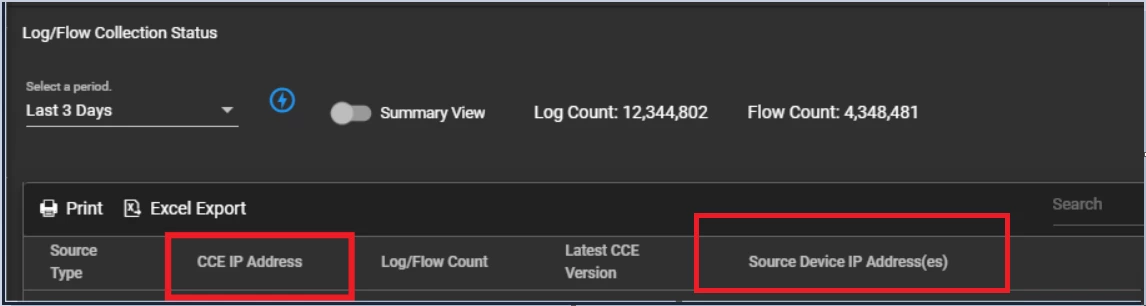
Verification can be done either from the CCE server or from the UI.
Using the UI
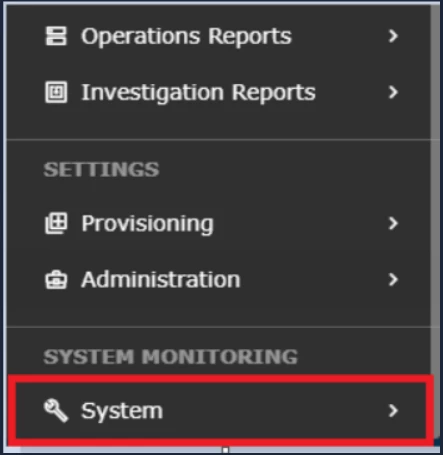
Step 1: Log in to the UI >> System
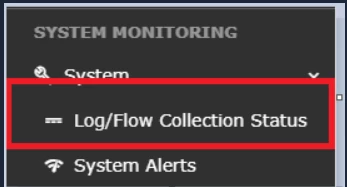
Step 2: Go to Logs and Flows Collection Status.
Using the CCE Server
Run the following command on the CCE server to check whether logs are being received:
sudo tcpdump -i any port 5154 and host <IP address> -AAARelated Article
Sysmon Download Page - https://docs.microsoft.com/en-us/sysinternals/downloads/sysmon
Was this article helpful?
That’s Great!
Thank you for your feedback
Sorry! We couldn't be helpful
Thank you for your feedback
Feedback sent
We appreciate your effort and will try to fix the article