TABLE OF CONTENTS
Overview
This article explains how to enable and forward Active Directory (AD) and Microsoft SQL Server (MSSQL) audit logs from a Windows server to ADR CCE using NxLog. Once configured, ADR ingests, normalises, and analyses these logs for real-time detection of user activity, failed logins, privilege changes, and database anomalies.
Prerequisites
Admin access to the Windows server hosting AD and MSSQL.
Admin access to Microsoft SQL Server Management Studio (SSMS).
Outbound connectivity from Windows server → ADR CCE on:
UDP 514 (MSSQL logs)
UDP 5154 (AD audit logs)
Installed NxLog Community Edition (download link).
Enabling Audit Logs on Base OS (This needs to be done for all Windows servers)
This configuration will need you to enable audit logs of Base OS (to be done on all Windows servers)
1. Log in to the machine as Admin.
2. Follow the instructions as given in the link:
Enabling Audit Logs in MSSQL Server
Enable Login Auditing
Open SSMS with admin credentials.
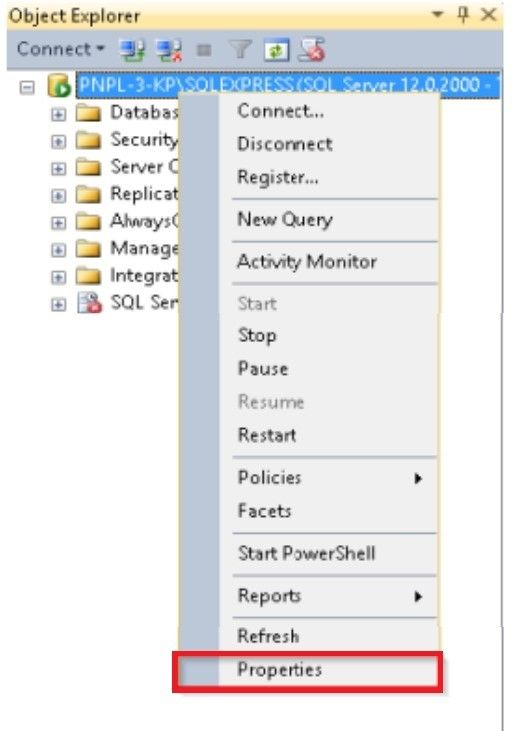
In Object Explorer, right-click the database server → Properties.
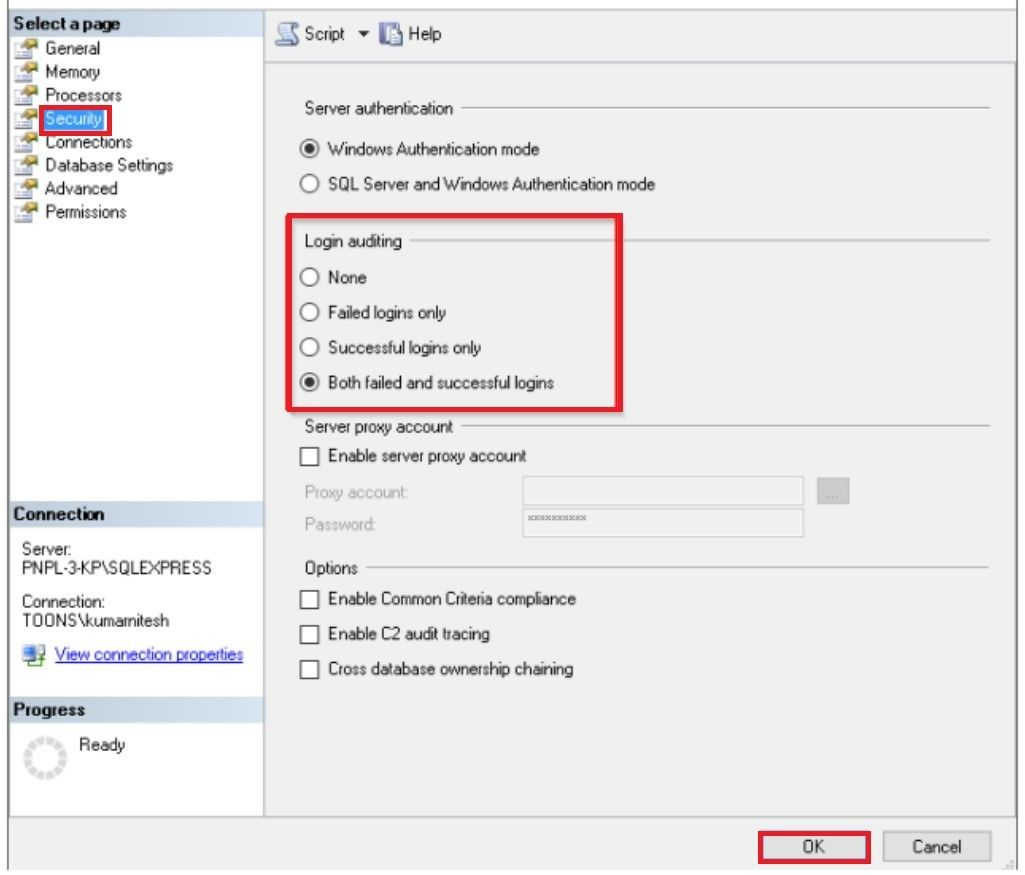
Go to Security → Login Auditing.
Select Both failed and successful logins → OK.
Create and Enable Server Auditing
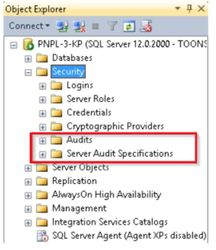
In SSMS Object Explorer, expand Security.
You’ll see Audits and Server Audit Specifications.
Create a New Audit
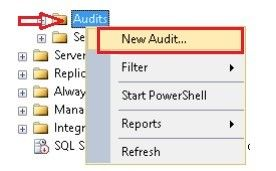
Right-click Audits → New Audit…
In Audit Properties:
Name the audit.
Set Audit Destination = Application Log.
Click OK.
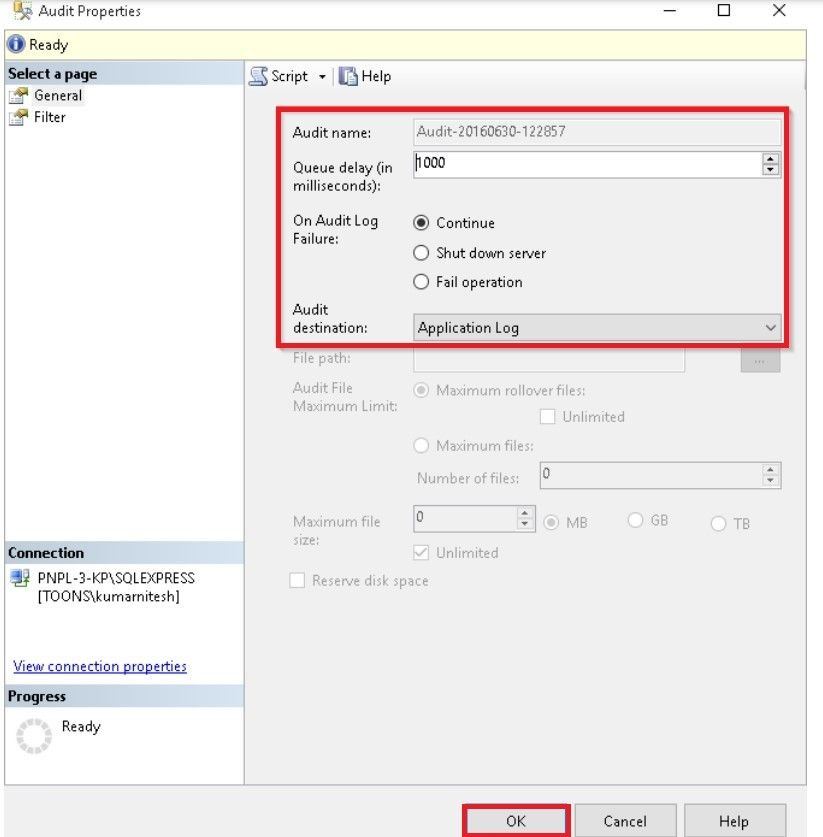
Create a Server Audit Specification
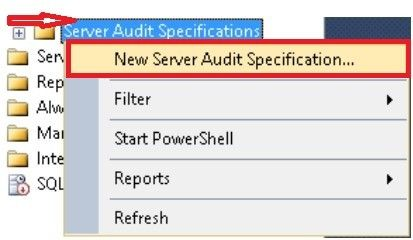
Right-click Server Audit Specifications → New Server Audit Specification…
In the Server Audit Specification Properties:
Name the specification.
Choose the earlier created Audit from the drop-down.
Select recommended Audit Action Types such as:
FAILED_LOGIN_GROUP→ Failed loginsSUCCESSFUL_LOGIN_GROUP→ Successful loginsLOGOUT_GROUP→ LogoutsSERVER_OBJECT_PERMISSION_CHANGE_GROUP→ Permission changesDATABASE_ROLE_MEMBER_CHANGE_GROUP→ Role membership changesSCHEMA_OBJECT_ACCESS_GROUP→ Schema object access
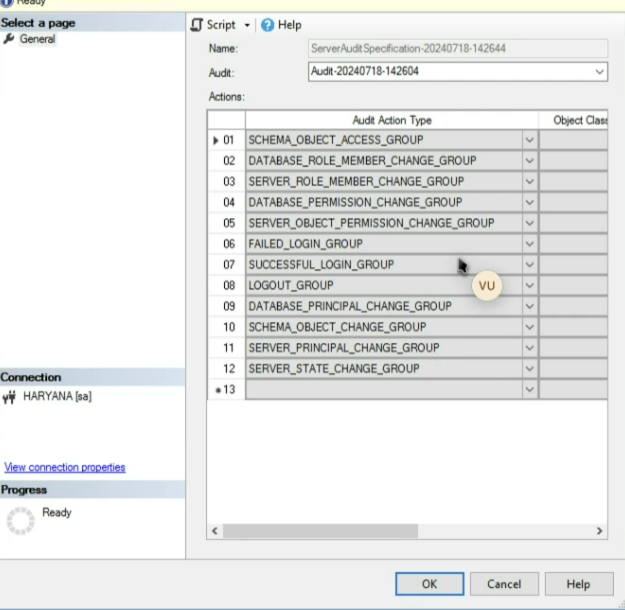
Click OK.
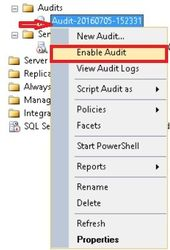
Enable:
Right-click the Audit → Enable
Right-click the Server Audit Specification → Enable Server Audit Specification
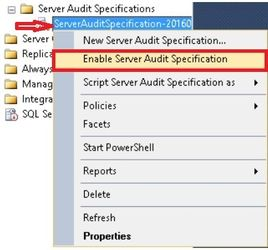
Verify MSSQL Audit Logs
In SSMS, click View Audit Logs.
Confirm audit entries (successful & failed logins, role changes, etc.) are recorded.
NxLog Configuration for AD and MSSQL
File Location
C:\Program Files\nxlog\conf\nxlog.conf
Sample Configuration
Replace file content with the following (update <CCE_IP> with your ADR CCE IP):
## This is a sample configuration file. See the nxlog reference manual about the
## configuration options. It should be installed locally and is also available
## online at http://nxlog.org/docs/
## Please set the ROOT to the folder your nxlog was installed into,
## otherwise it will not start.

define ROOT C:\Program Files\nxlog
#define ROOT C:\Program Files (x86)\nxlog
#define ROOT C:\Program Files (x86)\nxlog

Moduledir %ROOT%\modules
CacheDir %ROOT%\data
Pidfile %ROOT%\data\nxlog.pid
SpoolDir %ROOT%\data
LogFile %ROOT%\data\nxlog.log

<Extension _json>
  Module xm_json
</Extension>

<Extension mssql_csv>
    Module xm_csv
    Fields $Hostname, $SourceName, $Action_ID, $Result, $DataBase, $SV_Instance, $User, $Message
    FieldTypes string, string, string, string, string, string, string, string
    Delimiter ;
</Extension>

define aisiem \
2, 3, 4, 5, 6, 7, 8, 9, 10, 11, 12, 13, 14, 15, 17, 18, 19, 20, 21, 41, 104, 500, \
520, 600, 1001, 1006, 1007, 1008, 1015, 1033, 1034, 1074, 1102, 1116, 1117, 1118, \
1119, 1125, 2003, 2100, 4103, 4104, 4608, 4609, 4616, 4618, 4624, 4625, 4634, 4647, \
4648, 4649, 4656, 4657, 4659, 4660, 4661, 4662, 4663, 4670, 4672, 4673, 4674, 4685, \
4688, 4690, 4697, 4698, 4699, 4700, 4702, 4703, 4704, 4705, 4707, 4717, 4718, 4719, \
4720, 4722, 4723, 4724, 4725, 4726, 4727, 4728, 4729, 4730, 4731, 4732, 4733, 4734, \
4735, 4737, 4738, 4739, 4740, 4741, 4742, 4743, 4744, 4745, 4746, 4747, 4748, 4749, \
4750, 4751, 4752, 4753, 4754, 4755, 4756, 4757, 4758, 4759, 4760, 4761, 4762, 4763, \
4764, 4765, 4767, 4769, 4771, 4772, 4776, 4777, 4778, 4779, 4780, 4781, 4782, 4783, \
4784, 4785, 4786, 4787, 4788, 4789, 4790, 4791, 4794, 4797, 4798, 4799, 4800, 4801, \
4802, 4803, 4946, 4947, 4950, 4954, 4964, 4985, 5001, 5004, 5007, 5010, 5012, 5025, \
5031, 5136, 5137, 5140, 5141, 5142, 5143, 5144, 5145, 5152, 5153, 5155, 5157, 5376, \
5377, 5447, 5712, 6005, 6006, 6008, 7034, 7035, 7036, 7040, 7045, 8003, 8004, 8007, \
11707, 11708, 23010, 23050, 23090, 34112, 34113, 64004 \

<Input in>
      Module im_msvistalog
      Query <QueryList>\
                  <Query Id="0">\
                        <Select Path="Security">* </Select>\
                        <Select Path="Setup">* </Select>\
                        <Select Path="System">* </Select>\
                  </Query>\
            </QueryList>
            <Exec>
                  if ($EventID NOT IN (%aisiem%)) drop();
            </Exec>
</Input>

<Output out>
  Module om_udp
  Host 10.0.0.1
  Port 5154
  Exec to_json();
</Output>

<Input in_mssql>
   Module im_msvistalog
      Query <QueryList>\
<Query Id="0">\
<Select Path="Application">* </Select>\
</Query>\
</QueryList>
    SavePos FALSE
    ReadFromLast TRUE
    Exec $Message = $raw_event;
    # Finding some values:
    Exec if $raw_event =~ /action_id:(\S+)/ $Action_ID = $1;
    Exec if $raw_event =~ /database_name:(\S+)/ $DataBase = $1;
    Exec if $raw_event =~ /server_instance_name:(\S+)/ $SV_Instance = $1;
    Exec if $raw_event =~ /session_server_principal_name:(\S+)/ $User = $1;
    Exec if $raw_event =~ /AUDIT_SUCCESS/\
              {\
                    $Result = 'Success';\
              }\
              else\
                    $Result = 'Failure';
    # Replace white spaces
    Exec $Message = replace($Message, "\t", " "); $Message = replace($Message, "\n", " "); $Message = replace($Message, "\r", " ");
</Input>

<Output out_mssql>
    Module om_udp
    Host 10.0.0.1
    Port 514
    # Ensure we send in the proper format:
    Exec $Hostname = hostname_fqdn();
    Exec mssql_csv->to_csv(); $raw_event = $Hostname + ' mssql_logs: ' + $raw_event;
</Output>

<Route mssql>
    Path in_mssql => out_mssql
</Route>

<Route 1>
  Path in => out
</Route>
Apply and Restart NxLog
Save the updated
nxlog.conf.Restart the NxLog service:
net stop nxlog
net start nxlog
Verification (MSSP Only)
On ADR CCE
Execute the following command:
For Windows AD
sudo tcpdump -i any port 5154 and host <IP Address> -s0 -AAAFor Windows DNS
sudo tcpdump -i any port 514 and host <IP Address> -s0 -AAAConfirm logs from the server are being received.
On ADR GUI
Log in to aiSIEM.
Navigate: System → Logs and Flows Collection Status.
Verify the Windows server’s IP is listed, and both AD and DNS logs are visible.
Was this article helpful?
That’s Great!
Thank you for your feedback
Sorry! We couldn't be helpful
Thank you for your feedback
Feedback sent
We appreciate your effort and will try to fix the article