TABLE OF CONTENTS
- Overview
- Enabling Audit Logs on Base OS (This needs to be done for all Windows servers)
- Enabling Audit Logs for specific applications as mentioned below
- Verification (MSSP Only)
Overview
This article explains the steps to configure logs from IIS application, MS SQL application, and Windows OS Audit-Logs from the same machine.
Requirements
1. Admin access to the window machine running all these applications.
2. Admin access to the MS SQL applications.
3. Port - UDP 514 and 5154 allowed from the Windows machine running all the applications, outwards to the CCE.
NxLog Configuration
1. Login on the Windows server.
2. Download the latest version of nxlog. It is easiest to choose the Windows msi file which includes an installer. Use the link:
http://nxlog.org/products/nxlog-community-edition/download
3. Open the nxlog configuration file at C: \Program Files\nxlog\conf\nxlog.conf
4. Replace the entire configuration file by pasting the following Below – Note to replace the variable (IP Address of ADR Collector) with the actual ADR Server IP address:
#########################################################
# NxLog unified config: AD + MSSQL + DNS + DHCP + Apache (Tomcat)
#                       IIS + Exchange (MsgTrack) + FTP
#
# Edit: replace <CCE_IP> with your Seceon CCE collector IP
# Save at: C:\Program Files\nxlog\conf\nxlog.conf
#########################################################

define ROOT C:\Program Files\nxlog
Moduledir %ROOT%\modules
CacheDir %ROOT%\data
Pidfile %ROOT%\data\nxlog.pid
SpoolDir %ROOT%\data
LogFile %ROOT%\data\nxlog.log

###############################################################################
# Extensions
###############################################################################
<Extension _json>
    Module      xm_json
</Extension>

<Extension mssql_csv>
    Module      xm_csv
    Fields      $Hostname, $SourceName, $Action_ID, $Result, $DataBase, $SV_Instace, $User, $Message
    FieldTypes  string, string, string, string, string, string, string, string
    Delimiter   ;
</Extension>

<Extension syslog>
    Module xm_syslog
</Extension>

###############################################################################
# INPUT: Active Directory / Windows Event Logs (Security, Application, System)
# Forward as JSON over UDP -> port 5154 (Seceon expects JSON for AD/OS)
###############################################################################

define aisiem                                                                       \
2, 3, 4, 5, 6, 7, 8, 9, 10, 11, 12, 13, 14, 15, 17, 18, 19, 20, 21, 41, 104, 500,   \
520, 600, 1001, 1006, 1007, 1008, 1015, 1033, 1034, 1074, 1102, 1116, 1117, 1118,   \
1119, 1125, 2003, 2100, 4103, 4104, 4608, 4609, 4616, 4618, 4624, 4625, 4634, 4647, \
4648, 4649, 4656, 4657, 4659, 4660, 4661, 4662, 4663, 4670, 4672, 4673, 4674, 4685, \
4688, 4690, 4697, 4698, 4699, 4700, 4702, 4703, 4704, 4705, 4707, 4717, 4718, 4719, \
4720, 4722, 4723, 4724, 4725, 4726, 4727, 4728, 4729, 4730, 4731, 4732, 4733, 4734, \
4735, 4737, 4738, 4739, 4740, 4741, 4742, 4743, 4744, 4745, 4746, 4747, 4748, 4749, \
4750, 4751, 4752, 4753, 4754, 4755, 4756, 4757, 4758, 4759, 4760, 4761, 4762, 4763, \
4764, 4765, 4767, 4769, 4771, 4772, 4776, 4777, 4778, 4779, 4780, 4781, 4782, 4783, \
4784, 4785, 4786, 4787, 4788, 4789, 4790, 4791, 4794, 4797, 4798, 4799, 4800, 4801, \
4802, 4803, 4946, 4947, 4950, 4954, 4964, 4985, 5001, 5004, 5007, 5010, 5012, 5025, \
5031, 5136, 5137, 5140, 5141, 5142, 5143, 5144, 5145, 5152, 5153, 5155, 5157, 5376, \
5377, 5447, 5712, 6005, 6006, 6008, 7034, 7035, 7036, 7040, 7045, 8003, 8004, 8007, \
11707, 11708, 23010, 23050, 23090, 34112, 34113, 64004 \

<Input in_ad>
    Module      im_msvistalog
    Query <QueryList>\
            <Query Id="0">\
                <Select Path="Security">* </Select>\
                <Select Path="Application">* </Select>\
                <Select Path="System">* </Select>\
            </Query>\
          </QueryList>
</Input>

<Output out_ad>
    Module      om_udp
    Host        <CCE_IP>
    Port        5154
    Exec        to_json();    # send Windows events as JSON
</Output>

<Route route_ad>
    Path        in_ad => out_ad
</Route>

###############################################################################
# INPUT: MSSQL Server Audit Events (from Windows Event Log)
# Export as CSV-like line + hostname prefix to port 514
###############################################################################
<Input in_mssql>
    Module          im_msvistalog
    SavePos         FALSE
    ReadFromLast    TRUE
    Exec            $Message = $raw_event;
    # Extract common MSSQL fields when present
    Exec            if $raw_event =~ /action_id:(\S+)/ $Action_ID = $1;
    Exec            if $raw_event =~ /database_name:(\S+)/ $DataBase = $1;
    Exec            if $raw_event =~ /server_instance_name:(\S+)/ $SV_Instace = $1;
    Exec            if $raw_event =~ /session_server_principal_name:(\S+)/ $User = $1;
    Exec            if $raw_event =~ /AUDIT_SUCCESS/ \
                       { $Result = 'Success'; } \
                    else { $Result = 'Failure'; }
    # Normalize whitespace
    Exec            $Message = replace($Message, "\t", " "); $Message = replace($Message, "\n", " "); $Message = replace($Message, "\r", " ");
</Input>

<Output out_mssql>
    Module          om_udp
    Host            <CCE_IP>
    Port            514
    Exec            $Hostname = hostname_fqdn();
    Exec            mssql_csv->to_csv();
    Exec            $raw_event = $Hostname + ' mssql_logs: ' + $raw_event;
</Output>

<Route route_mssql>
    Path in_mssql => out_mssql
</Route>

###############################################################################
# INPUT: DNS Diagnostic Logs (file)
# Typical path: C:\Windows\Sysnative\dns\dns*   (use Sysnative on 64-bit to access system folder)
###############################################################################
<Input dns_in>
    Module      im_file
    File        "C:\\Windows\\Sysnative\\dns\\dns*"
    SavePos     TRUE
    InputType   LineBased
    Exec        if $raw_event =~ /^#/ drop(); # drop comments
    Exec        $Message = $raw_event;
</Input>

<Output dns_out>
    Module      om_udp
    Host        <CCE_IP>
    Port        514
    Exec        $SyslogFacilityValue = 2;
    Exec        $SourceName = 'windows_dns_logs';
    Exec        to_syslog_bsd();
</Output>

<Route route_dns>
    Path dns_in => dns_out
</Route>

###############################################################################
# INPUT: DHCP Server Logs (file)
# Default path examples:
#  - C:\Windows\Sysnative\dhcp\DhcpSrvLog-*.log
###############################################################################
<Input dhcp_in>
    Module      im_file
    File        "C:\\Windows\\Sysnative\\dhcp\\DhcpSrvLog*"
    SavePos     TRUE
    InputType   LineBased
    Exec        if $raw_event =~ /^#/ drop();
    Exec        $Message = $raw_event;
</Input>

<Output dhcp_out>
    Module      om_udp
    Host        <CCE_IP>
    Port        514
    Exec        $SyslogFacilityValue = 2;
    Exec        $SourceName = 'windows_dhcp_logs';
    Exec        to_syslog_bsd();
</Output>

<Route route_dhcp>
    Path dhcp_in => dhcp_out
</Route>

###############################################################################
# INPUT: Apache (Tomcat) Access Logs
# Example Tomcat access log path - adjust to your install folder
###############################################################################
<Input apache_in>
    Module      im_file
    File        "C:\\Program Files\\Apache Software Foundation\\Tomcat 9.0_Tomcat9.0\\localhost_access_log.*"
    SavePos     TRUE
    InputType   LineBased
    Exec        if $raw_event =~ /^#/ drop();
    Exec        $Message = $raw_event;
</Input>

<Output apache_out>
    Module      om_udp
    Host        <CCE_IP>
    Port        514
    Exec        $SyslogFacilityValue = 2;
    Exec        $SourceName = 'apache-access';
    Exec        to_syslog_bsd();
</Output>

<Route route_apache>
    Path apache_in => apache_out
</Route>

###############################################################################
# INPUT: IIS Logs (W3C log format)
# Default path: C:\inetpub\logs\LogFiles\W3SVC*\u_ex*
###############################################################################
<Input iis_in>
    Module      im_file
    File        "C:\\inetpub\\logs\\LogFiles\\W3SVC*\\u_ex*"
    SavePos     TRUE
    ReadFromLast TRUE
    InputType   LineBased
    Exec        if $raw_event =~ /^#/ drop();
    Exec        $Message = $raw_event;
</Input>

<Output iis_out>
    Module      om_udp
    Host        <CCE_IP>
    Port        514
    Exec        $SyslogFacilityValue = 2;
    Exec        $SourceName = 'windows_iis_logs';
    Exec        to_syslog_bsd();
</Output>

<Route route_iis>
    Path iis_in => iis_out
</Route>

###############################################################################
# INPUT: Exchange Message Tracking Logs
# Typical path (Exchange 2016/2019): 'C:\Program Files\Microsoft\Exchange Server\V15\TransportRoles\Logs\MessageTracking\*.log'
###############################################################################
<Input exchange_in>
    Module      im_file
    File        "C:\\Program Files\\Microsoft\\Exchange Server\\V15\\TransportRoles\\Logs\\MessageTracking\\*.log"
    SavePos     TRUE
    InputType   LineBased
    Exec        if $raw_event =~ /HealthMailbox/ drop();
    Exec        if $raw_event =~ /^#/ drop();
    Exec        $Message = $raw_event;
</Input>

<Output exchange_out>
    Module      om_udp
    Host        <CCE_IP>
    Port        514
    Exec        $SyslogFacilityValue = 2;
    Exec        $SourceName = 'exchange_msgtrk_log';
    Exec        to_syslog_bsd();
</Output>

<Route route_exchange>
    Path exchange_in => exchange_out
</Route>

###############################################################################
# INPUT: FTP Server Logs (example path for WS_FTP)
# Adjust path for your FTP server product
###############################################################################
<Input ftp_in>
    Module      im_file
    File        "C:\\Program Files (x86)\\Ipswitch\\WS_FTP Server\\Logging Server\\Logs\\*"
    SavePos     TRUE
    InputType   LineBased
    Exec        if $raw_event =~ /^#/ drop();
    Exec        $Message = $raw_event;
</Input>

<Output ftp_out>
    Module      om_udp
    Host        <CCE_IP>
    Port        514
    Exec        $SyslogFacilityValue = 2;
    Exec        $SourceName = 'windows_ftp_logs';
    Exec        to_syslog_bsd();
</Output>

<Route route_ftp>
    Path ftp_in => ftp_out
</Route>

###############################################################################
# End of config
###############################################################################
5. Open Services (from the search box on your Windows computer) and restart nxlog from the list of services. If you do not find this service, type the following commands at an elevated (as an administrator) command prompt:
net stop nxlog
net start nxlog
Enabling Audit Logs on Base OS (This needs to be done for all Windows servers)
This configuration will need you to enable audit logs of Base OS (to be done on all Windows servers):
1. Login to the machine as Admin.
2. Follow the instructions as given in the link:
Enabling Audit Logs for specific applications as mentioned below
DNS, IIS, Oracle, Apache, Exchange, FTP, and other applications. The steps are described in the following sections.
Enabling Audit Logs on IIS
1. Login to the machine as Admin.
2. Follow the instructions as given in the link:
Enabling Logging on DNS
1. Login to the machine as Admin.
2. Follow the instructions as given in the link:
Once the configuration is complete and policies are enabled, open Command Prompt and run the command gpupdate /force to validate that the policies are enabled.
Verification (MSSP Only)
Using UI
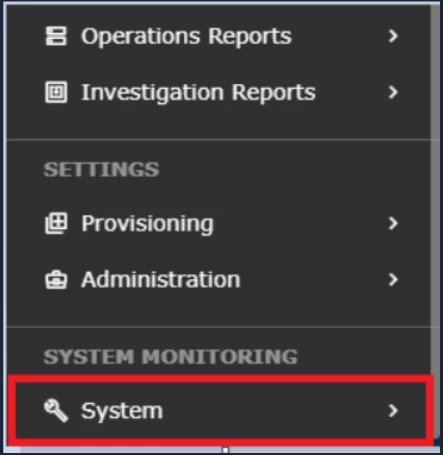
STEP 1: Log in to UI >> SYSTEM
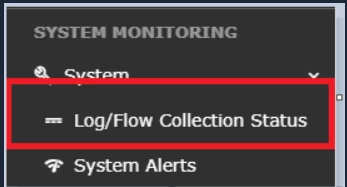
STEP 2: >> LOGS AND FLOWS COLLECTION STATUS.
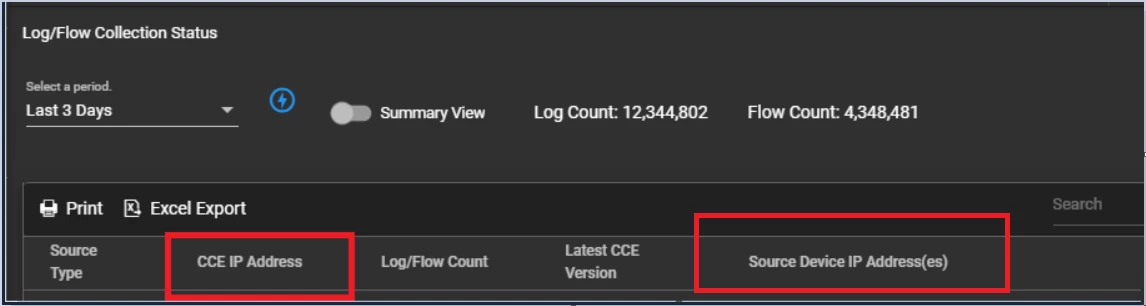
STEP 3: >>Inside SOURCE DEVICE IP, IP will reflect.
Was this article helpful?
That’s Great!
Thank you for your feedback
Sorry! We couldn't be helpful
Thank you for your feedback
Feedback sent
We appreciate your effort and will try to fix the article