TABLE OF CONTENTS
Overview
DNS Diagnostic Logging helps administrators capture and analyze detailed DNS server activity for troubleshooting, monitoring, and security investigations. By enabling debug logging, you can collect packet-level details, query/response activity, and other diagnostic information that can be forwarded to ADR or analyzed locally.
This article provides step-by-step instructions to enable and verify DNS diagnostic logging on a Windows DNS server.
Prerequisites
Before enabling DNS diagnostic logging, ensure the following:
Administrative access to the Windows DNS Server.
Sufficient disk space for storing DNS debug log files.
ADR CCE connectivity if logs are intended to be forwarded to ADR.
Procedure to Enable DNS Diagnostic Logging
Open the DNS Manager:
dnsmgmt.mscIn the DNS Manager console:
Right-click the DNS server name and select Properties.
Navigate to the Debug Logging tab.
Configure debug logging:
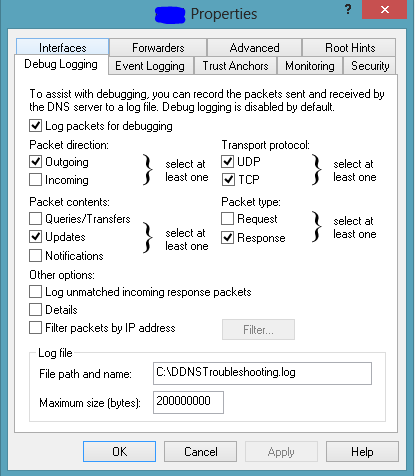
✅ Select Log packets for debugging.
File Path & Name: Enter the location where the log file should be saved (e.g.,
C:\Windows\System32\dns\dns.log).Maximum Size: Set an appropriate file size limit (e.g.,
5000000bytes).
(Optional) Filter specific packet types to reduce noise:
Incoming / outgoing packets
UDP / TCP queries
Non-recursive / recursive queries
WINS lookups
Click Apply and then OK to save changes.
Verification (MSSP Only)
Local Verification on DNS Server
Reopen the DNS server Properties window.
Go to the Debug Logging tab.
Confirm that the Log packets for debugging option is still checked.
Verify that the configured log file is being generated and updated at the specified path.
Verification from ADR (if forwarding logs)
Log in to the ADR dashboard.
Navigate to: System → Logs and Flows Collection Status.
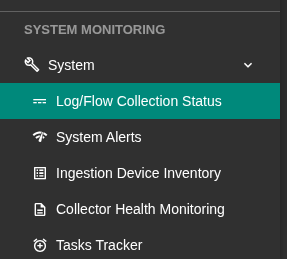
Confirm that the DNS server’s IP is listed as a log source.
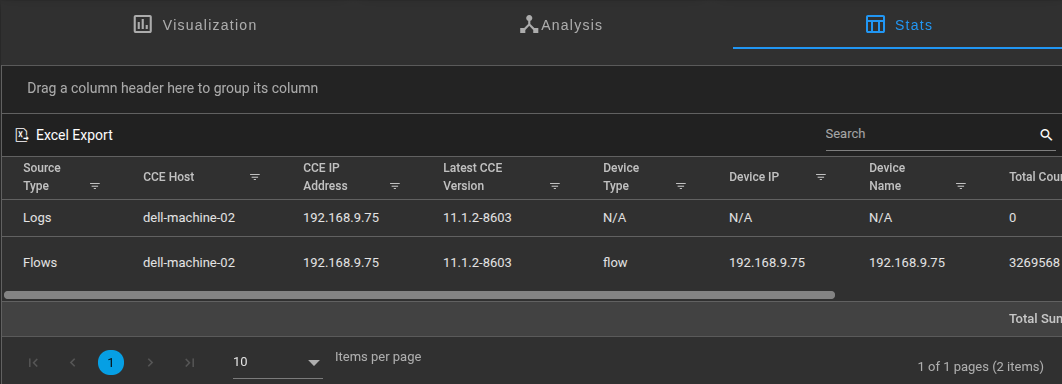
Check that DNS debug logs are being ingested and normalized.
Was this article helpful?
That’s Great!
Thank you for your feedback
Sorry! We couldn't be helpful
Thank you for your feedback
Feedback sent
We appreciate your effort and will try to fix the article