TABLE OF CONTENTS
- Overview
- Prerequisites
- Integration Configuration Process
- Configuration Summary
- Verification Process (MSSP Only)
- Troubleshooting
Overview
This knowledge base article provides comprehensive step-by-step procedures to integrate Accops ZTNA (HySecure) with ADR for centralized log collection, monitoring, and security analysis. The integration leverages the Syslog protocol to forward security events and access logs from the Accops ZTNA platform to ADR's Central Collection Engine (CCE).
Accops HySecure is a Zero Trust Network Access (ZTNA) solution that provides secure remote access to applications and resources. By integrating with ADR, organizations can achieve comprehensive visibility into user access patterns, security events, and potential threats across their ZTNA infrastructure.
Prerequisites
Before beginning the integration process, ensure the following requirements are met:
System Requirements
- HySecure Client: Active HySecure deployment with administrative access
- Security Certificate: Valid Security Officer-based certificate for HySecure management console authentication
- Network Connectivity: Established connectivity from administrator's machine to HySecure Gateway on port 443 (HTTPS)
- ADR: Active ADR platform with CCE (Central Collection Engine) configured
Access Requirements
- Administrative privileges on HySecure management console
- Security Officer certificate properly installed and configured
- Administrative access to ADR platform
- Network administrative rights for firewall configuration
Network Prerequisites
- Port 443: HTTPS connectivity from admin machine to HySecure Gateway
- Port 514: UDP/TCP connectivity from HySecure Gateway to ADR CCE (Syslog)
- Firewall Rules: Appropriate rules configured between HySecure and ADR systems
Integration Configuration Process
Step 1: Access HySecure Management Console
1.1 Certificate-Based Authentication
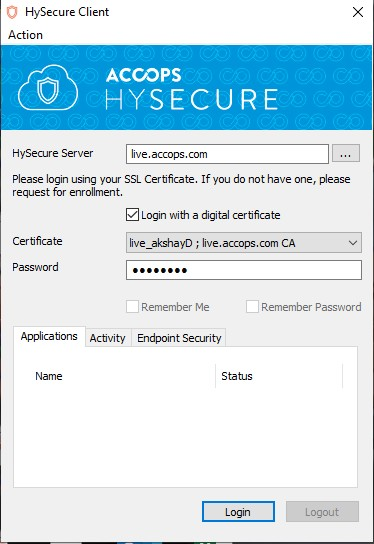
- Launch HySecure Console: Open the HySecure management interface
- Certificate Selection: Use the Security Officer-based certificate generated for your respective HySecure Gateway
- User Authentication: Complete the certificate-based login process
- Verify Access: Ensure successful authentication and admin console access
Important Notes:
- The certificate must be properly installed and trusted
- Ensure the certificate corresponds to your specific HySecure Gateway
- Verify certificate validity and expiration dates
Step 2: Configure Syslog Settings
2.1 Navigate to Logging Configuration
Access Logging Section: After successful login, navigate to the "Logging" section in the admin console
- Select Syslog Settings: Click on "SysLog Settings" to access syslog configuration options
2.2 Enable Syslog Functionality
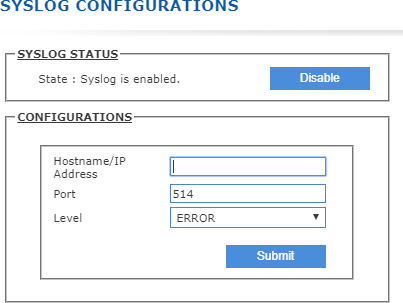
Enable Syslog: In the Syslog status section, select "ENABLE" to activate syslog functionality
- Verify Status: Confirm that syslog status shows as enabled
Step 3: Configure Syslog Server Details
3.1 Syslog Server Configuration
Enter Syslog Server IP: Input the IP address of your ADR CCE (Syslog Server)
- Use the IP address where ADR's Central Collection Engine is hosted
- Ensure this IP is reachable from the HySecure Gateway
3.2 Network Connectivity Verification
Critical Network Requirements:
- Default Syslog Port: 514 (UDP/TCP)
- Firewall Configuration: Ensure proper firewall connectivity from HySecure Gateway to ADR Syslog Server
- Network Reachability: Verify that port 514 is accessible from HySecure Gateway to ADR CCE
Network Validation Steps:
- Test connectivity from HySecure Gateway to ADR CCE on port 514
- Verify firewall rules allow outbound syslog traffic
- Confirm network routing between systems
3.3 Log Level Configuration
- Select Log Level: Choose "Info"as the log level according to integration requirements
- Info Level: Provides comprehensive logging including informational messages
- Alternative Levels: Debug, Warning, Error (adjust based on monitoring needs)
3.4 Save Configuration
Submit Settings: Click "Submit" to save all syslog configuration settings
- Verify Configuration: Confirm settings are saved successfully
- Test Connectivity: Verify syslog messages begin flowing to ADR
Configuration Summary
HySecure Syslog Configuration Parameters
| Parameter | Value | Description |
|---|---|---|
| Syslog Status | ENABLE | Activates syslog functionality |
| Syslog Server IP | [ADR CCE IP] | Destination IP for log forwarding |
| Port | 514 | Standard syslog port (UDP/TCP) |
| Log Level | Info | Comprehensive logging level |
Verification Process (MSSP Only)
Step 1: Access ADR Interface
- Login to ADR: Access ADR with administrative privileges
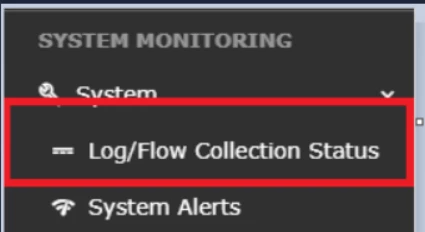
- Navigate to System: Go to the System-
- Access Log Collection Status: Select "Log/Flow Collection Status" option
Step 2: Verify Integration Status
2.1 Source Device Verification
Check Source Device IP: In the SOURCE DEVICE IP section, verify that the HySecure Gateway IP is reflected

- Verify Active Status: Confirm the device shows as active and receiving logs
- Monitor Log Flow: Check that logs are being collected from the HySecure system
Troubleshooting
Common Integration Issues
Network Connectivity Problems
Issue: HySecure cannot reach ADR CCE Solutions:
- Verify firewall rules allow traffic on port 514
- Test network connectivity using ping or telnet
- Check routing tables and network configuration
- Ensure no intermediate firewalls block syslog traffic
Certificate Authentication Issues
Issue: Cannot login to HySecure console Solutions:
- Verify certificate is properly installed
- Check certificate validity and expiration
- Ensure certificate matches the HySecure Gateway
- Contact security team for certificate renewal if needed
Syslog Configuration Problems
Issue: Logs not appearing in ADR Solutions:
- Verify syslog is enabled in HySecure
- Check ADR CCE IP address is correct
- Confirm log level is set to "Info"
- Restart syslog service if necessary
Log Collection Issues
Issue: Partial or missing logs in ADR Solutions:
- Verify log level configuration in HySecure
- Check ADR log parsing rules for HySecure format
- Monitor network bandwidth and connectivity stability
- Review system logs for any dropped messages
Network Diagnostics
To test connectivity from HySecure Gateway to ADR CCE, run the following commands:
ping <Seceon_CCE_IP>

telnet <Seceon_CCE_IP> 514

netstat -an | grep 514"
Firewall Verification:
Ensure outbound rules allow HySecure Gateway to reach ADR CCE on port 514
- Verify inbound rules on ADR CCE allow syslog traffic from HySecure
- Check for any intermediate firewalls or security appliances
Was this article helpful?
That’s Great!
Thank you for your feedback
Sorry! We couldn't be helpful
Thank you for your feedback
Feedback sent
We appreciate your effort and will try to fix the article