TABLE OF CONTENTS
- Overview
- Requirements
- Instructions
- Configuration of Base OS Syslogs from the Linux servers to the CCE
- Login to the Linux server, as the "admin" user.
- Verify the Linux Syslogs being received at ADR CCE(Command Line)
- Verify the Linux Logs being received at ADR Platform GUI
Overview
This article explains the requirements, steps to configure, and verify the Base OS syslogs from the Linux server to the ADR CCE Collector.
IMPORTANT: Please do not send ADR-supplied Linux boxes logs to a CCE. This created an infinite loop that will likely bring the system down.
Requirements
- Admin access to the Linux server.
- Linux audit logs to be enabled on the Linux server.
- Access to ADR CCE command line with "seceon" user (In case you haven't received the password for it, please contact support)
- Access to ADR Platform GUI.
Instructions
This process comprises of the three steps as mentioned below
- Configuration of syslogs from the Linux based server to the CCE
- Verify the syslogs being received at ADR CCE (Command Line)
- Verify the syslogs being processed by ADR Platform (GUI)
Configuration of Base OS Syslogs from the Linux servers to the CCE
- Login to the Linux server, as the "admin" user.
- Open the rsyslog.conf, file using the vi editor, command to be used:
sudo vi /etc/rsyslog.conf#### begin forwarding rule ###
*.* @CCE-IP:514
#### end of the forwarding rule ###
Example: *.* @192.168.19.48:514 - to send log by UDP- Save the rsyslog.conf file using :wq!
- Run the command: service rsyslog restart
- Check the status of rsyslog: service rsyslog status, to ensure rsyslog runs with no errors.
Do not use rsyslog conf changes on the CCE
Verify the Linux Syslogs being received at ADR CCE (Command Line)
- Login to the ADR CCE via command line (any SSH Client you are using), as "seceon" user.
- Run the command: sudo tcpdump -i any host LinuxServerIP and port 514 -XX
- Examine the logs being displayed on the screen to ensure they are Linux server Base OS Logs.
- Press CTRL+C to stop the capture. If you do not see the correct logs being shown in this capture, please get back to the Linux server and verify the configuration as per the steps in previous section.
Verify the Linux Logs being received at ADR Platform GUI
- Login to the ADR Platform GUI, as a user/administrator
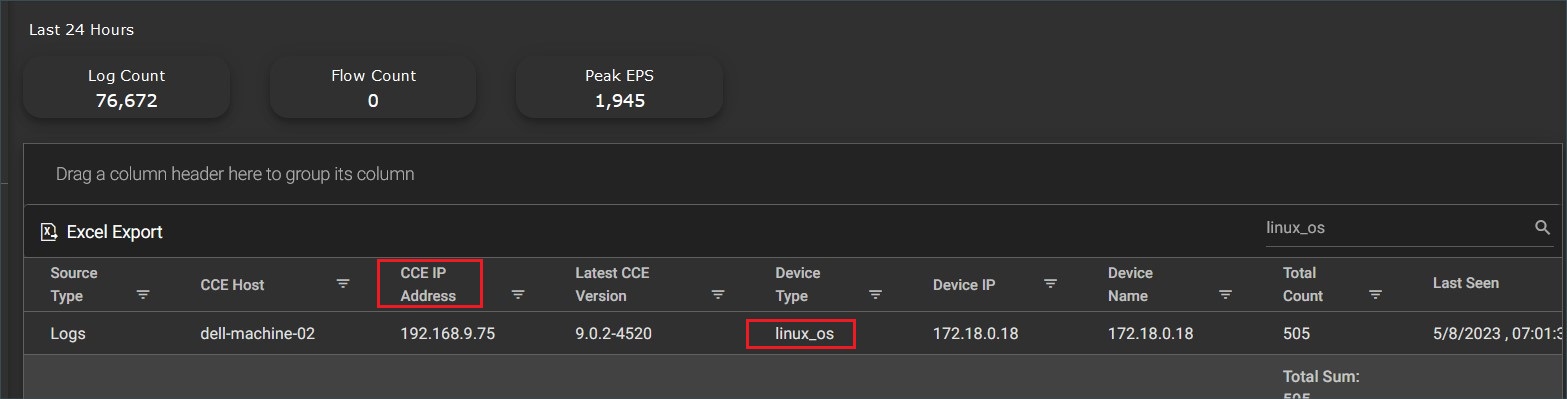
- Go to the "Logs/Flows Collection Status" screen under the "System" tab and look for the Linux server device IP with a tag "-linux_os". If you do not see the IP with the tag, please get back to the previous section and verify the steps.
- With the device entry verified in previous step, please go to "Deep Tracker" screen under "Threat Hunting" and check for "linux" in the "Source Data Type" filter dropdown.
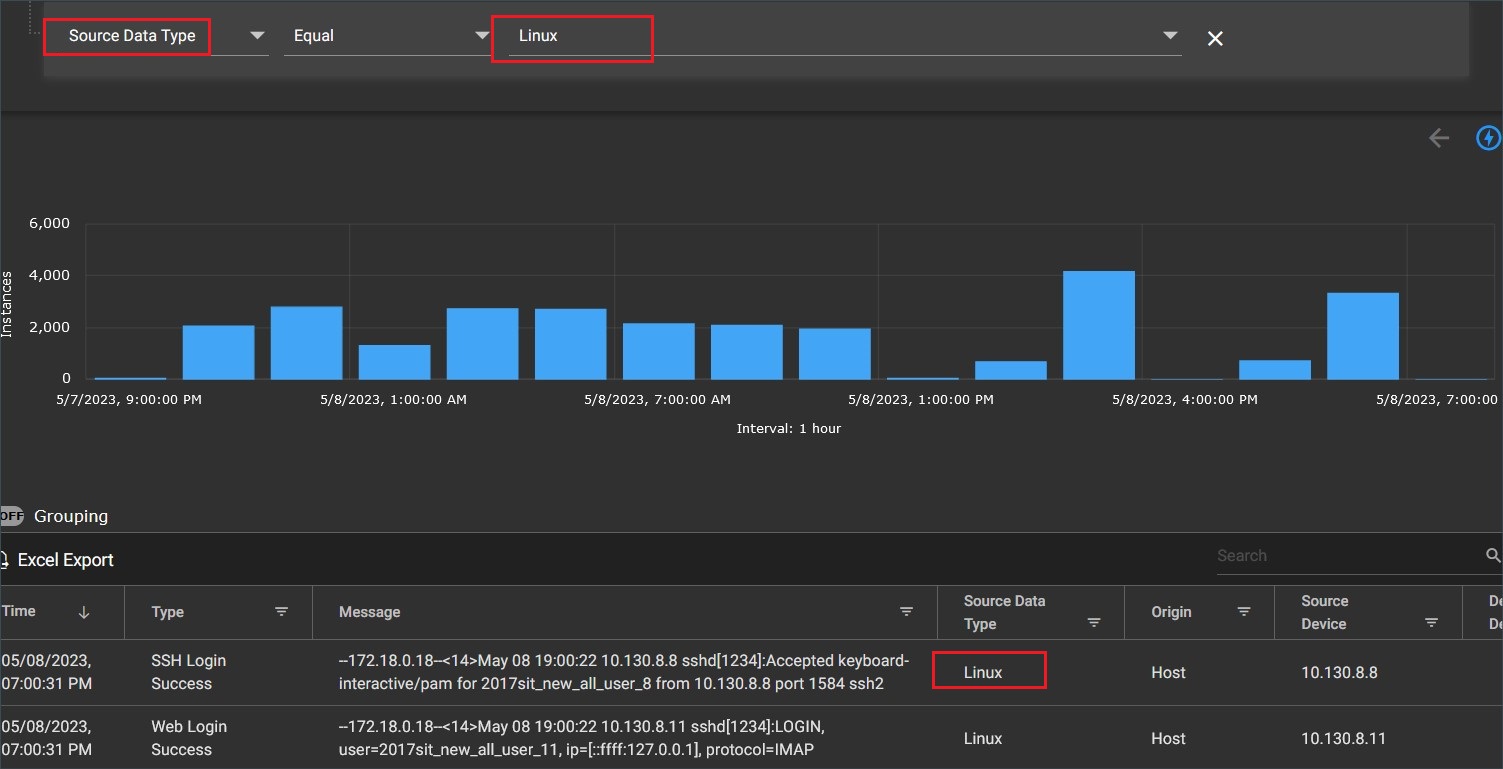
- If you see the data after generating this report, you are all set. If not, please review the configurations.
In case of any issues/assistance required, please contact support.
Was this article helpful?
That’s Great!
Thank you for your feedback
Sorry! We couldn't be helpful
Thank you for your feedback
Feedback sent
We appreciate your effort and will try to fix the article