TABLE OF CONTENTS
- Overview
- Prerequisites
- Salesforce API Credential Generation
- Configure Salesforce in ADR SIEM
- Verification (MSSP Only)
Overview
This guide explains how to integrate Salesforce with ADR SIEM (aiSIEM/aiXDR) using the Salesforce API. The process requires creating a Connected App, generating OAuth tokens, and configuring ADR with the API credentials. Logs are collected via the CCE (Collection and Control Engine) and analyzed in the APE (Analytics and Policy Engine) for proactive monitoring, anomaly detection, and compliance visibility.
Prerequisites
Salesforce administrator access.
ADR SIEM administrator access.
ADR CCE server IP.
Salesforce API Credential Generation
Step 1: Create a Connected App in Salesforce
Log in to Salesforce as Admin.
Go to: Setup → App Manager.
Click New Connected App.
Fill in:
Connected App Name, API Name, Contact Email.
Under API (Enable OAuth Settings), check Enable OAuth Settings.
Callback URL →
https://login.salesforce.com/(or another valid URL).OAuth Scopes → Select required scopes (recommended:
Full Access,API,Refresh Token).
Save. Salesforce may take a few minutes to propagate changes.
Navigate to Manage Consumer Details → copy the Consumer Key and Consumer Secret.
Step 2: Generate Authorization Code
Copy this URL and replace
<Consumer Key>and<Callback URL>with your values:
https://login.salesforce.com/services/oauth2/authorize?response_type=code&client_id=<Consumer Key>&redirect_uri=<Callback URL>Paste it into a browser → log in with Salesforce credentials.
Click Allow to authorize.
You will be redirected to the callback URL, e.g.:
https://login.salesforce.com/?code=<authorization_code>Note the authorization_code in the URL. (You may need to URL-decode it.)
Step 3: Exchange Authorization Code for Refresh Token
Use Postman (or curl) to generate a refresh token:
Method: POST
URL:
https://login.salesforce.com/services/oauth2/tokenBody (x-www-form-urlencoded):
grant_type=authorization_code
client_id=<Consumer Key>
client_secret=<Consumer Secret>
code=<Authorization Code>
redirect_uri=<Callback URL>
The response will contain a refresh_token.
Configure Salesforce in ADR SIEM
Log in to ADR SIEM UI with admin rights.
Navigate to: Administration → Add-on Store
Search for Salesforce → Add.
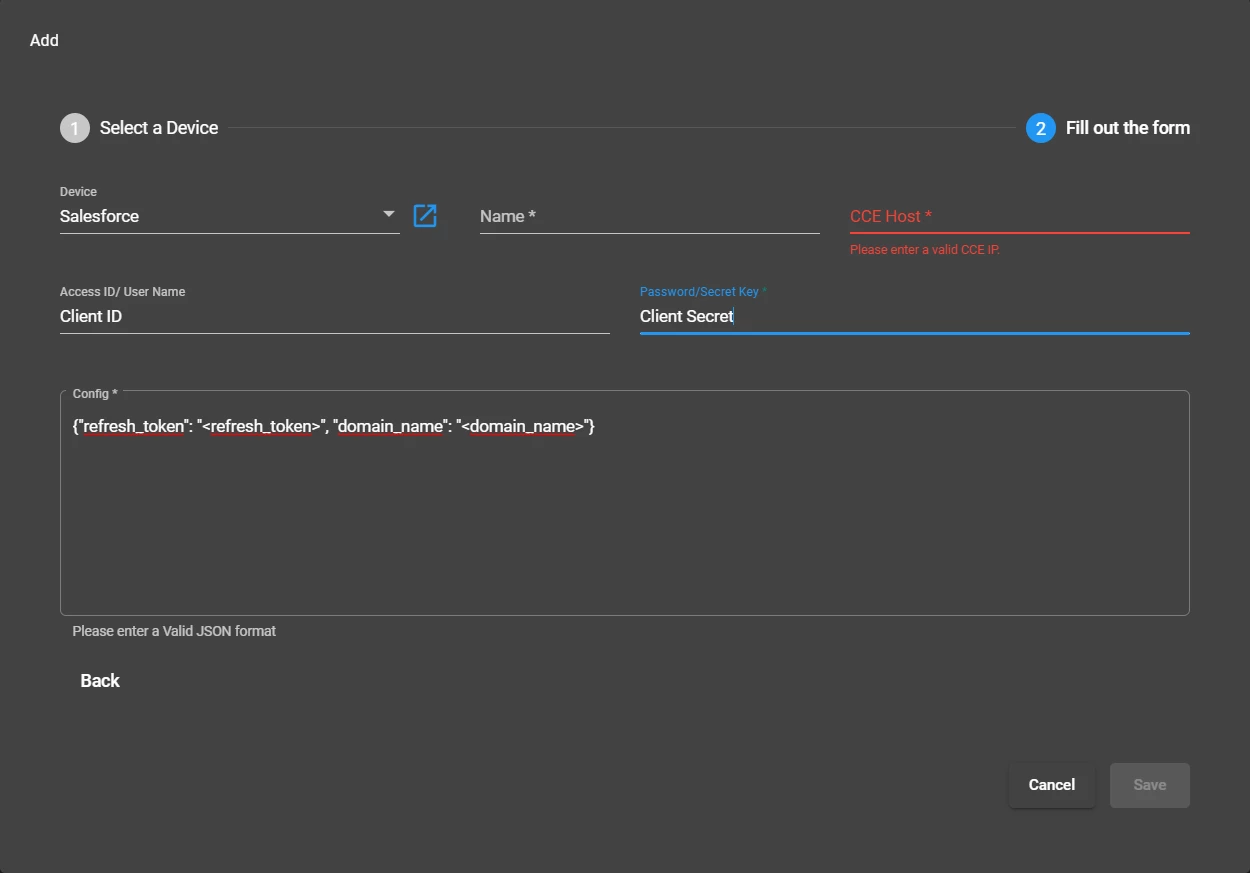
Fill in the fields:
| Field | Value |
|---|---|
| Device | Salesforce |
| Name | Enter a descriptive name (e.g., Salesforce-Logs) |
| CCE Host | Enter the CCE IP address |
| Access ID / Username | Enter the Consumer Key |
| Password / Secret Key | Enter the Consumer Secret |
| Config (JSON) | Example: |
{"refresh_token": "<refresh_token>", "domain_name": "<domain_name>"}Replace v57.0 with your current Salesforce API version.
Save the configuration.
Verification (MSSP Only)
On ADR CCE
Run:
otmdoc -s addondevices
crontab -l
Confirm that the Salesforce add-on script is scheduled.
On ADR SIEM UI
Navigate: System → Logs and Flows Collection Status.
Verify that Salesforce appears under Source Device IP.
Confirm that logs are parsed correctly.
Was this article helpful?
That’s Great!
Thank you for your feedback
Sorry! We couldn't be helpful
Thank you for your feedback
Feedback sent
We appreciate your effort and will try to fix the article