TABLE OF CONTENTS
- Overview
- Prerequisites
- Steps to Generate API Credentials in JumpCloud
- Configure JumpCloud in ADR UI
- Verification (MSSP Only)
- Notes & Best Practices
Overview
This article provides a clear, step-by-step guide for integrating JumpCloud with ADR. Through this integration, administrators can add JumpCloud as a security data source, authenticate connectivity, and ensure the ingestion and monitoring of JumpCloud logs within the ADR platform.
Prerequisites
Administrator access to the JumpCloud Admin Console.
Administrator access to ADR UI.
A running ADR Collection and Control Engine (CCE).
Network connectivity for HTTPS (port 443) between ADR and JumpCloud APIs.
Steps to Generate API Credentials in JumpCloud
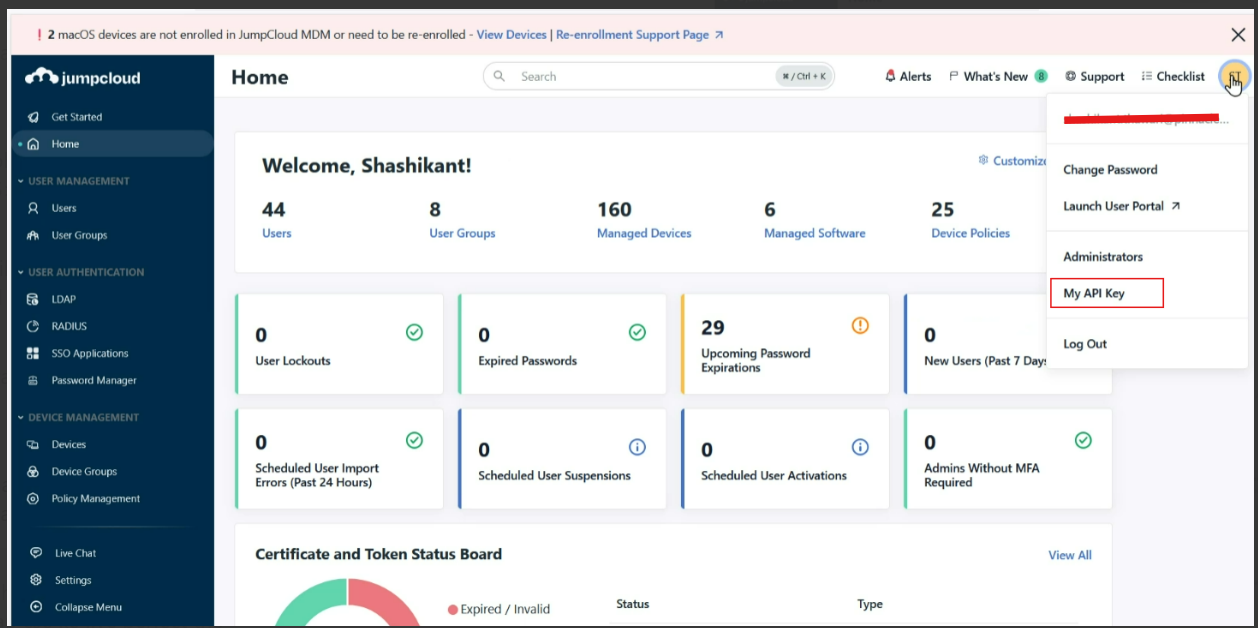
Step 1: Generate API Key
- Log in to the JumpCloud Admin Console with administrator rights.
- Navigate to
Profile > My API Key. Copy the generated API Key and store it securely.
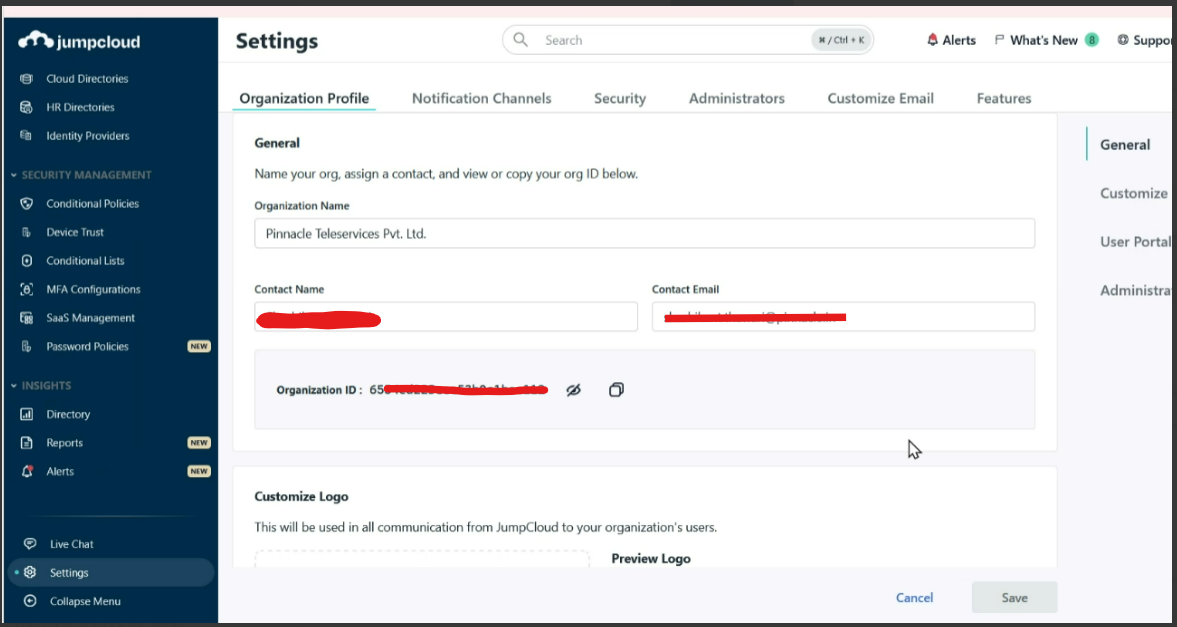
Step 2: Retrieve Organization ID
- From the top menu, go to
Settings > Organization Profile. - Copy the Organization ID and save it for later use in ADR configuration.
Configure JumpCloud in ADR UI
- Log in to the ADR UI with admin rights.
- Navigate to: Administration → Add-On Store → Add.
Enter required fields:
Device Name: e.g.,
JumpCloudCCE IP: IP of the ADR CCE machine
Access ID / Username: Leave blank
Password / Secret Key: Paste the JumpCloud API Key
- Configuration JSON: Replace
yourorganizationidwith the Organization ID obtained from JumpCloud.{ "org_id": "your_organization_id"}
- Click
Saveto apply and complete the configuration.
Verification (MSSP Only)
Navigate to
System Logs and Flows > Collection Statusin the ADR UI.Confirm JumpCloud appears under configured devices with status listed as Connected/Active.
Notes & Best Practices
- Ensure both the API Key and Organization ID are correct, otherwise authentication will fail.
- The API Key is tied to an admin account; regenerate if expired or revoked.
Each JumpCloud tenant has a unique Organization ID.
Keep credentials secure and never share them publicly.
Was this article helpful?
That’s Great!
Thank you for your feedback
Sorry! We couldn't be helpful
Thank you for your feedback
Feedback sent
We appreciate your effort and will try to fix the article