Table of Contents
Overview
This article explains how to integrate Cato Networks with the ADR platform.
This integration uses the Cato API to retrieve log and security event data from your Cato environment so it can be monitored and analyzed in ADR.
Before You Begin
Make sure you have the following before starting the integration:
- An active Cato Networks account
- Access to the Cato Management Application (CMA)
- Permission to generate an API Key
- Your Cato Account ID
- Network connectivity from your ADR CCE to the Cato API
Information Required for the Integration
You will need the following details during setup:
- Account ID
- API Key
Example
- Account ID:
20000120 - API Key:
R=in1|K=A084C17O9F4095896CG705B910DBD391
Step 1: Find Your Account ID
Your Account ID is part of the URL of the Cato Management Application.
Example
If your CMA URL looks like this:
https://cc.catonetworks.com/#!/26/topologyThen your Account ID is:
26
Step 2: Generate an API Key
ADR uses a Cato API Key to securely connect to your Cato environment.
You can use either of the following:
- Service API Key (recommended for integrations)
- Admin API Key with read-only access
Recommended Permission Level
For ADR integration, it is recommended to use a read-only API key.
Recommended Access
- Viewer / Query-only access
This is sufficient for retrieving logs and events, and avoids granting unnecessary configuration or edit permissions.
Option A: Generate a Service API Key (Recommended)
If you are using a Service API Key, you must first have a Service Principal available in Cato.
If you already have a Service Principal, you can skip the next section and go directly to Generate a Service API Key.
Create a Service Principal (If Not Already Available)
A Service Principal is recommended for integrations and automation because it is not tied to an individual administrator login.
To create a Service Principal
- Log in to the Cato Management Application (CMA)
- Navigate to:
Account → Administrators- Click New
- Select Create New
- Choose Create as Service Principal
- Enter the required details
- Assign the appropriate read-only role / permissions
- Click Apply
Once the Service Principal has been created, continue with the next section.
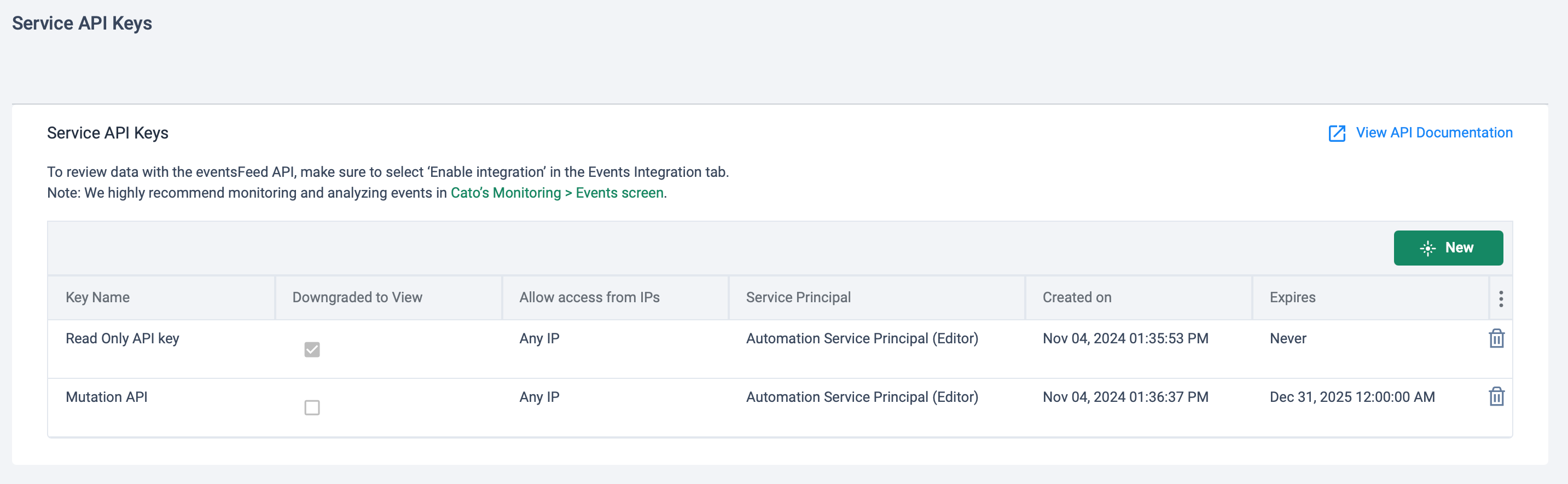
Generate a Service API Key
- In the Cato Management Application (CMA), navigate to:
Resources → Service API Keys- Click New
- Select the appropriate Service Principal
- Enter a Key Name
- Select Downgrade to View (recommended)
- (Optional) Restrict access to specific source IP addresses
- (Optional) Set an expiration date
- Click Apply
- Copy and save the generated API key
Important: Once the API key pop-up window is closed, the key value cannot be viewed again.
Option B: Generate an Admin API Key
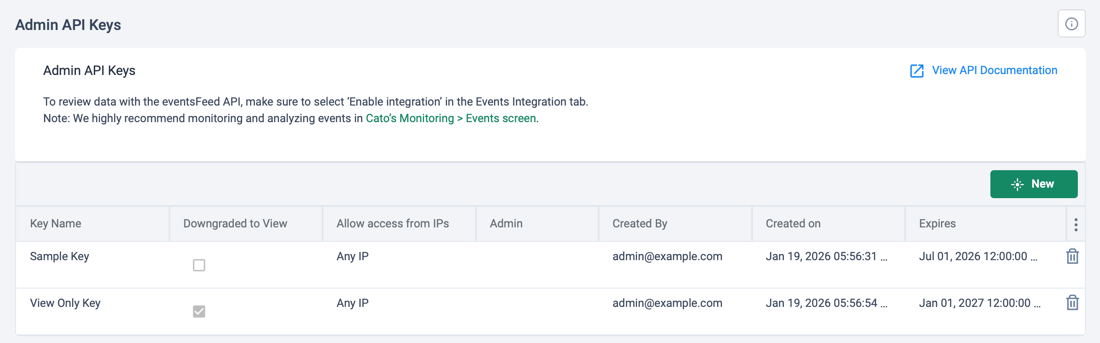
If you prefer not to use a Service API Key, you can use an Admin API Key instead.
- Log in to the Cato Management Application (CMA)
- Navigate to:
Resources → Admin API Keys- Click New
- Enter a Key Name
- Select Downgrade to View (recommended)
- (Optional) Restrict access to specific source IP addresses
- (Optional) Set an expiration date
- Click Apply
- Copy and save the generated API key
Important: Once the API key pop-up window is closed, the key value cannot be viewed again.
Step 3: Enable Cato Events Integration
Before configuring the integration in ADR, you must enable Cato Events Integration in the Cato Management Application (CMA).
To enable Cato Events Integration
- Log in to the Cato Management Application (CMA)
- Navigate to:
Administration → API & Integrations → Events Integration- Open the Events Integration tab
- Enable:
Enable integration with Cato events- Save the configuration if prompted
Important: After enabling this option, wait approximately 30 minutes before configuring the integration in ADR.
This allows Cato to begin preparing and exposing event data for API-based integrations.
Official Cato Documentation
If you would like to review the official Cato documentation for API key creation, see:
Generating API Keys for the Cato API
ADR Configuration Steps
1. Log in to the ADR dashboard
Use an account with administrative access.
2. Navigate to
Administration → Add-On Store3. Search for
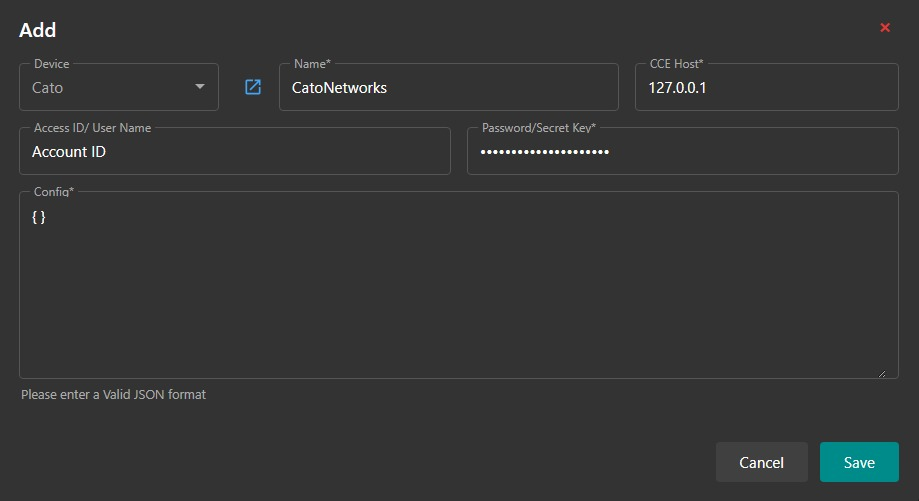
Cato Networks4. Enter the integration details as shown below
Field Mapping
| ADR UI Field | Value to Enter |
|---|---|
| Name | Any name you want (for example: Cato Networks) |
| CCE Host | Your valid CCE IP address (or 127.0.0.1) |
| Username / Access Key | Your Account ID |
| Password / Secret Key | Your API Key |
| Config | {} |
Config Field
No additional configuration is required.
Enter the following exactly in the Config field:
{}
Verify the Integration (MSSP Only)
On the CCE
1. Log in to the CCE using the seceon user account
2. Run
otmdoc -m3. Enter the add-on device container
otmdoc -s cce-addon-devices4. Check scheduled tasks
crontab -l5. Review the integration logs
Confirm that the Cato integration is running without errors.
On the ADR GUI
1. Log in to the ADR dashboard.
2. Navigate to
SYSTEM3. Open
Collection Status4. Then go to
Logs / Flow Collection Status5. Confirm
- The Cato Networks integration is active
- Logs are being collected successfully
- Events are visible in ADR
Troubleshooting
If the integration is not working as expected, check the following:
- Confirm the Account ID is correct
- Confirm the API Key is correct and active
- Make sure the API key has Viewer / Query access
- Verify the CCE has network connectivity to the Cato API
- If IP restrictions were configured on the API key, make sure the CCE IP is allowed
If logs are still not being collected
- Generate a new API key
- Update the credentials in ADR
- Verify the correct Account ID was entered
- Review integration logs on the CCE for errors
Best Practices
- Treat the API Key like a password
- Store the key securely
- Do not share it over unsecured channels
- Use read-only access whenever possible
- Revoke unused or compromised API keys promptly
Conclusion
Once configured, the Cato Networks integration allows ADR to continuously collect and monitor relevant log and security event data from your Cato environment.
If you need assistance, contact ADR Support and include relevant screenshots or logs where possible.
Was this article helpful?
That’s Great!
Thank you for your feedback
Sorry! We couldn't be helpful
Thank you for your feedback
Feedback sent
We appreciate your effort and will try to fix the article