TABLE OF CONTENTS
- Overview
- Prerequisites
- Generate Cortex XDR API Credentials
- Configuration on ADR
- Proxy Configuration
- Verification
Overview
Step-by-step instructions for integrating Cortex XDR with ADR using API-based connectivity. Once configured, Cortex XDR logs and alerts will be ingested into aiSIEM for real-time monitoring, threat detection, and correlation analysis.
Prerequisites
To configure the integration, the customer must provide the following details from Cortex XDR:
API Key
API Key ID
FQDN (Fully Qualified Domain Name)
Ensure that you have administrator access to both:
The Cortex XDR Console
The ADR UI
Generate Cortex XDR API Credentials
1. Generate API Key
Log in to the Cortex XDR Console.
Navigate to:
Settings → Configurations → Integrations → API KeysClick + New Key.
Choose the type of API Key you want to generate based on your desired security level: Advanced or Standard.
(Optional) Add a description or comment for the key.
Assign appropriate access permissions:
Select from predefined Roles
Or choose Custom for granular permissions.
Click Generate.
Copy the API Key immediately — it is shown only once.
Click Done to finish.
⚠️ Important: API Keys cannot be retrieved again after creation. Store them securely.
2. Retrieve the API Key ID
In the API Keys section, locate your newly created key.
Copy the value in the ID column.
This represents the
x-xdr-auth-id:{key_id}used for authentication.
3. Retrieve the FQDN
In the API Keys section, right-click your key and select View Examples.
In the cURL example, locate the URL:
https://api-{fqdn}/public_api/v1/{api_category}/{api_call}/
Extract the
{fqdn}portion. Example:
api-xxxxxxxxxxxx.xdr.traps.paloaltonetworks.com
Configuration on ADR
Log in to the ADR UI.
Navigate to:
Administration → Add-on Store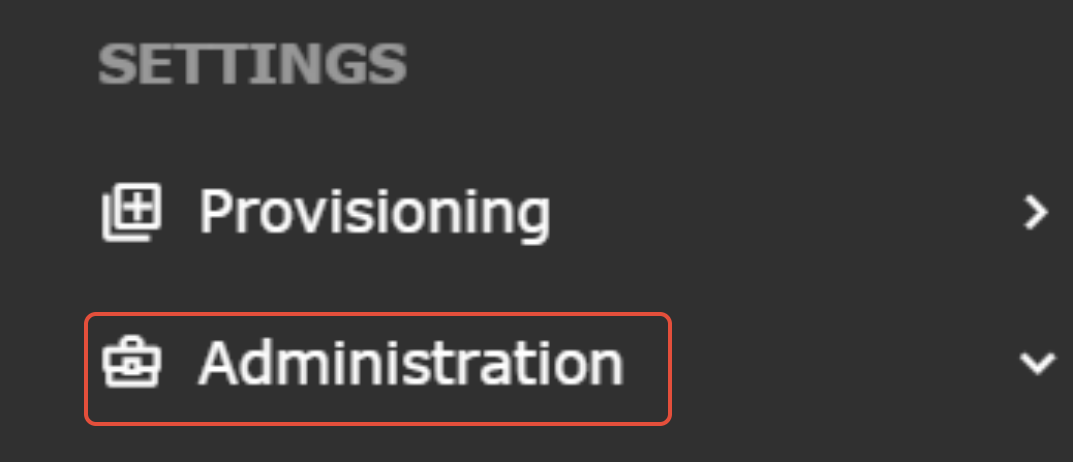
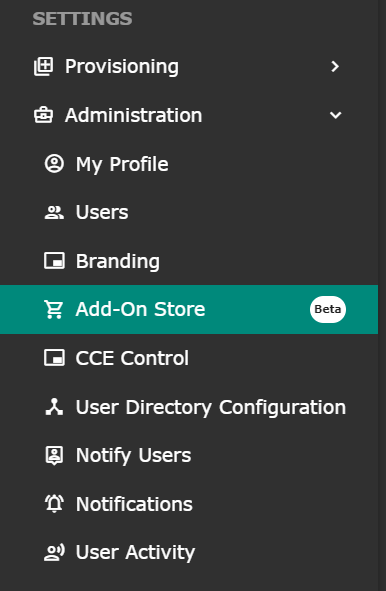
Use the filter/search and select Cortex XDR.
Enter the following details:
Access ID/Username → Enter the API Key ID.
Password/Secret Key → Enter the API Key.
CCE Host → Enter the CCE server IP address.
Config (JSON format) → Provide FQDN in the format:
{
  "fqdn": "api-xxxxxxxxxxxx.xdr.traps.paloaltonetworks.com","key_type":"YOUR_KEY_TYPE"
}
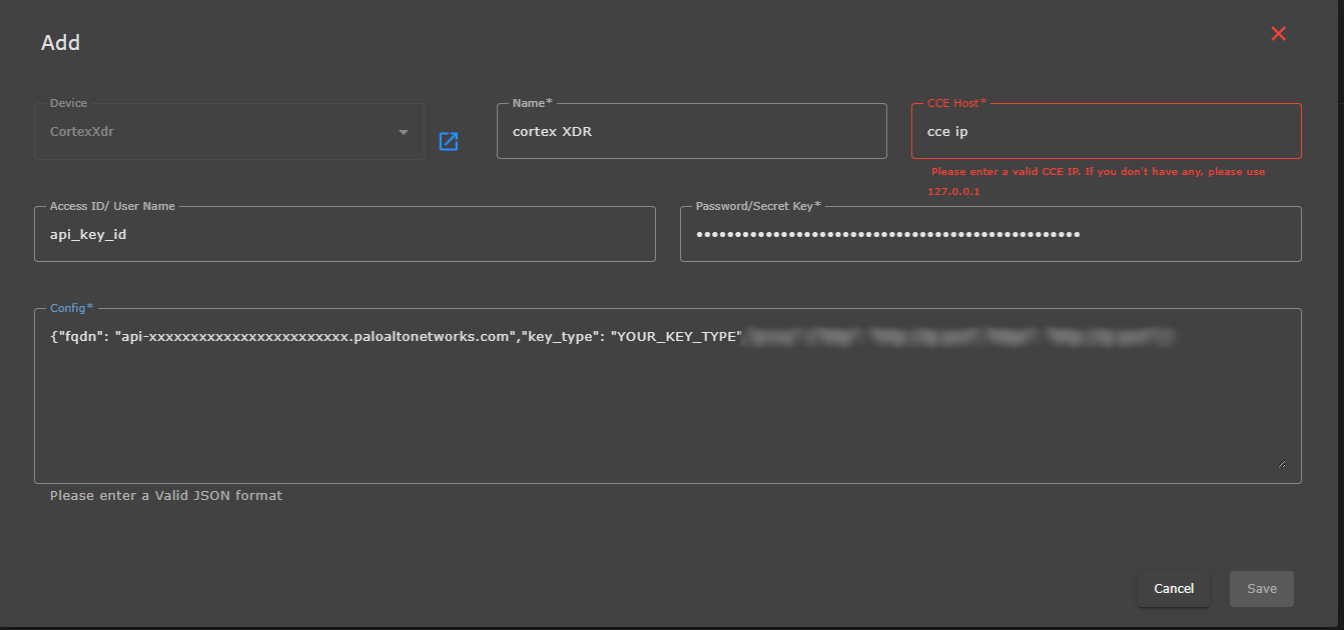
Click Save to complete the configuration.
Proxy Configuration
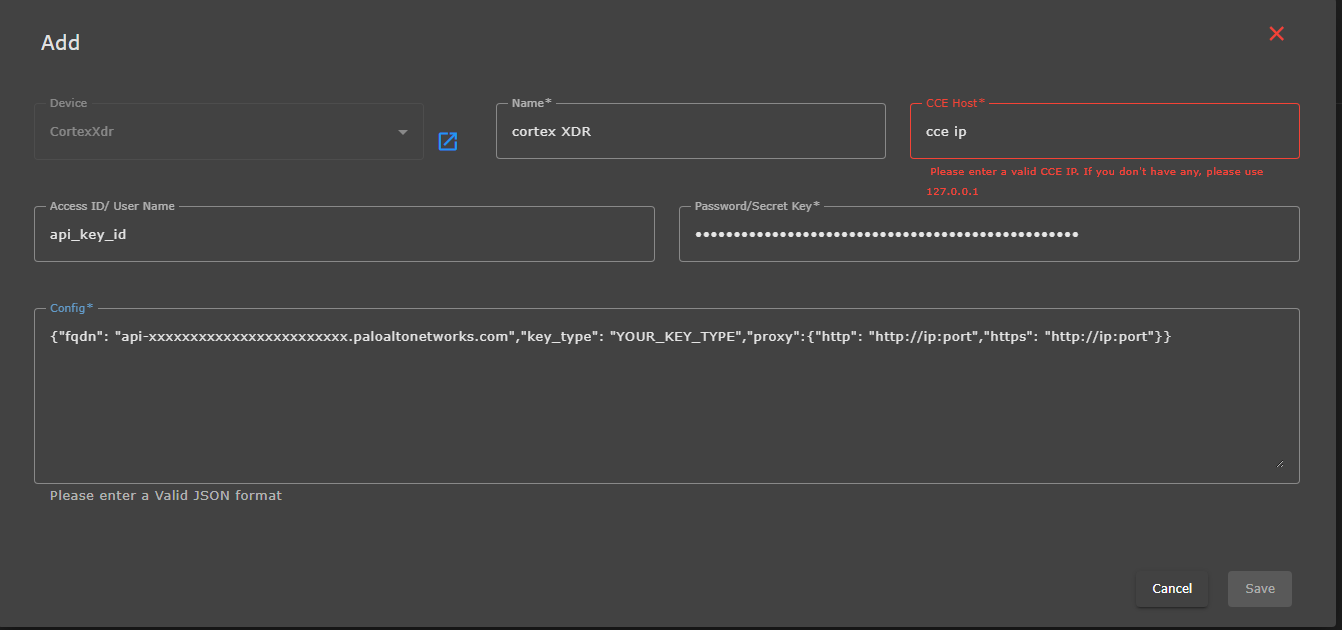
In case of proxy follow the below steps, Please ignore it in case of Non-proxy environment:
config should be look like
{
"key_type": "Advanced",
"proxy": {
"http": "http://10.117.48.12: 8080",
"https": "http://10.117.48.12: 8080"
}
Verification (MSSP Only)
On ADR UI
Navigate to: System → Log/Flow Collection Status.
Verify that Cortex XDR is listed and logs are being received.
On ADR CCE
SSH into the CCE Server.
Run:
otmdoc -s cce-addon-devices
Inside the add-on container, check scheduled jobs:
crontab -l
Identify the Python script associated with Cortex XDR and run it manually to confirm execution.
Was this article helpful?
That’s Great!
Thank you for your feedback
Sorry! We couldn't be helpful
Thank you for your feedback
Feedback sent
We appreciate your effort and will try to fix the article