TABLE OF CONTENTS
Overview
This Knowledge Base Article provides comprehensive instructions for configuring ESET PROTECT to export logs to a Syslog server. This allows centralized log management and monitoring of security events from ESET Endpoint Security clients.
Applicable Products
- ESET PROTECT Cloud
- ESET PROTECT On-Prem
Supported Event Types
ESET PROTECT can export the following event types to Syslog:
- Detection Events (Antivirus)
- Firewall Aggregated Events
- HIPS (Host Intrusion Prevention System) Aggregated Events
- Web Protection Events
- Audit Log Events
- Blocked Files Events
- ESET Inspect Alerts
- Incidents
Prerequisites
- Administrative access to ESET PROTECT console
- Active Syslog server running in your network
- Network connectivity between ESET PROTECT and Syslog server
Configuration Instructions
ESET PROTECT Cloud
Step 1: Access Syslog Settings
- Log in to ESET PROTECT console
- Navigate to More > Settings > Syslog
- Click the toggle next to Enable Syslog sending
Step 2: Configure Mandatory Settings
Configure the following required parameters:
a. Format of Payload
Select the log format that matches your Syslog server requirements:
- JSON - JavaScript Object Notation format
- LEEF - Log Event Extended Format
- CEF - Common Event Format
b. Format of Envelope
Choose the Syslog protocol specification:
- BSD - RFC 3164 specification
- Syslog - RFC 5424 specification
c. Minimal Log Level
Set the minimum severity level for exported logs:
- Information
- Warning
- Error
- Critical
d. Event Types to Log
Select which event types to export:
- Antivirus
- HIPS
- Firewall
- Web protection
- Audit Log
- Blocked files
- ESET Inspect alerts
- Incidents
e. Destination Configuration
- Destination IP or FQDN: CCE Server IP
- Port: 514
Step 3: Apply Configuration
- Click Apply settings
- Configuration becomes effective within 10 minutes
ESET PROTECT On-Prem
Step 1: Access Advanced Settings
- Log in to ESET PROTECT console
- Navigate to More > Settings
- Expand Advanced Settings
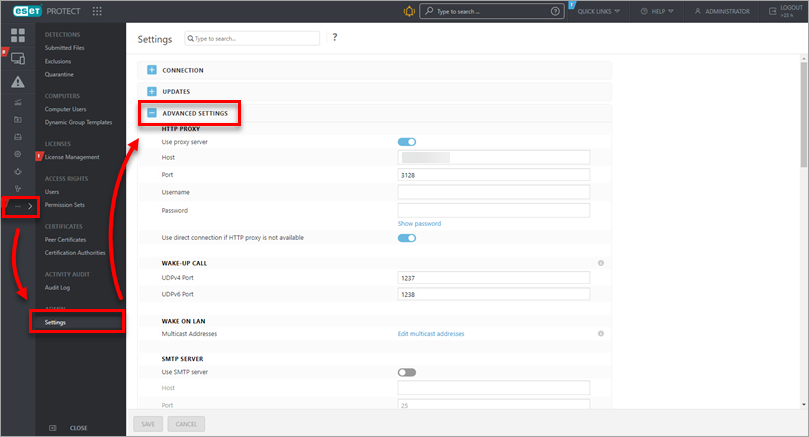
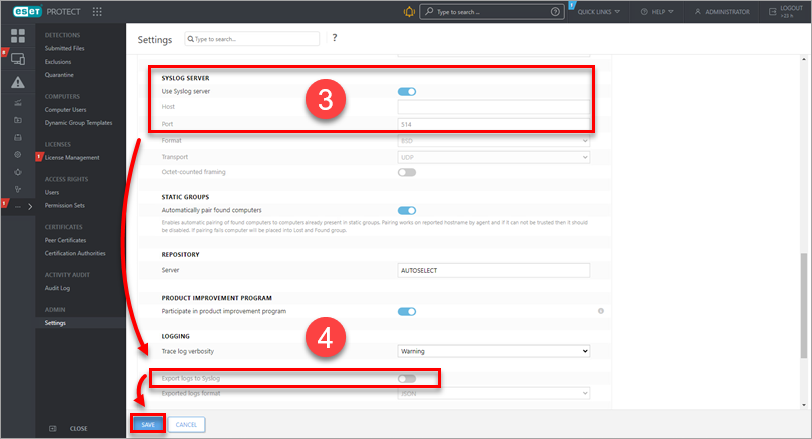
Step 2: Configure Syslog Server
In the Syslog Server section:
- Click the toggle next to Use Syslog server to enable it
- Host field: CCE Server IP
- Port field: 514
Step 3: Enable Log Export
In the Logging section:
- Click the toggle next to Export logs to Syslog to enable it
- Click Save
Important Notes
- The regular application log file continues to be written locally regardless of Syslog configuration
- Syslog export serves as a medium for certain asynchronous events such as notifications and client computer events
- Changes to configuration may take up to 10 minutes to become effective
- Disabling TLS validation affects only certificate validation, not the TLS connection itself
Verification (MSSP Only)
Using ADR GUI Console
Log in to ADR dashboard Console with appropriate "Administrator" rights.
Navigate: System → Logs and Flows Collection Status.
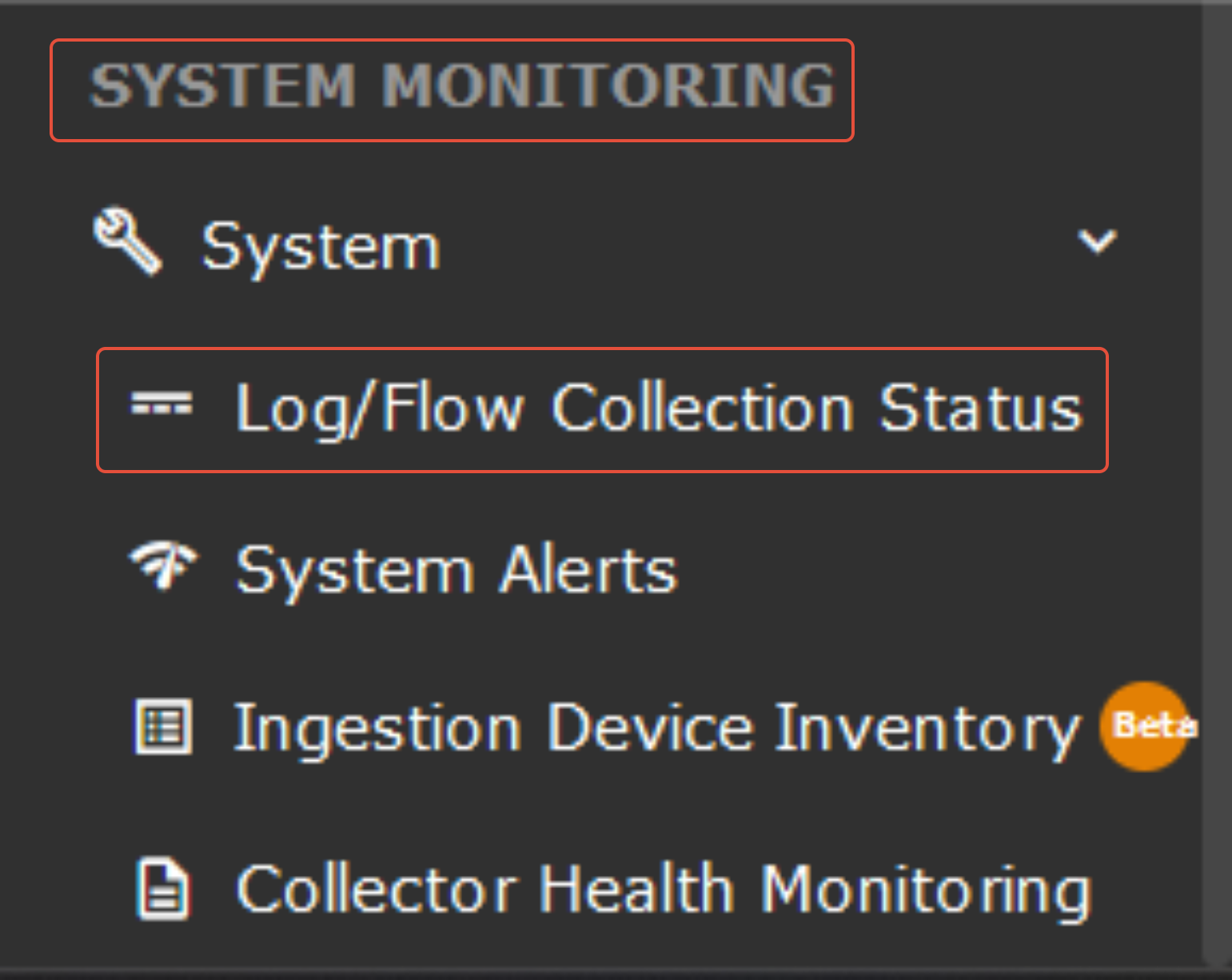
Confirm that ESET appears under Source Device IP.
Using ADR CCE (CLI)
The following command should be run on the CCE server to check whether or not we are getting logs.
sudo tcpdump -i any port 514 and host <device-ip> -AAA
Troubleshooting
Common Issues
No logs appearing in Syslog server:
- Verify network connectivity between ESET PROTECT and Syslog server
- Check firewall rules allow traffic on configured port
- Confirm Syslog server is running and listening on specified port
- Wait up to 10 minutes for configuration to take effect
Event types not appearing:
- Verify specific event types are enabled in configuration
- Check that minimal log level isn't filtering out events
- Ensure client computers have recent policies applied
Additional Resources
- ESET PROTECT Cloud - Syslog Server Documentation
- KB8022 - Export Logs to Syslog Server
- JSON Format Specification
- LEEF Format Specification
- CEF Format Specification
Version Information
Last Updated: November 2025
Applies to: ESET PROTECT Cloud and ESET PROTECT On-Prem (Latest versions)
Was this article helpful?
That’s Great!
Thank you for your feedback
Sorry! We couldn't be helpful
Thank you for your feedback
Feedback sent
We appreciate your effort and will try to fix the article