TABLE OF CONTENTS
- Overview
- Prerequisites
- Required Information
- Obtain Acronis API Credentials
- Configure Integration in ADR
- Validation and Testing
- Troubleshooting
- Additional Resources
- Notes
Overview
This knowledge base article provides comprehensive guidance for customers who need to forward security logs from Acronis Cyber Protect Cloud using REST API endpoints. Acronis provides a library of public APIs that enable integration with Acronis Cyber Protect Cloud, with both APIv.1 and APIv.2 supported for comprehensive data access.
Security log forwarding enables organizations to:
- Centralize security monitoring and incident response
- Integrate Acronis security events with SIEM/SOAR platforms
- Automate threat detection and response workflows
- Maintain compliance with security audit requirements
- Enable real-time security analytics and reporting
The Acronis REST API provides programmatic access to security events, audit logs, and monitoring data through standardized HTTP endpoints with JSON-formatted responses.
Prerequisites
Before implementing security log forwarding from Acronis, ensure the following requirements are met:
Permissions and Access
- API Client with appropriate scopes for security log access
- Read permissions for audit logs, security events, and monitoring data
- Network firewall rules allowing outbound HTTPS connections to Acronis endpoints
- Compliance approvals if required by organizational policies
Required Information
To complete this integration, you will need to obtain the following credentials from your Acronis environment:
- Client ID (API Client identifier)
- Client Secret (API Client secret key)
- Datacenter URL (Your Acronis datacenter endpoint)
Obtain Acronis API Credentials
Creating API Client in Acronis Cyber Cloud
- Log into your Acronis Cyber Cloud management console
- Navigate to the API client creation section
- Follow the detailed instructions provided in the official Acronis documentation:
- Reference Link: Creating API Client - Acronis Documentation
What You'll Get
After completing the API client creation process, you will receive:
- Client ID: A unique identifier for your API client
- Client Secret: A secure key for authentication
- Datacenter URL: Your specific Acronis datacenter endpoint URL
Configure Integration in ADR
Accessing the Configuration Interface
- Log into your ADR platform
- Navigate to Administration-->Addon Store
- Search for Acronis Device
- Choose "Acronis" from the device type dropdown
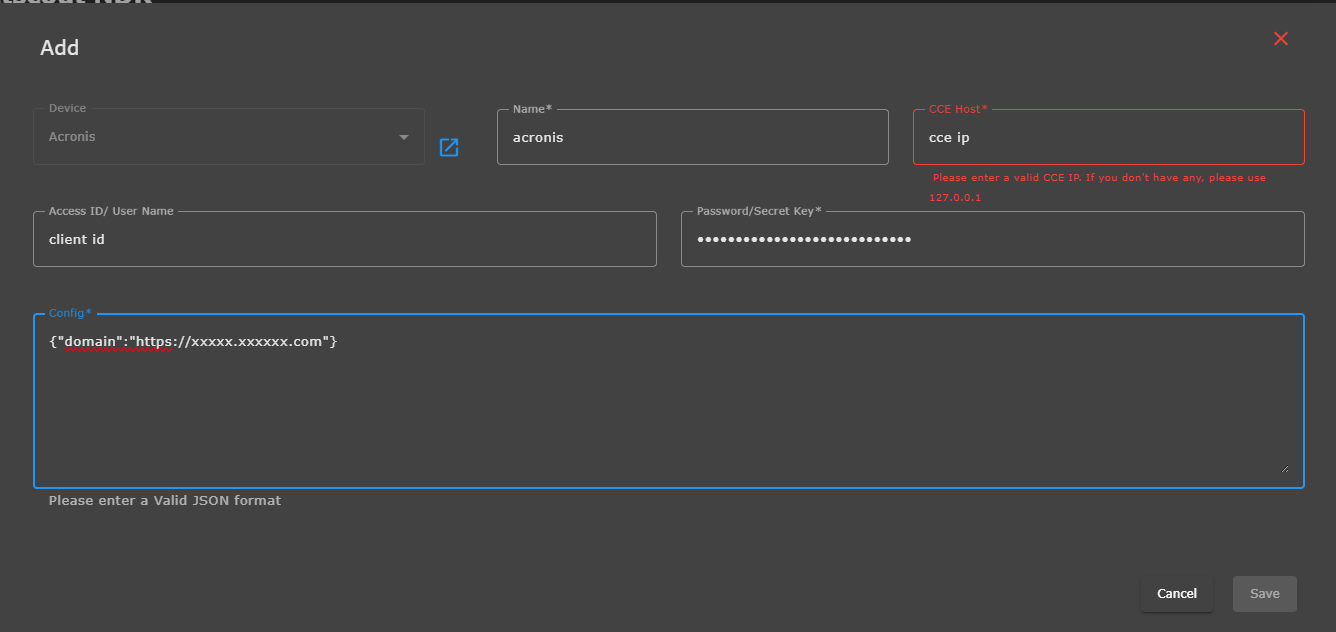
Field Mapping and Configuration
Basic Authentication Fields
- Access ID/User Name Field: Enter your Client ID from Acronis
- Password/Secret Key Field: Enter your Client Secret from Acronis
Configuration Section
In the Config section, you need to enter the datacenter URL in JSON format:
Format:
{"domain":"https://xxxxx.xxxxxx.com"}
Example Configuration:
{"domain":"https://us-west-1.api.acronis.com"}
Complete Configuration Steps
- Device Type: Select "Acronis"
- Name: Enter a descriptive name for this integration (e.g., "acronis")
- CCE Host: Enter the appropriate CCE IP address or use 127.0.0.1 if local
- Access ID/User Name: Paste your Acronis Client ID
- Password/Secret Key: Paste your Acronis Client Secret
- Config: Enter the JSON configuration with your datacenter URL:
{"domain":"https://your-datacenter-url.com"}
Validation and Testing
Verify Configuration
- Ensure all fields are populated correctly
- Validate that the JSON format in the Config section is properly structured
- Check that there are no trailing spaces or special characters
Test Connection
- Save the configuration
- Monitor the integration status in ADR
- Check for successful authentication and data flow
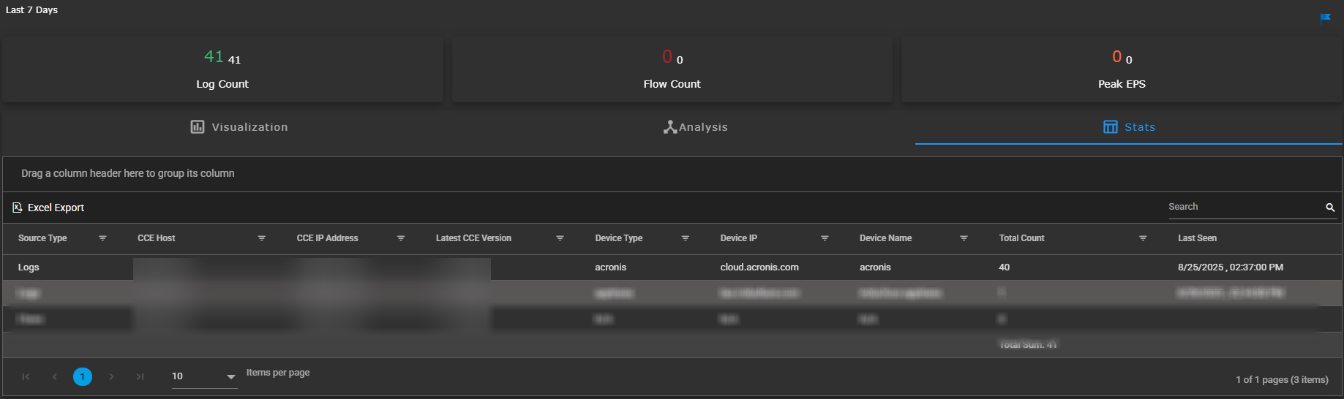
- Verify that Acronis logs are appearing in the SIEM under Logs and Flow Collection Status and Deep Tracker
Troubleshooting
Common Issues and Solutions
Authentication Failures:
- Verify Client ID and Client Secret are copied correctly
- Ensure API client has appropriate permissions in Acronis
- Check if API client is active and not expired
Connection Issues:
- Validate the datacenter URL format
- Ensure network connectivity between ADR and Acronis : SSH to CCE and do the telnet ,e.g. telnet domain 443
- Check firewall rules and proxy settings
JSON Format Errors:
- Verify proper JSON syntax in Config field
- Ensure double quotes around keys and values
- Remove any trailing commas or extra characters
Additional Resources
Documentation Links
- Acronis API Documentation
- ADR Device Integration Guide (consult your ADR documentation)
Support Contacts
- Acronis Support: Contact through your Acronis support portal
- Contact ADR Support
Notes
- Keep API credentials secure and rotate them regularly
- Monitor integration status regularly to ensure continuous data flow
- Document any custom configurations for future reference
Last Updated: [26-08-2025]
Document Version: 1.0
Was this article helpful?
That’s Great!
Thank you for your feedback
Sorry! We couldn't be helpful
Thank you for your feedback
Feedback sent
We appreciate your effort and will try to fix the article