Table of Contents
- Overview
- Pre-requisites
- Step 1: Generate Okta API Token
- Step 2: Find Your Okta Domain
- Step 3: Configure Okta in ADR UI
- Step 4: Verification of Integration
Overview
This article provides step-by-step instructions to integrate Okta with ADR SIEM using API-based integration.
This enables comprehensive visibility and proactive threat detection by forwarding Okta logs from the cloud to APE (Analytics and Policy Engine) via CCE (Collection and Control Engine).
Pre-requisites
Before starting the integration, ensure you have:
Okta Admin Access to generate API token.
ADR CCE Server IP where logs will be forwarded.
Network connectivity from CCE to Okta API endpoint.
Step 1: Generate Okta API Token
Log in to Okta Admin Console
Navigate to your Okta domain:https://.okta.comGo to API Settings
From the left-hand menu, navigate to:
Security → API → Tokens
Create a New Token
Click Create Token.
Provide a name (e.g., Aria
_Integration).Click Create Token.
Copy the Token
The token will be displayed once. Copy it securely.
This token will be used as the Password/Secret Key in ADR UI.
Note: If lost, you must regenerate a new token.
Step 2: Find Your Okta Domain
Your domain will be used in the configuration JSON.
To find your domain:
It will look like:
yourcompany.okta.comor
yourcompany.okta-emea.com
Reference: Find your Okta domain
Step 3: Configure Okta in ADR UI
Log in to ADR UI as administrator.
Navigate to:
Administration → Add-on StoreSearch and select Okta.
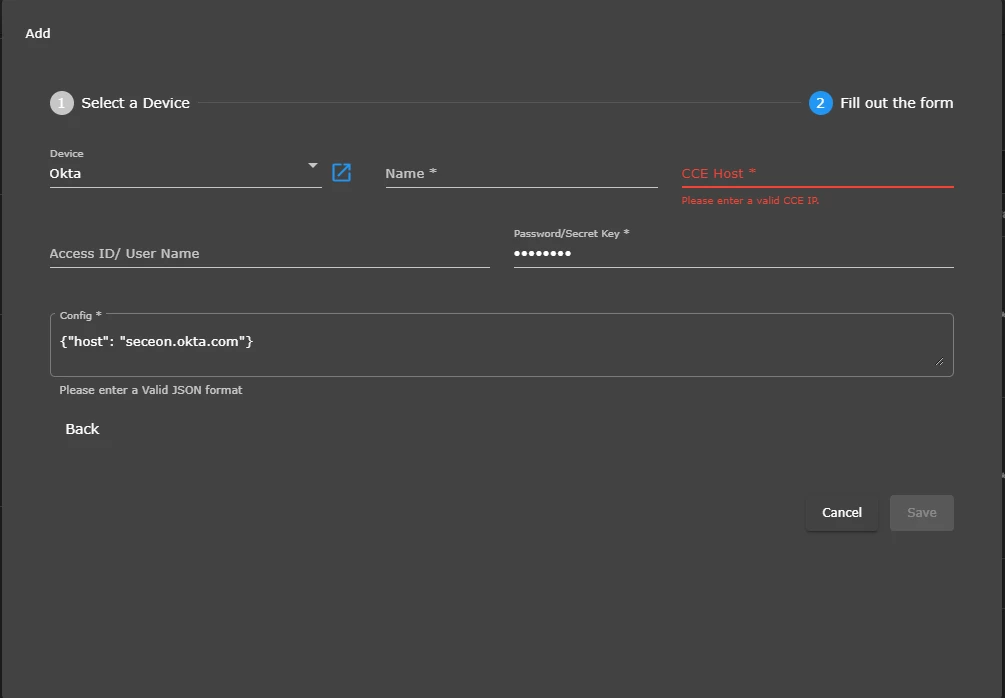
Fill in the required fields:
Field Value Device Okta Name Any descriptive name (e.g., Okta_Prod)CCE Host Enter your CCE IP address Access ID/User Not required Password/Secret Enter the Okta API Token generated earlier Config (JSON) {"host": "<your_okta_domain>"}
Example:{"host": "acme.okta.com"}Click Save to apply the configuration.
Step 4: Verification of Integration (MSSP Only)
Method 1: ADR UI
Navigate to:
System → Logs and Flows Collection StatusVerify that the Source Device IP of Okta is listed.
Method 2: On CCE Server
Log in to the CCE as
seceonuser.Run:
otmdoc -s cce-addon-devicesInside the container, check scheduled jobs:
crontab -lLocate the Python script for Okta → run it manually to confirm successful log retrieval.
Was this article helpful?
That’s Great!
Thank you for your feedback
Sorry! We couldn't be helpful
Thank you for your feedback
Feedback sent
We appreciate your effort and will try to fix the article