Table of Contents
- Overview
- Steps of Configuration
- Bitdefender GravityZone via Http Listener
- Configure Bitdefender GravityZone to send logs on CCE’s Http Listener
- View the Configuration
- Verification (MSSP Only)
Overview
We are providing you with the steps to integrate your Bitdefender GravityZone with ADR SIEM so you can have comprehensive visibility and proactive threat detection in your environment. There will be a log transfer between your firewall to APE (Analytics and Policy Engine) via CCE (Collection and Control Engine). In this document, we are guiding you through the steps for log forwarding.
Steps of Configuration
Log in to GravityZone:
The security agent sends this information in a standard industry format (JSON), directly to the SIEM solution. To view a full list of the events sent to the SIEM solution, refer to Security Telemetry events sent to SIEM.
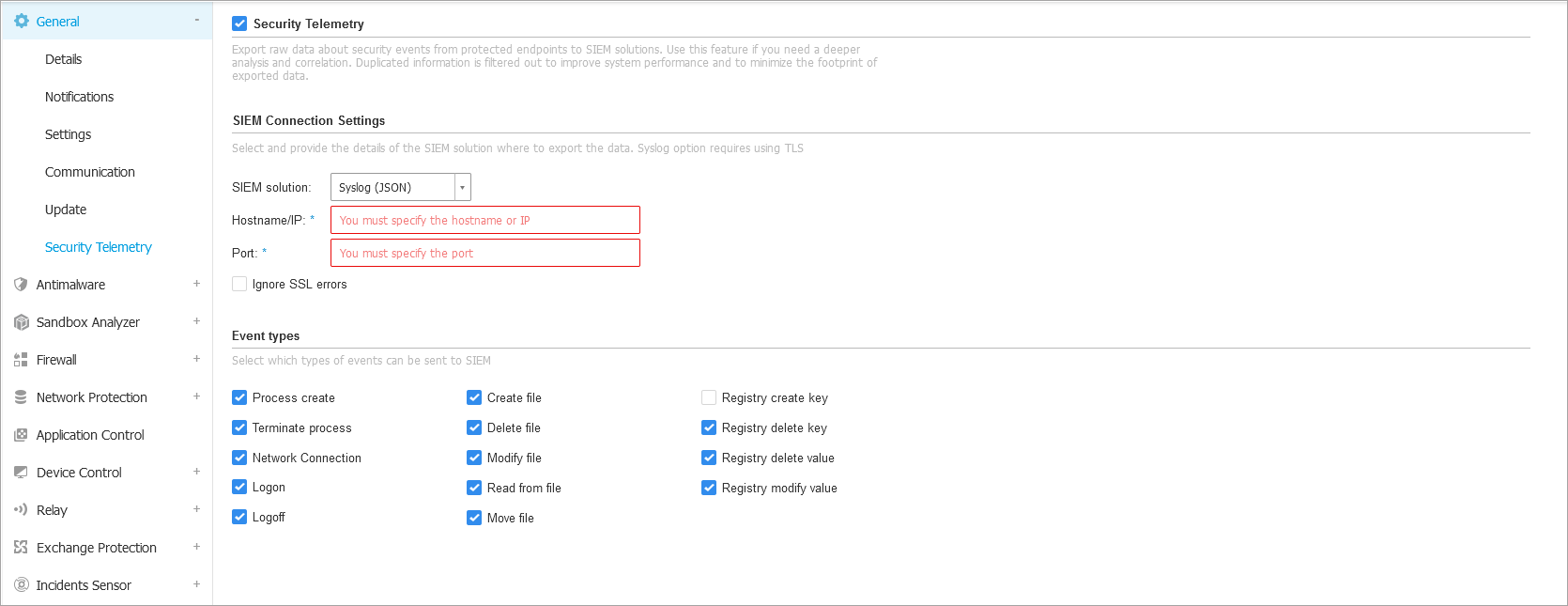
To send security events from the target endpoints to the SIEM solution, configure the policy as follows:
- Select the Security Telemetry check box to enable the feature.
- Under SIEM solution select Syslog (JSON).
- Under Hostname/IP, type in the hostname or IP of the syslog server.
- Enter the port used by endpoints to connect to the syslog server under Port.
- Optional: Select Ignore SSL errors if you want to ignore security certificate validation errors. Use this option if you want to use this SIEM server despite any errors that might occur. Such an error occurs if GravityZone cannot check the SSL certificate of the HTTP collector against a Certificate Authority or the DNS of the server. For example, when your HTTP collector uses a self-signed security certificate.
- Select the types of events you want to send from the endpoint to the SIEM. By default, all types of events are sent, except registry key creation.
- Click on the configuration button (the gear icon) in the top-right corner.

- Define the events you want to send to CCE.
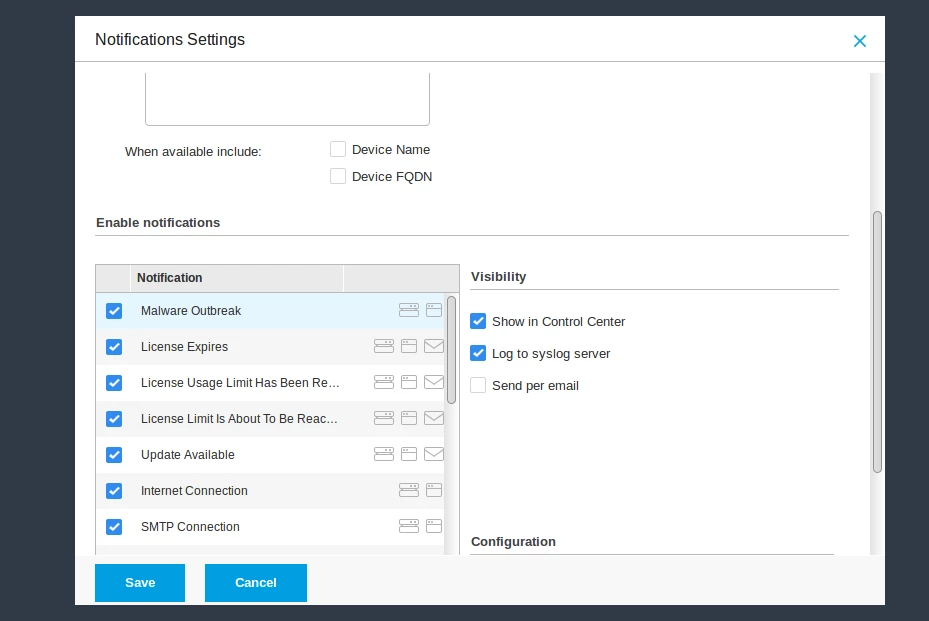
Reference links:
- Security Telemetry events sent to SIEM
- Generic integrations for SIEM platforms without HTTPS listeners
- Security Telemetry
Bitdefender GravityZone via Http Listener
Make sure these IPs are whitelisted on the firewall (Reference: Setup Push Event Settings):
- 34.159.83.241
- 34.159.47.15
- 34.159.150.228
- 34.85.152.87
- 34.85.155.173
As CCE is on a private network, you have to use the firewall's Public IP. Therefore, the request will come on the firewall’s Public IP from Bitdefender GravityZone (from one of the above whitelisted IPs) and will be forwarded to CCE IP on the 63514 TCP port.
Enable Http Listener on CCE
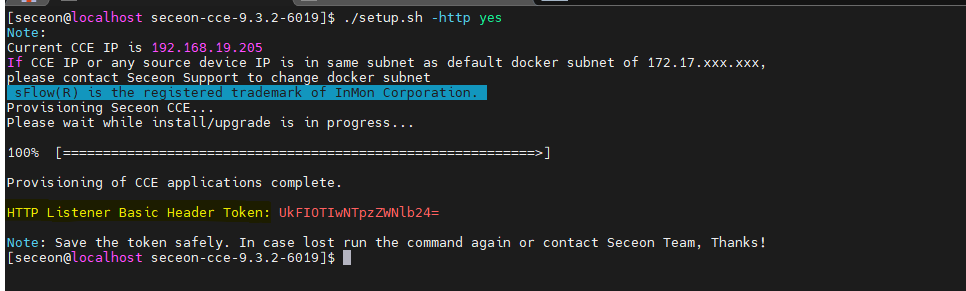
- Login to the CCE machine, then go inside the build directory and run
./setup.sh -httpthen provide yes to enable it. - You will get a one-time basic authorization header token for HTTP listener. Copy it to a text file for future usage.
Generate API Token from Bitdefender GravityZone
- API credentials can be generated from MyAccount > Control Center API.
- Copy the API Token and API URL both to a text file.
- On CCE, run the following command to generate a base64 encoded value of the Bitdefender API Token and save the output in a text file for future usage:

Configure Bitdefender GravityZone to send logs on CCE’s Http Listener
- Update the following command with the correct details.
curl -k -X POST \ https://bitdefender-api-host/api/v1.0/jsonrpc/push \ -H 'authorization: Basic BitDefenderGZ_Base64_Token' \ -H 'cache-control: no-cache' \ -H 'content-type: application/json' \ -d '{"params": {"status": 1, "serviceType": "cef", "serviceSettings": {"url": "https://Firewall-Public-IP:63514/api/bitdefender", "authorization": "Basic CCE_Authorization_Basic_Token", "requireValidSslCertificate": false}, "subscribeToEventTypes": {"hwid-change": true, "modules": true, "sva": true, "registration": true, "supa-update-status": true, "av": true, "aph": true, "fw": true, "avc": true, "uc": true, "dp": true, "device-control": true, "sva-load": true, "task-status": true, "exchange-malware": true, "network-sandboxing": true, "malware-outbreak": true, "adcloud": true, "exchange-user-credentials": true, "exchange-organization-info": true, "hd": true, "antiexploit": true} }, "jsonrpc": "2.0", "method": "setPushEventSettings", "id": "1"}' | jq - If configuration is done successfully, you will get a JSON response as shown in the example below.

View the Configuration
- Update the following command with the correct details (i.e., bitdefender-api-host and BitDefenderGZ_Base64_Token) and run the following command to view the details in JSON:
curl -k -X POST https://bitdefender-api-host/api/v1.0/jsonrpc/push -H 'authorization: Basic BitDefenderGZ_Base64_Token' -H 'cache-control: no-cache' -H 'content-type: application/json' -d '{"params": {}, "jsonrpc": "2.0", "method": "getPushEventSettings", "id": "2"}' | jq - Once the configuration is done successfully, you may start getting logs.
Verification (MSSP Only)
Verification can be done either from the CCE Server or from the UI.
Using the ADR GUI Console
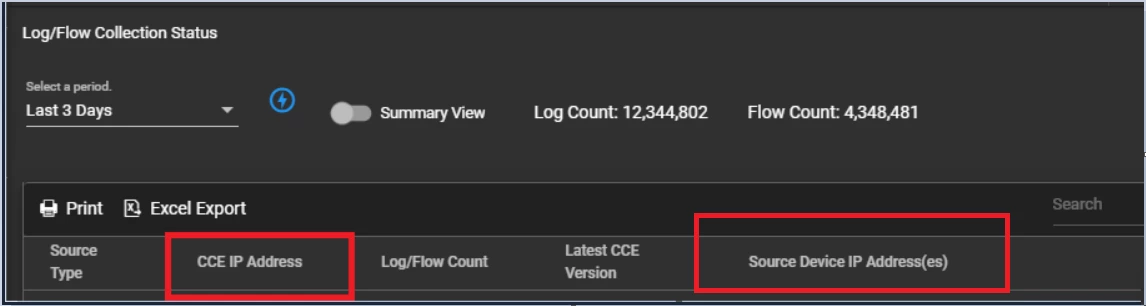
- Log in to ADR GUI using administrative rights and navigate to System > LOGS AND FLOWS COLLECTION STATUS.
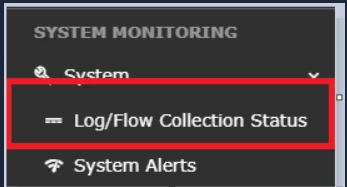
- Inside the Source Device IP, the IP address will reflect where Bitdefender sends the security logs.
Using the CLI Mode from the ADR CCE Server
- Log in to the CCE server as ADR User and run the below command
sudo tcpdump -i any host 514 and host -AAA - This command should be running on the CCE server to check whether or not we are getting logs.
Was this article helpful?
That’s Great!
Thank you for your feedback
Sorry! We couldn't be helpful
Thank you for your feedback
Feedback sent
We appreciate your effort and will try to fix the article