TABLE OF CONTENTS
Overview
This Knowledge Base Article (KBA) provides the steps to configure Zscaler ZPA/LSS Service Connector integration with a Syslog-based SIEM server. This integration enables forwarding of Event Logs and Audit Logs from Zscaler to the SIEM platform for centralized monitoring and analysis.
Before starting the configuration, ensure the following prerequisites are met:
- Network connectivity exists between the Zscaler Service Connector and the Syslog/SIEM server.
- The Syslog server is listening on the required port.
- TCP or UDP transport protocol is available based on SIEM configuration.
Steps
To configure a Service Connector to forward events or audit logs to a Syslog SIEM server:
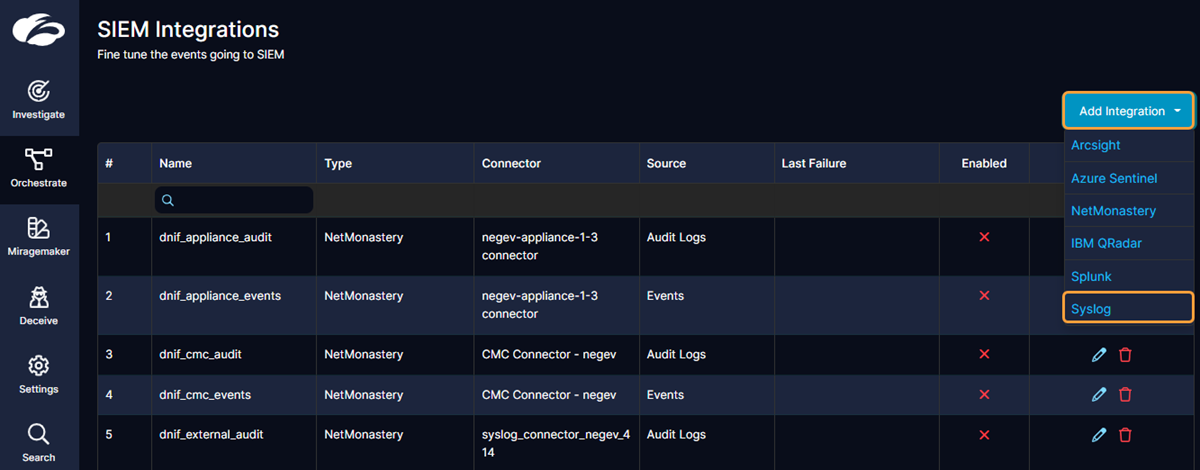
a. In the Zscaler Admin Portal, go to Orchestrate > SIEM Integrations.
b. Click Add Integration, and select Syslog from the drop-down menu.
c. In the Syslog Details window:
- Name: Enter a name for the Syslog SIEM integration.
- Enabled: Select to enable SIEM integration.
-
Service Connector: Select a Service Connector from the drop-down menu:
- If you select a Service Connector that is configured in the Deception Admin Portal, the admin portal sends logs to Syslog.
- If you select a Service Connector that is configured on a Decoy Connector, the selected Decoy Connector sends logs to Syslog.
-
Type of logs: Select an option from the drop-down menu:
- Events: Send events to Syslog.
- Audit Logs: Send audit logs to Syslog.
- Include Safe Events: Enable to forward the events that are marked as safe to Syslog.
-
Filter: Specify a query if you want to send filtered event logs to Syslog. If this field is blank, all event logs are sent to Syslog. To learn how to build queries, see Understanding and Building Queries .
The Filter option is available only for event logs.
- Host: Enter the Syslog server IP address.
- Port: Enter the port number the Syslog server is listening to.
- Transport: Select TCP or UDP.
- Facility: Select a facility code (e.g., System) from the drop-down menu. Each event is labeled with a facility code, indicating the type of software generating the event logs.
- Severity: Select a severity level (e.g., Critical). Each event is labeled with a severity, indicating the severity of the tool generating the event logs.
-
App Name: Enter a log identifier (e.g.,
Zscaler Deceptio).
d. Click Save.
The Syslog server integration is added.
Verification (MSSP Only)
Run the following command on the syslog server:
sudo tcpdump -i any port 514 and host <IP address of the Service Connector>The Syslog server receives the event logs.
Ref: https://help.zscaler.com/deception/siem-configuration-guide-syslog-server
Was this article helpful?
That’s Great!
Thank you for your feedback
Sorry! We couldn't be helpful
Thank you for your feedback
Feedback sent
We appreciate your effort and will try to fix the article