TABLE OF CONTENTS
Overview
Synology NAS (e.g., DS1618+) is a high-performance, network-attached storage solution designed for small and medium-sized businesses. It offers:
Scalability: Up to 16 GB RAM and expandable storage.
Connectivity: Four Gigabit Ethernet ports, two USB 3.0 ports, and a PCIe 3.0 slot.
Reliability: Robust storage management, backup, and security features.
When integrated with ADR, Synology NAS can forward system, application, and security logs via Syslog to the CCE (Collection and Control Engine). This enables centralized visibility, compliance monitoring, and proactive threat detection.
Prerequisites
Before starting the configuration, ensure:
Administrative access to Synology DSM (DiskStation Manager).
A running ADR CCE server accessible from Synology NAS.
Network connectivity between Synology NAS → CCE (typically UDP 514 for Syslog).
Proper firewall rules allowing outbound Syslog traffic.
Steps to Configure Syslog Forwarding
Log in to the Synology DSM interface with administrator credentials.
Navigate to:
Control Panel → Notification → Log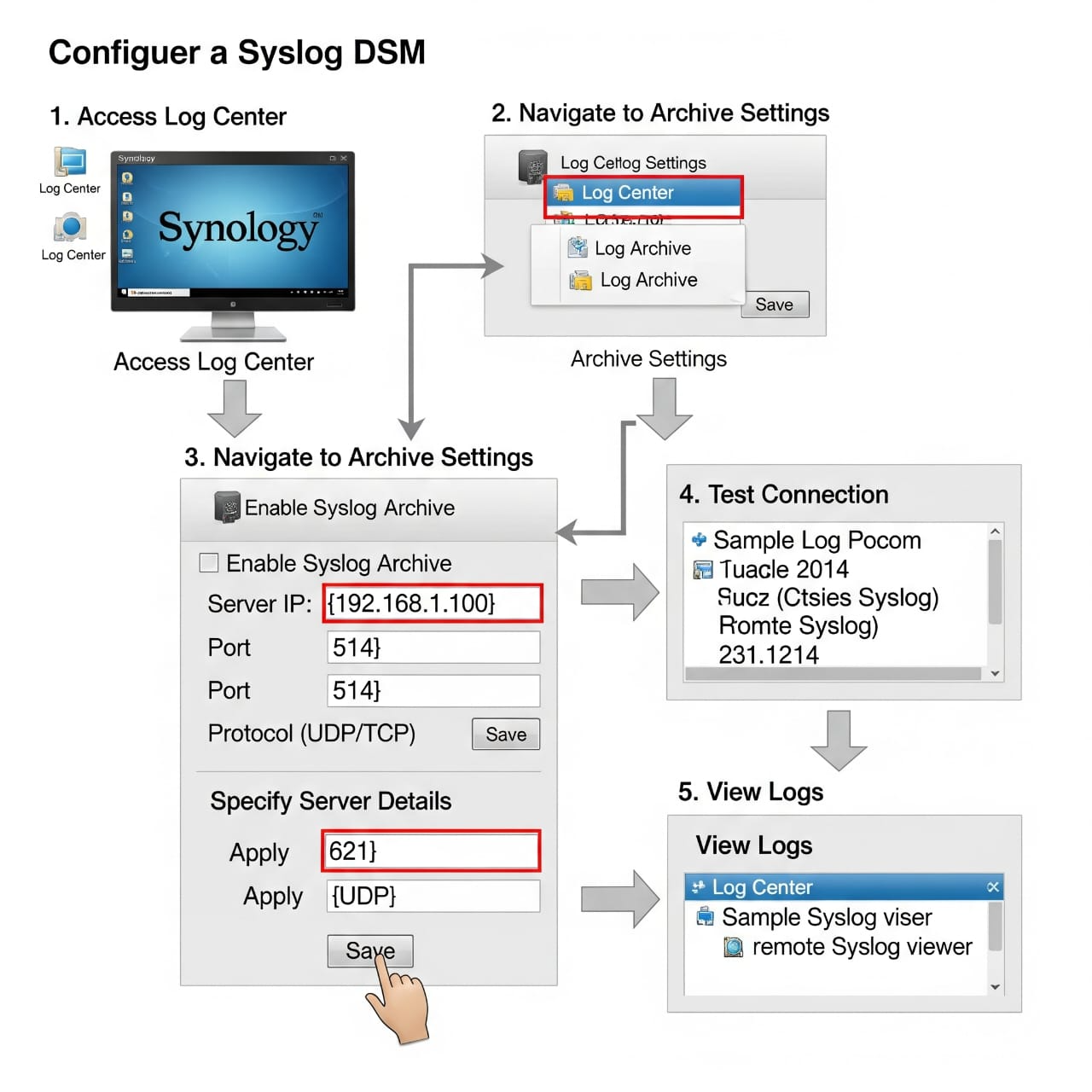
Open the Syslog Server tab.
Enable the option:
✅ Enable Syslog ServerConfigure the syslog forwarding details:
Server IP Address: Enter your CCE server IP
Port:
514(default Syslog port, unless configured otherwise on CCE)Protocol: Select
UDPorTCPdepending on your setupLog Types: Choose the categories to forward (recommended: System Logs, Application Logs, Security Logs)
Click Apply to save the settings.
Verification (MSSP Only)
On Synology NAS
After configuration, logs should be actively forwarded.
Test by generating activity (e.g., login/logout attempts, file access).
On ADR CCE (CLI)
Run tcpdump to confirm log flow:
sudo tcpdump -i any port 514 and host <Synology_IP> -s0 -vvvYou should see log events from the Synology NAS.
On ADR UI
Log in to the ADR dashboard.
Navigate: System → Logs and Flows Collection Status.
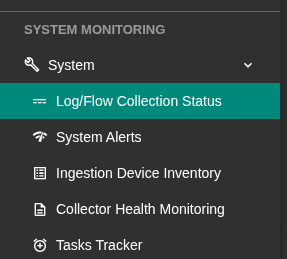
Verify that the Synology NAS IP is listed as a log source.
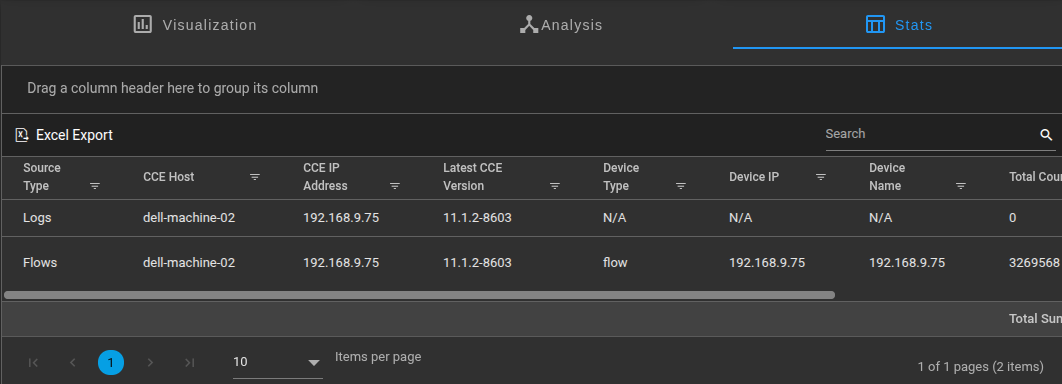
Confirm that logs are being ingested and parsed correctly.
Was this article helpful?
That’s Great!
Thank you for your feedback
Sorry! We couldn't be helpful
Thank you for your feedback
Feedback sent
We appreciate your effort and will try to fix the article