TABLE OF CONTENTS
- Overview
- Pre-requisites
- Required Credentials
- Required User Roles (WithSecure)
- Steps to Generate API Credentials (WithSecure)
- ADR Configuration Steps
- Verification (MSSP Only)
- Validation & Troubleshooting
- Notes
- Conclusion
Overview
This Knowledge Base Article (KBA) explains the prerequisites, required permissions, and configuration steps to integrate WithSecure with the ADR platform.
The integration uses API-based authentication, where a Client ID and Client Secret are generated from WithSecure Elements Security Center and configured in ADR for data collection and monitoring.
Pre-requisites
Before configuring the integration, ensure the following:
Active WithSecure Elements deployment
Access to WithSecure Elements Security Center with EPP administrator privileges and security management rights
Ability to generate API client credentials (Client ID and Client Secret)
Network connectivity from ADR (CCE) to WithSecure Elements API endpoints
Required Credentials
The following details must be collected from the customer:
Client ID
Client Secret
Required User Roles (WithSecure)
The API credentials must be generated by a user with EPP administrator privileges and security management rights in WithSecure Elements Security Center to ensure sufficient access for data collection.
Steps to Generate API Credentials (WithSecure)
Follow the steps below to generate Client ID and Client Secret from WithSecure Elements Security Center:
Log in as an EPP administrator in WithSecure Elements Security Center.
Under Management, select Organization Settings.
In the Organization Settings view, from the top menu select API clients.
From the scope selector, change the scope to the organization for which you want to create credentials.
Note: If you are a partner, ensure you change the scope to the target organization.
Select Add new.
In the Add new API client window:
Enter a description for the new client credentials.
Select Read-only to allow the client to only read data.
Select Add.
Follow the on-screen instructions.
Important: Save the Client Secret in a secure location, as it will not be shown again.
Select I have copied and stored the secret, and then select Done.
The new API client credentials will now appear in the list.
ADR Configuration Steps
Once the Client ID and Client Secret are generated, configure WithSecure in the ADR UI as follows:
Navigate to:
Administration → Add On DeviceSelect WithSecure from the device list.
Fill in the required fields as shown below.
Field Mapping
| ADR UI Field | Value to Enter |
|---|---|
| Name | Any logical name (e.g., WithSecure) |
| CCE Host | Valid CCE IP address (or 127.0.0.1) |
| Username / Access Key | WithSecure Client ID |
| Password / Secret Key | WithSecure Client Secret |
| Config | Leave empty |
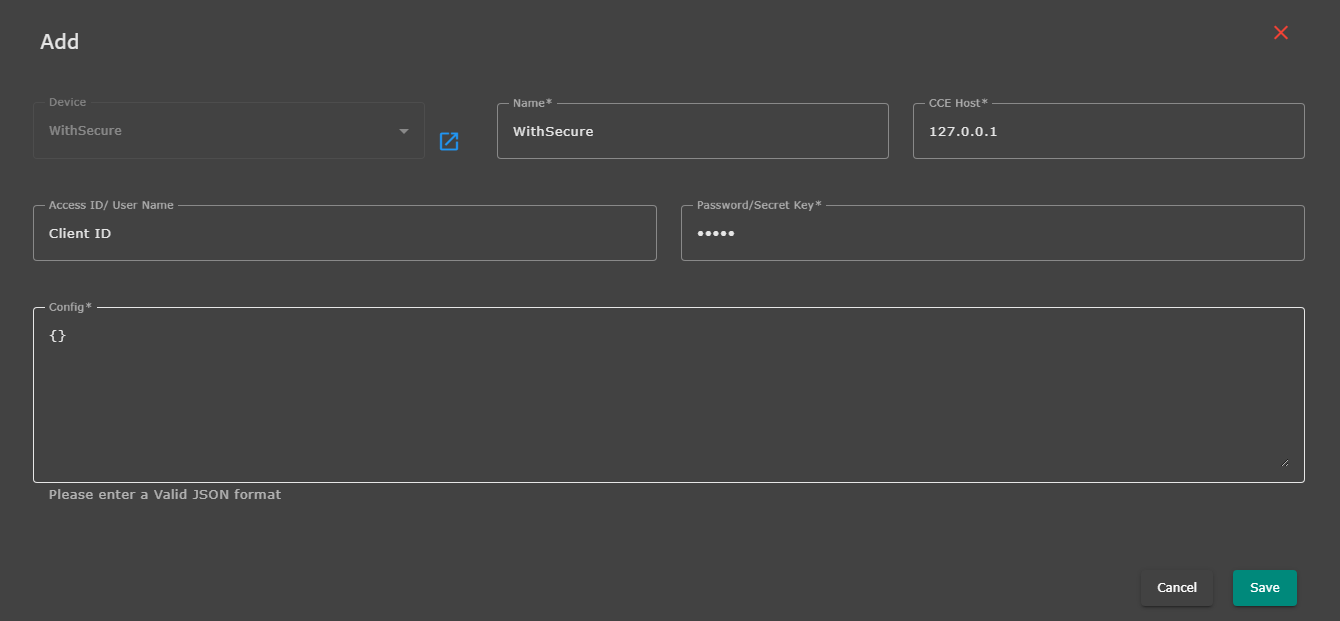
Click Save to complete the integration.
Verification (MSSP Only)
On CCE (Command-Line Verification)
Login to the CCE with the ADR user account.
Run:
otmdoc -mEnter the add-on device container:
otmdoc -s cce-addon-devicesCheck scheduled tasks:
crontab -lRun the WithSecure Python script and review the outputs/logs for any errors.
On ADR GUI Console
Log in to ADR with appropriate administrative rights.
Navigate to SYSTEM.
Check Collection Status.
Go to Logs / Flow Collection Status.
Verify the WithSecure integration status and ensure logs are being ingested successfully.
Validation & Troubleshooting
Ensure network connectivity from ADR CCE to WithSecure Elements APIs.
Verify that the Client ID and Client Secret were generated using an administrator account.
If logs are not ingesting:
Regenerate the API credentials
Update the credentials in ADR
Revalidate permissions and network connectivity
Notes
Rotate API credentials periodically as per security best practices.
Do not share Client ID and Client Secret over unsecured channels.
Revoke unused or compromised API clients immediately from WithSecure Elements Security Center.
Conclusion
Following the above steps ensures a successful and stable integration between WithSecure and ADR, enabling continuous visibility into endpoint security events.
For further assistance, contact ADR Support with relevant logs and screenshots.
Was this article helpful?
That’s Great!
Thank you for your feedback
Sorry! We couldn't be helpful
Thank you for your feedback
Feedback sent
We appreciate your effort and will try to fix the article