TABLE OF CONTENTS
Overview
We are providing you with the steps to integrate your RV320 and RV325 VPN Router Series with ADR SIEM so you can have Comprehensive visibility and Proactive Threat Detection in your environment. There will be a log transfer between your firewall to APE (Analytics and Policy Engine) via CCE (Collection and Control Engine). In this document, we are guiding you through the steps for Log forwarding.
Applicable Devices
- RV320 Dual WAN VPN Router
- RV325 Gigabit Dual WAN VPN Router
System Log Configuration
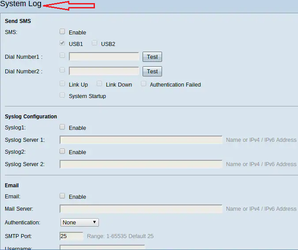
Step 1: To access the System Log
Log in to the Web Configuration Utility and navigate to Log > System Log. This will open the System Log page:
Step 2: Configure System Logs on System Log Servers
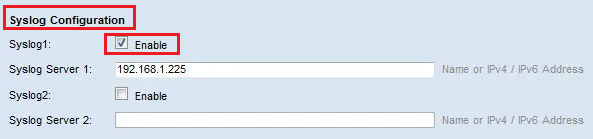
- Check the "Enable" option in the Syslog1 field.
- Enter the hostname or IP address of the system log server in the "Syslog Server 1" field.
- (Optional) To send logs to another system log server, check "Enable" in the Syslog2 field.
- If the "Enable" box is checked in the Syslog2 field, enter the hostname or IP address of the second system log server in the "Syslog Server 2" field.
- Click "Save" to complete the configuration of sending system logs through system log servers."
Step 3: Log Settings
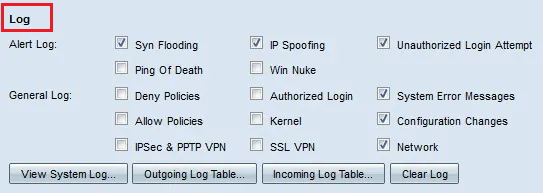
1. Check the check boxes of the events that will trigger a log entry.
Alert Logs: These logs are created when an attack or attempted attack has occurred, such as:
- Syn Flooding: when SYN requests are received faster than the router can process them.
- IP Spoofing: when the router receives IP packets with forged source IP addresses.
- Unauthorized Login Attempt: when a rejected attempt to log on to the network has failed.
- Ping of Death: when a ping of abnormal size has been sent to an interface in an attempt to crash the target device.
- Win Nuke: when the remote Distributed Denial of Service Attack (DDOS) known as WinNuke, has been sent to an interface in an attempt to crash the target device.
General Logs: These logs are created when general network actions occur, such as:
- Deny Policies: when access has been denied to a user based on the configured policies of the router.
- Authorized Login: when a user has been authorized to access the network.
- System Error Messages: when a system error has occurred.
- Allow Policies: when access has been granted to a user based on the configured policies of the router.
- Kernel: when all kernel messages in the log are included. The kernel is the first part of the operating system that loads into memory at boot up. Kernel messages are logs that are associated with the kernel.
- Configuration Changes: when the router configuration has been modified.
- IPSEC & PPTP VPN: when an IPSEC & PPTP VPN negotiation, connection, or disconnection has occurred.
- SSL VPN: when an SSL VPN negotiation, connection, or disconnection has occurred.
- Network: when a physical connection has been made or lost on the WAN or DMZ interfaces.
2. Click "Save" to complete the configuration of the Log Settings.
Note: To clear the current log, click "Clear Log"
Verification (MSSP Only)
On ADR UI
- Log in to ADR SIEM UI.
- Navigate: System → Logs and Flows Collection Status.
- Check that Cisco RV Router IP appears under Source Device IP.
On ADR CCE (CLI)
Run:
sudo tcpdump -i any port 514 and host <ip address of the router>
Was this article helpful?
That’s Great!
Thank you for your feedback
Sorry! We couldn't be helpful
Thank you for your feedback
Feedback sent
We appreciate your effort and will try to fix the article