TABLE OF CONTENTS
Overview
Aruba ClearPass can be integrated with ADR SIEM to ingest syslog events for comprehensive visibility and proactive threat detection in your environment. This integration enables centralized log collection and correlation, helping detect and mitigate threats effectively.
Prerequisites
Before integrating Aruba ClearPass with ADR SIEM, ensure the following requirements are met:
✅ System Requirements
ADR SIEM platform is deployed and accessible via UI.
Administrative access to ADR SIEM UI is available.
✅ Network & Connectivity Requirements
Stable connectivity between Aruba ClearPass and ADR SIEM.
Syslog port (UDP 514 or configured custom port) is open.
✅ Aruba ClearPass Requirements
Administrative access to Aruba ClearPass.
Ability to configure Syslog Export Filters.
Syslog target (CCE/ADR SIEM IP) identified and reachable.
Steps of Configuration
Follow the steps below to configure Aruba ClearPass for ADR SIEM integration:
Step 1: Log in to Aruba ClearPass with administrative access.
Step 2: Navigate to: Administration > External Servers > Syslog Export Filters

Step 3: From the Syslog Export Filters page, click Add.
The Add Syslog Filters page opens to the General tab.
Name: Enter a descriptive name for the syslog export filter.
Description: Provide additional information about the filter (recommended).
Export Template: Select Audit Records.
Export Event Format Type: Choose CEF (Common Event Format).
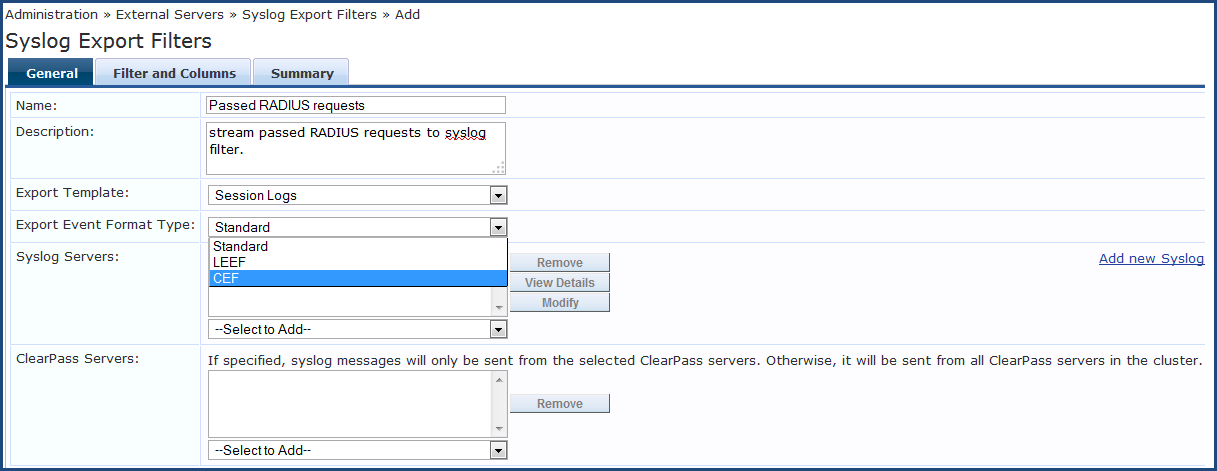
Step 4: Configure Syslog Servers:
To add an existing syslog server, select it from the drop-down list.
To add a new syslog server, click Add New Syslog Target and provide the ADR SIEM/CCE IP as the destination.
To modify an existing syslog server, select it and click Modify.
To remove, select and click Remove.
Step 5: Configure ClearPass Servers:
Choose whether syslog messages should be sent from one ClearPass server or all servers in the cluster.
To add, select from the drop-down list.
To remove, select and click Remove.
Note: If no servers are listed, syslog messages will be sent from all servers in the cluster.
Step 6: Save the configuration.
Verification (MSSP Only)
Step 1: Log in to the ADR SIEM UI with administrative rights.
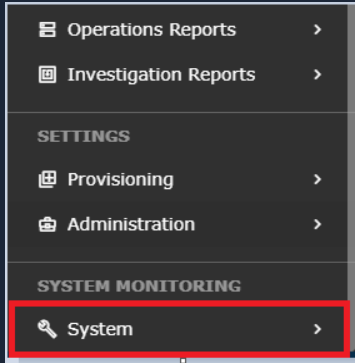
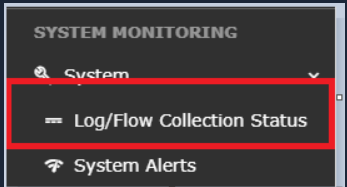
Step 2: Navigate to: System >> Logs and Flows Collection Status
Step 3: Verify that the Source Device IP of the Aruba ClearPass server is displayed.
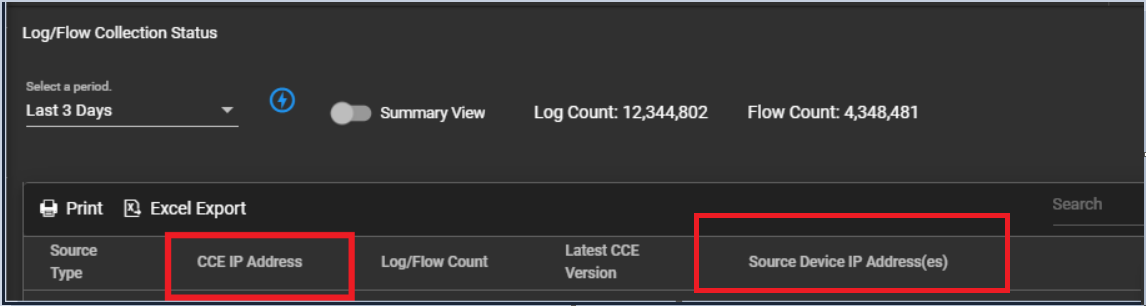 If the Source Device IP is correctly listed, it confirms successful ingestion of logs from Aruba ClearPass into ADR SIEM.
Was this article helpful?
That’s Great!
Thank you for your feedback
Sorry! We couldn't be helpful
Thank you for your feedback
Feedback sent
We appreciate your effort and will try to fix the article