TABLE OF CONTENTS
Overview
This document provides the steps to integrate Cylance (BlackBerry Protect/Firewall) with ADR SIEM using Syslog. The integration enables security logs from Cylance to be forwarded to the ADR Collection and Control Engine (CCE), where they are ingested and analyzed in the Analytics and Policy Engine (APE) for enhanced visibility and proactive threat detection.
Prerequisites
Admin credentials for Cylance Console.
ADR CCE IP address.
Firewall rules must allow traffic from Cylance to CCE on UDP port 514.
Steps of Configuration
Login to the Cylance console with admin credentials.
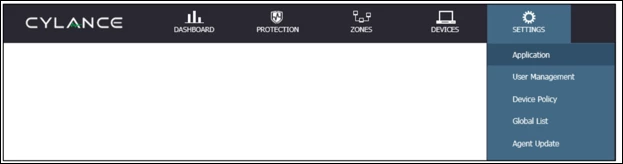
Go to:
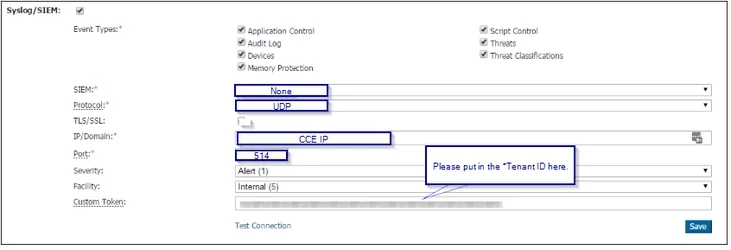
Settings → Application.In the Integrations section, activate the checkbox for Syslog/SIEM.
Under Event Types, enable checkboxes for all events you want forwarded.
Configure the remaining fields as follows:
SIEM →
NoneProtocol →
UDPTLS/SSL → Unchecked
IP/Domain → Enter the ADR CCE IP address
Port →
514Severity →
Alert (1)Facility →
Internal (5)
Click Save to apply the configuration.
Verification (MSSP Only)
On CCE Server
Run the following command to confirm logs are being received:
sudo tcpdump -i any port 514 and host <Cylance_IP> -s0 -AAA
On ADR UI
Log in with administrative rights.
Navigate to: System → Logs and Flows Collection Status.
Verify that the Cylance device IP appears under Source Device IP.
Reference
Was this article helpful?
That’s Great!
Thank you for your feedback
Sorry! We couldn't be helpful
Thank you for your feedback
Feedback sent
We appreciate your effort and will try to fix the article