TABLE OF CONTENTS
- Overview
- Prerequisites
- Steps of configuration
- Verification (MSSP Only)
- Troubleshooting for common errors
Overview
This knowledge base article provides step-by-step instructions for configuring Cisco switches to forward NetFlow data to the ADR Control and Collection Engine (CCE) Server. NetFlow forwarding enables comprehensive network traffic monitoring and security analysis within the ADR platform.
Prerequisites
Before beginning the configuration process, ensure you have:
- Administrative access to the Cisco switch
- Network connectivity between the Cisco switch and the ADR CCE server
- ADR CCE server IP address and designated NetFlow port (typically UDP 9995)
- Knowledge of your network topology and VLAN configuration
- Cisco IOS version that supports NetFlow (most modern versions do)
Supported Cisco Platforms
This configuration applies to most Cisco switches running IOS, including:
- Catalyst 2960, 3560, 3750, 3850, 9200, 9300, 9400 series
- Nexus switches (with NX-OS specific commands)
- ISR routers with switching capabilities
Steps of configuration
Switch# configure terminal
Enter configuration commands, one per line. End with CNTL/Z.

Switch(config)# flow export seceon
Switch(config-flow-exporter)# destination <CCE_IP_Address>
Switch(config-flow-exporter)# transport udp 9995
Switch(config-flow-exporter)# exit
Switch(config)# flow record seceon
Switch(config-flow-record)# match ipv4 source address
Switch(config-flow-record)# match ipv4 destination address
Switch(config-flow-record)# match ipv4 protocol
Switch(config-flow-record)# match transport source-port
Switch(config-flow-record)# match transport destination-port
Switch(config-flow-record)# collect counter byte long
Switch(config-flow-record)# collect counter packet long
Switch(config-flow-record)# collect timestamp absolute first
Switch(config-flow-record)# collect timestamp absolute last
Switch(config-flow-record)# exit
Switch(config)# flow monitor MonitorSeceon
Switch(config-flow-monitor)# record seceon
Switch(config-flow-monitor)# exporter seceon
Switch(config-flow-monitor)# exit
<now confirm the interfaces which are up user command "show ip interface brief" and add same interface one by one. sample screenshot given below>
Switch(config)# interface range <InterfaceName>
Switch(config-if)# ip flow monitor MonitorSeceon input
Switch(config-if)# end
Sample Screenshot for show ip interface brief and one by one execution.
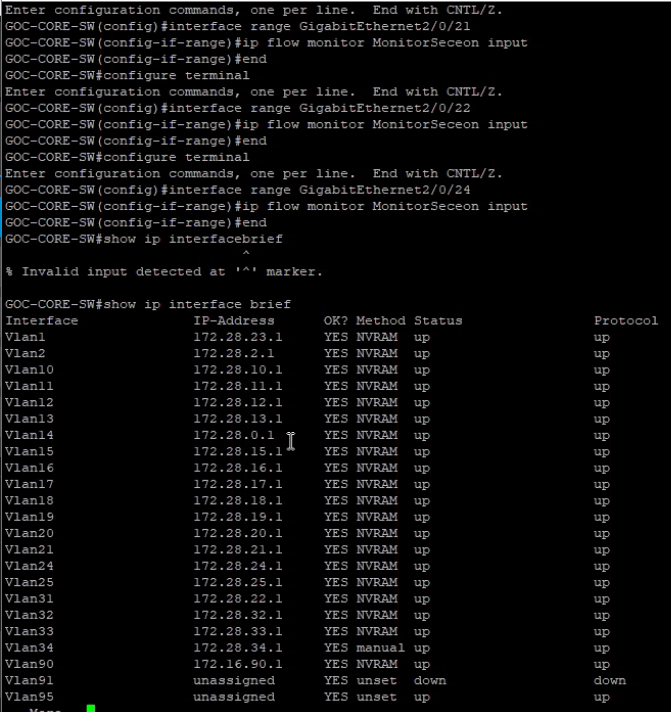
To show all the active (UP) interfaces, execute the following command:
sh ip int brief | i upThe above cmd will help to show all the active interfaces.
Step no 23- interface range TenGigabiteEthernet1/0/8-10 (Use like this in the place of InterfaceName)
Finishing Up
At this point, the Cisco device is configured and exporting NetFlow. Depending on the configured timeouts, it could take some minutes for session traffic to start arriving and being processed. If traffic fails to arrive at your collector, there are a few things to check:
- First, make sure that your NetFlow collector is listening on the correct port (UDP 9995) and that any firewalls in between (particularly on the host running the collector) allow the NetFlow packets to pass.
- Second, double-check the Exporter configuration and ensure the collector IP address listed is correct and routable. You can verify the flow of session records using a packet capture utility such as Wireshark or TCPdump.
- Third, make sure the configuration includes all the data needed to store full network session records: typically, collectors require IP addresses, protocol, port numbers, and byte and packet counts.
Finally, if none of the above troubleshooting methods worked, contact your vendor’s support.
Verification (MSSP Only)
On ADR CCE
Execute the following command on the CCE Server
sudo tcpdump -i any port 9995 and host <Switch_IP> -AAAOn ADR GUI
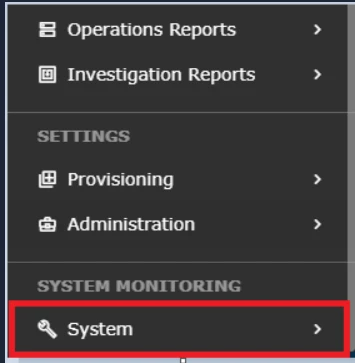
- Log in to the GUI > System > Logs and Flows Collection Status.
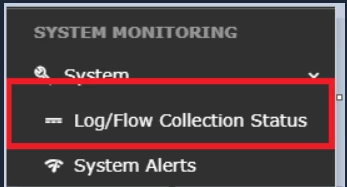
- Go to Log/Flow Collection Status.
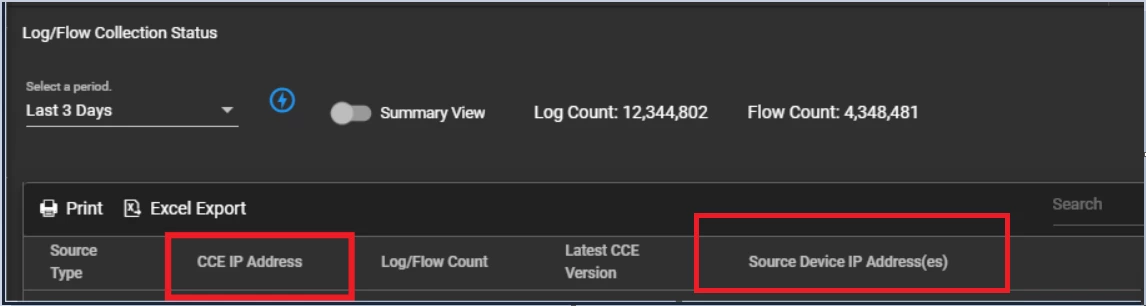
- Inside the Source Device IP Address(es), the IP address will be reflected.
Troubleshooting for common errors
Execute the following command on the CCE Server and capture 500 to 700 packets and stop writing the file.
sudo tcpdump -i any port 9995 and host <Switch_IP> -s0 -vw filename.pcap
Error 1: Interface IP showing instead of the switch core IP
Change the IP by following the steps below:
- Enter the following command:
conf t - Go inside flow exporter:
flow exporter seceon - Enter the following command:
source vlan ? - Enter the VLAN you want to assign:
source vlan 300 - Exit and save:
exitendwrite memory - Verify configuration:
show running-config
Error 2: Flow Monitor: Flow Monitor 'monitor1' couldn't be added. Please activate a sampler with the monitor.
In this case, go through the following configuration.
Switch(config)# flow exporter export1
Switch(config-flow-exporter)# destination 10.0.101.254
Switch(config-flow-exporter)# transport udp 9995
Switch(config-flow-exporter)# template data timeout 60
Switch(config-flow-exporter)# exit
Switch(config)# flow record record1
Switch(config-flow-record)# match ipv4 source address
Switch(config-flow-record)# match ipv4 destination address
Switch(config-flow-record)# match ipv4 protocol
Switch(config-flow-record)# match transport source-port
Switch(config-flow-record)# match transport destination-port
Switch(config-flow-record)# collect counter bytes long
Switch(config-flow-record)# collect counter packets long
Switch(config-flow-record)# collect timestamp sys-uptime first
Switch(config-flow-record)# collect timestamp sys-uptime last
Switch(config-flow-record)# exit
Switch(config)# sampler SampleTest
Switch(config-sampler)# mode random 1 out-of 100
Switch(config-sampler)# exit
Switch(config)# flow monitor monitor1
Switch(config-flow-monitor)# cache timeout active 300
Switch(config-flow-monitor)# cache timeout inactive 120
Switch(config-flow-monitor)# record record1
Switch(config-flow-monitor)# exporter export1
Switch(config-flow-monitor)# exit
Switch(config)# interface GigabitEthernet1/0/1
Switch(config-if)# ip flow monitor monitor1 sampler SampleTest input
Switch(config-if)# end
Was this article helpful?
That’s Great!
Thank you for your feedback
Sorry! We couldn't be helpful
Thank you for your feedback
Feedback sent
We appreciate your effort and will try to fix the article