TABLE OF CONTENTS
- Overview
- Prerequisites
- Flow Export
- Using Flow Export
- Enabling Packet Sampling
- Configuring Flow Export
- Verification: Viewing Flow-Export Data
- Verification (MSSP Only)
Overview
This guide provides step-by-step instructions for configuring FortiSwitch to forward NetFlow or sFlow data to ADR's Control and Collection Engine (CCE) Server. This integration enables comprehensive network traffic monitoring and security analysis within the ADR platform.
The Flow Exporting function enables a FortiSwitch appliance to export traffic data (flows) to one or more collectors. Flow export operates on virtual interfaces (sp_lan, sp_wan) that aggregate LAN-side and WAN-side traffic, independent of physical interfaces, with support for sampling and export in NetFlow or IPFIX formats.
Prerequisites
Hardware and Software Requirements
- FortiSwitch with firmware version 7.0 or later.
- ADR CCE Server is properly installed and configured.
- Network connectivity between FortiSwitch and ADR CCE.
- Administrative access to both FortiSwitch and ADR CCE.
Network Requirements
- Ensure UDP port 9995 (NetFlow) or UDP port 6343 (sFlow) is open between FortiSwitch and ADR CCE.
- Verify IP connectivity between the devices.
- Consider bandwidth implications for flow data transmission.
Flow Export
NOTE
- To see which models support this feature, refer to the FortiSwitch feature matrix.
- Starting in FortiSwitchOS 7.0.0, you can use the CLI to configure multiple flow-export collectors, control how often the template is exported, and specify a Berkeley packet filter (BPF).
- Layer-2 flows for NetFlow version 1 and NetFlow version 5 are not supported.
- For 2xxE models and higher, flow export uses pseudorandom sampling (approximately 1 of x packets).
You can sample IP packets on a FortiSwitch unit and then export the data in NetFlow format or Internet Protocol Flow Information Export (IPFIX) format. Specifying the flow-tracking level controls which fields are exported:
| Flow-tracking level | Fields that are exported |
|---|---|
IP | src.mac, dst.mac |
MAC | src.ip, dst.ip, ip.ver |
Port | src.ip, dst.ip, ip.ver, ip.proto |
Protocol | src.ip, dst.ip, ip.ver, ip.proto, ip.src.port, ip.dst.port, tcp.flags |
VLAN | src.ip, dst.ip, ip.ver, ip.proto, ip.src.port, ip.dst.port, tcp.flags, vlan |
The maximum number of concurrent flows is defined by the FortiSwitch model. When this limit is exceeded, the oldest flow expires and is exported.
Using Flow Export
- Enabling packet sampling
- Configuring flow export
- Viewing the flow-export data
- Deleting the flow-export data
Enabling Packet Sampling
To use flow export, you must first enable packet sampling for each switch port and trunk:
CLI Steps
- Enter configuration mode for each switch interface
config switch interface
edit <interface> set packet-sampler enabled set packet-sample-rate <0-99999> end
Adjust
<interface>for each port or trunk and choose an appropriate sampling rate (default is 512).
Configuring Flow Export
Using the GUI
- Go to System > Flow Export > Configure.
Click + to add a collector.
Enter the Name of the collector.
Enter the IP address (required).
Enter the port (default: 9995 for NetFlow, 9995 for IPFIX).
Choose the transport protocol: SCTP, TCP, or UDP.
Select Flow Export options:
Format: NetFlow v1, v5, v9, or IPFIX.
Identity: Unique number or default ("Burn in MAC").
Level: Select flow-tracking level (IP, MAC, Port, Protocol, VLAN).
Max Export Packet Size (Bytes): Maximum bytes for export.
Timeouts: Set general/ICMP/max/TCP/TCP FIN/TCP RST/UDP session timeout values in seconds.
For aggregation, add entries with ID and matching IP/Netmask to group flows.
Using the CLI
Configure all flow export options:
config system flow-export
  set filter <BPF_filter>  set format {netflow1 | netflow5 | netflow9 | ipfix}  set identity <hexadecimal>  set level {ip | mac | port | proto | vlan}  set max-export-pkt-size <512-9216 bytes>  set template-export-period <1-60 minutes>  set timeout-general <60-604800>  set timeout-icmp <60-604800>  set timeout-max <60-604800>  set timeout-tcp <60-604800>  set timeout-tcp-fin <60-604800>  set timeout-tcp-rst <60-604800>  set timeout-udp <60-604800>  config collectors    edit <collector_name>      set ip <IPv4_address>      set port <port_number>      set transport {sctp | tcp | udp}    end  config aggregates    edit <aggregate_ID>      set ip <IPv4_address_mask>    end  end end
Set proper values as per deployment requirements.
Verification: Viewing Flow-Export Data
Using the GUI
- Navigate to System > Flow Export > Monitor to view flow-export data.
Using the CLI
Display flow-export data:
get system flow-export-data flows {all | <count>} {ip | subnet | mac | all} <switch_interface_name>
get system flow-export-data flows-raw {all | <count>} {ip | subnet | mac | all} <switch_interface_name> get system flow-export-data statistics
The statistics show details of exported flows and highlight incompatible types.
Deleting Flow-Export Data
Use the following commands to delete or expire all flow-export records:
diagnose sys flow-export delete-flows-all
diagnose sys flow-export expire-flows-all
These commands clear all active flow-export entries.
Notes
NetFlow v1 and v5 Layer-2 flows: Not supported.
Sampling on 2xxE models and higher: Uses pseudorandom sampling.
Ensure sample rate consistency for NetFlow v5: Use the same rate across all ports for accurate data export
Verification (MSSP Only)
ADR GUI Console
Open the ADR GUI Console with the appropriate administrative rights user.
Navigate to System Monitoring and drop down to System >> Logs/Flows Collection Status.
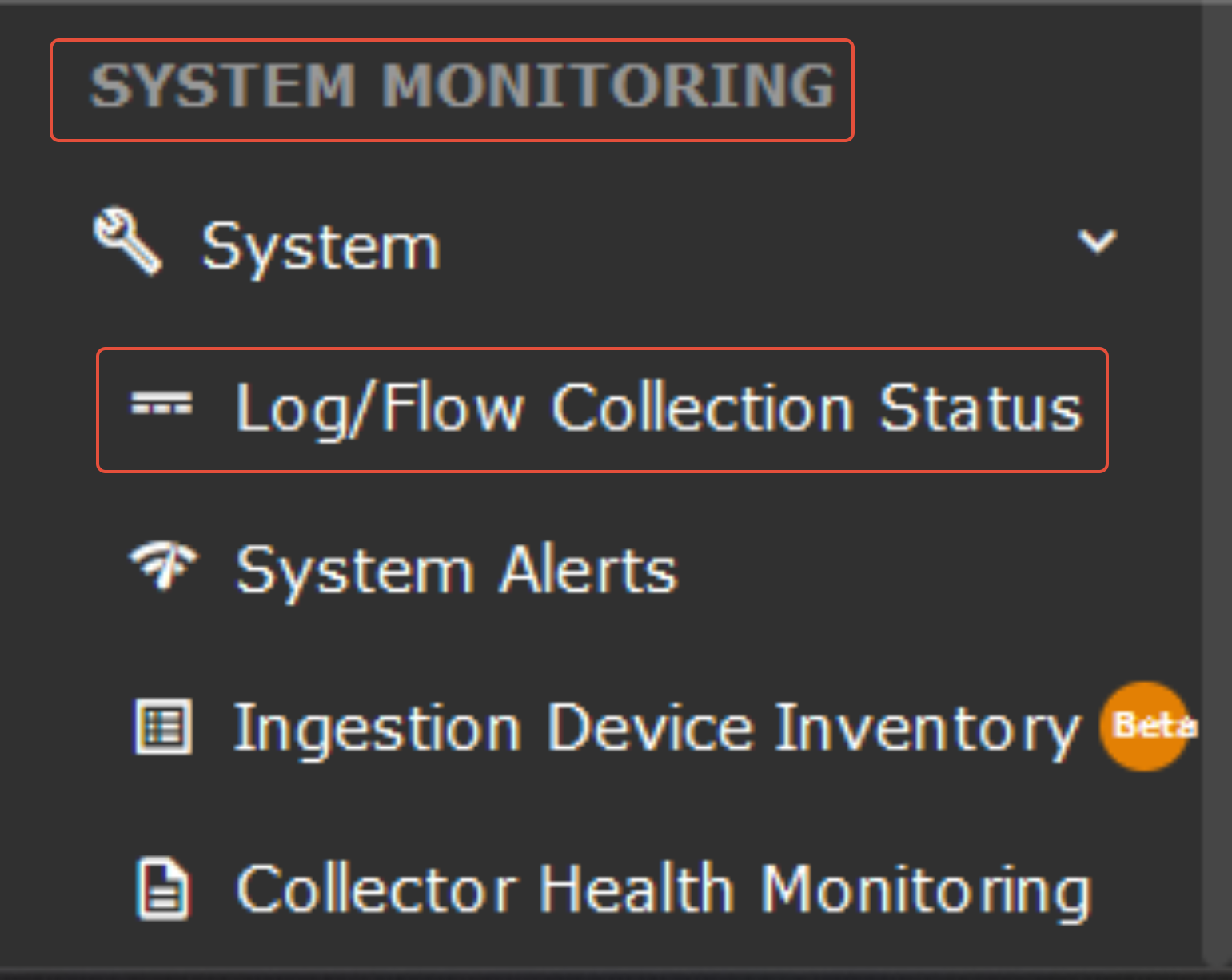

Under the Source device IP address section, the device "MS_Windows" configured will be reflected.
CCE Server
The following command should be run on the CCE server to check whether or not we are getting logs.
For NetFlow:
sudo tcpdump -i any host 9995 and host <IP address> -s0 -AAAFor sFlow:
sudo tcpdump -i any host 6343 and host <IP address> -s0 -AAAWas this article helpful?
That’s Great!
Thank you for your feedback
Sorry! We couldn't be helpful
Thank you for your feedback
Feedback sent
We appreciate your effort and will try to fix the article