TABLE OF CONTENTS
Overview
Use the steps below to enable Windows Security Events using GPO.
Steps of Configuration
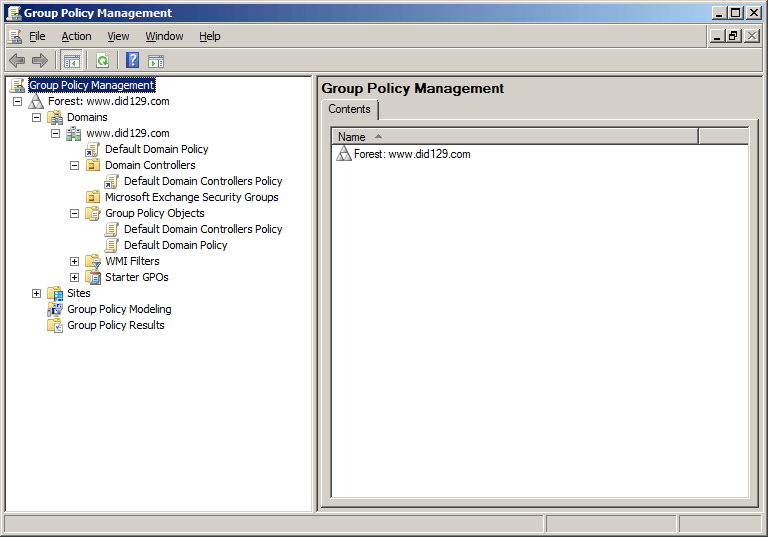
Run gpmc.msc command to open Group Policy Management Console.
- If you want to apply this on whole domain then Right click on the Domain Object and click on Create a GPO in this domain, and Link it here….
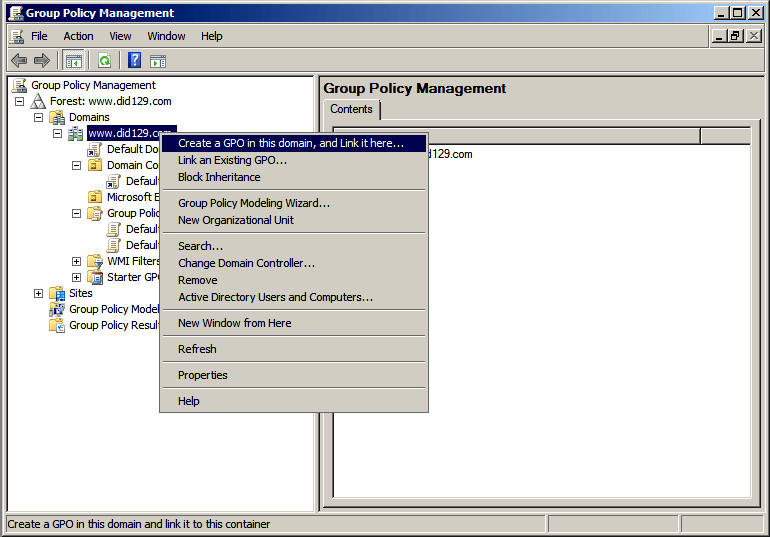
Note: If you do not want to apply this on whole domain then you can select any OU rather selecting a domain.
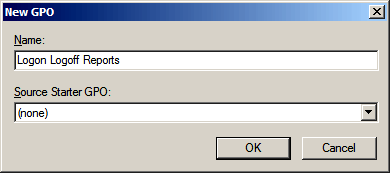
- Write a new GPO name as shown in below image.
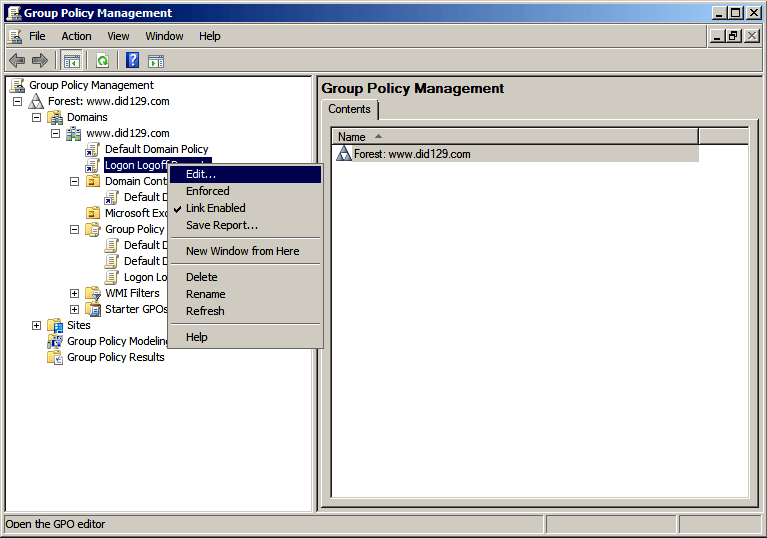
- A new GPO “Logon Logoff Reports” is created. Right-click on this and click on Edit.
- A new window of Group Policy Management Editor (GPME) will open.
- Now under Computer Configuration, go to the Policies node and expand it as:
Policies -> Windows Settings -> Security Settings -> Local Policies -> Audit Policy - In the right hand panel of GPME, either Double click on “Audit logon events” or Right Click -> Properties on “Audit logon events”.
- A new window of “Audit logon events” properties will open. Check “Success” and “Failure” boxes and click “Ok”.
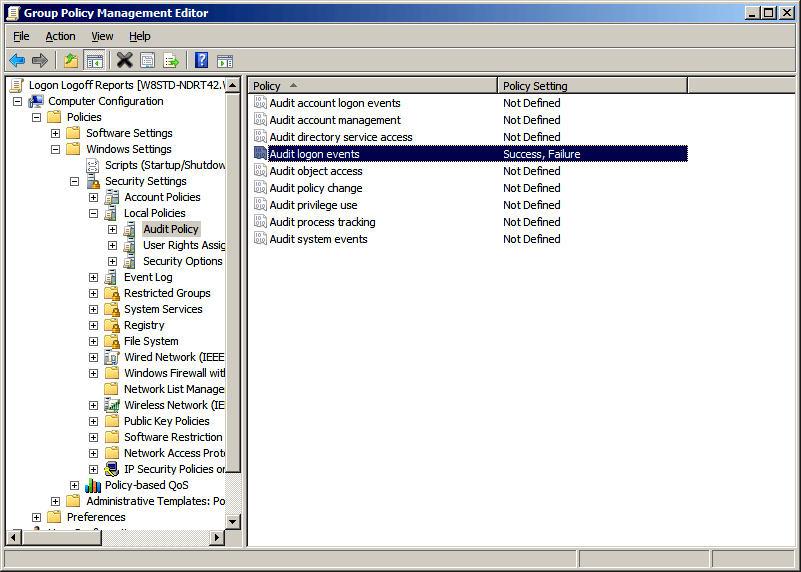
- Now, repeat the same for all other events as well, "Audit Account Logon", "Audit Account Management", "Audit Directory Service Access", "Audit Logon Events", "Audit object Access", "Audit Policy Change", "Audit Privilege access", "Audit Process Tracking", "Audit system events".
- Run gpupdate /force to update GPO.
- Now, we have successfully enabled Audit Policies.
Was this article helpful?
That’s Great!
Thank you for your feedback
Sorry! We couldn't be helpful
Thank you for your feedback
Feedback sent
We appreciate your effort and will try to fix the article