TABLE OF CONTENTS
Overview
This article explains how to configure and verify syslogs from MySQL logs on a Linux-based MySQL server to the ADR CCE Collector.
Requirements
- Admin access to the Linux-based MySQL server.
- The path on the MySQL server where logs are stored (example:
/var/log/httpd/access_log). - Access to ADR CCE command line with the seceon user (If you haven't received the password, please contact ARIA support).
- Access to the ADR Platform GUI.
Instructions
This process comprises the three steps listed below:
- Configuration of MySQL logs from the Linux-based server to the CCE
- Verify the MySQL logs being received at ADR CCE (Command Line)
- Verify the MySQL logs being processed by ADR Platform (GUI)
MySQL Logs Configuration
- Login to MySQL (running on Linux) as the admin user.
- Open the
rsyslog.conffile using:vi /etc/rsyslog.conf
- Add or uncomment the following lines:
$ModLoad imfile #### GLOBAL DIRECTIVES #### $InputFileName /var/log/mysql/*.log $InputFileTag mysql_logs: $InputFileStateFile state-mysql-access $InputRunFileMonitor - Configure the CCE IP at the end of the
/etc/rsyslog.conffile:#*.* @@remote-host:514 # ### end of the forwarding rule ### *.* @CCE_IP:514 - Save the file:
:wq!
- Restart rsyslog:
service rsyslog restart
- Check rsyslog status:
service rsyslog status
Verification
At the Command Line
- Login to the ADR CCE via SSH as the seceon user.
- Run:
sudo tcpdump -i any host MySQLDeviceIP and port 514 -XX
- Examine the logs displayed to ensure they are MySQL DB logs.
- Press CTRL+C to stop the capture.
- If logs are not correct, return to the MySQL server and verify configuration.
At the GUI
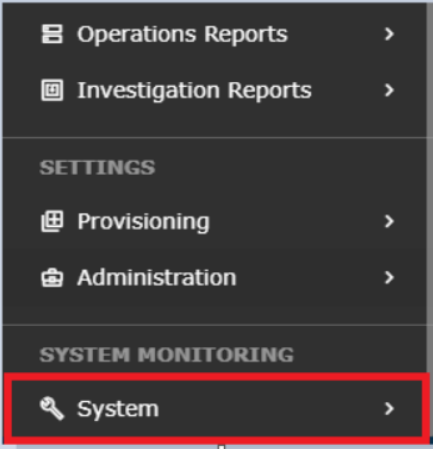
- Login to UI → SYSTEM → LOGS AND FLOWS COLLECTION STATUS.
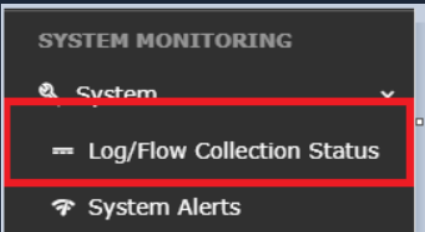
- Select LOGS AND FLOWS COLLECTION STATUS.
- Inside SOURCE DEVICE IP, the IP should be visible.
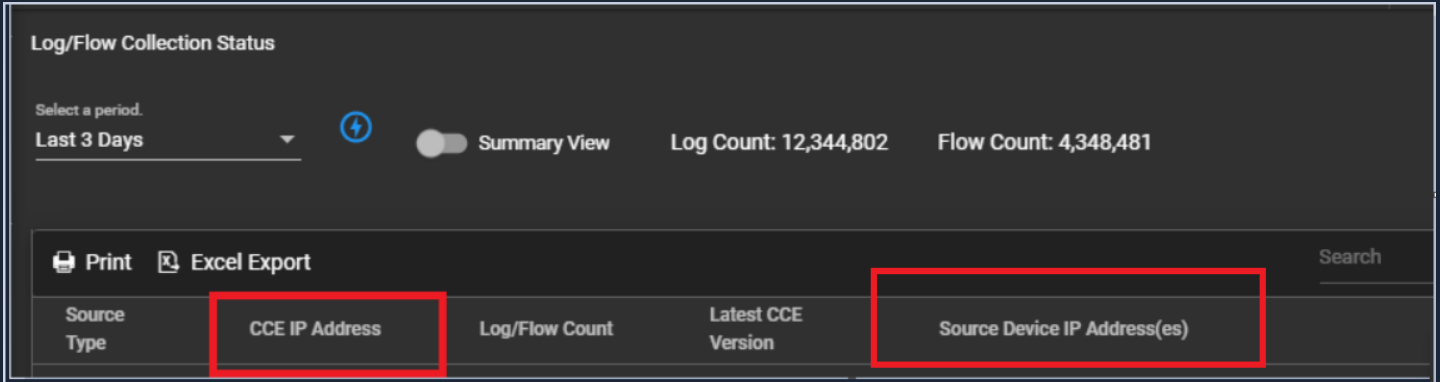
If you see data after generating this report, the setup is complete. If not, please review the configurations.
For any issues or assistance, please contact the ARIA Support team.
Was this article helpful?
That’s Great!
Thank you for your feedback
Sorry! We couldn't be helpful
Thank you for your feedback
Feedback sent
We appreciate your effort and will try to fix the article