To activate your AZT license, complete the tasks below.
Install AZT Local Console
Once your Trust Center is configured, you will want to download the AZT Installer to your device.
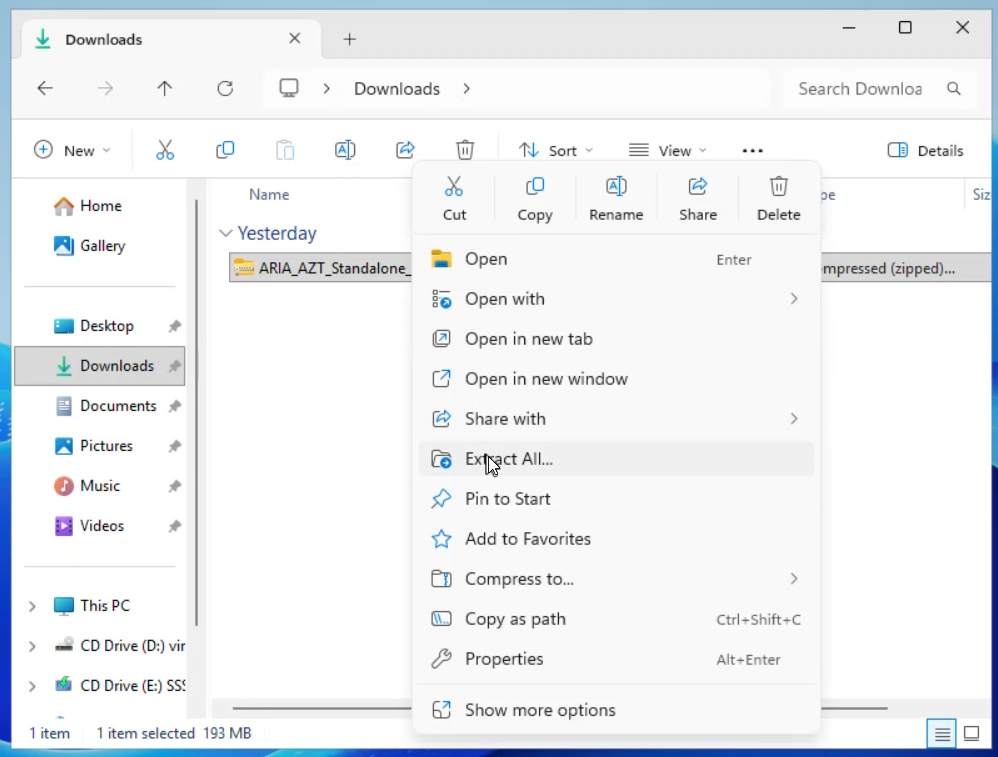
- Navigate to the installer file. Right-click the file and select Extract All...
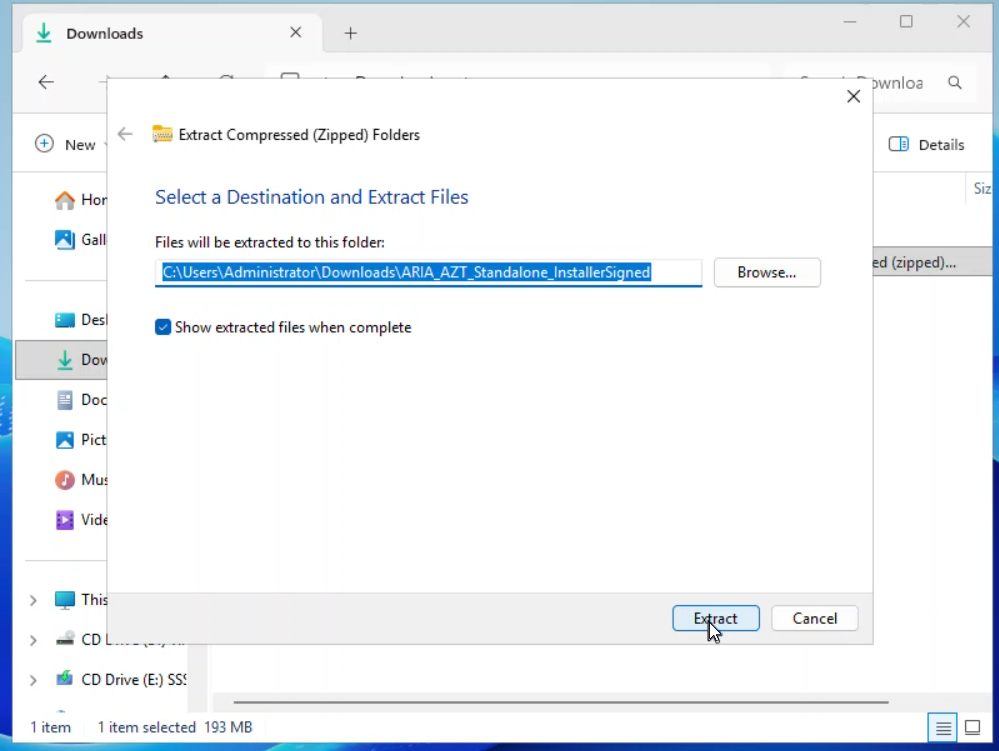
- Choose your destination and select Extract.
 A progress bar will be displayed while the extraction takes places.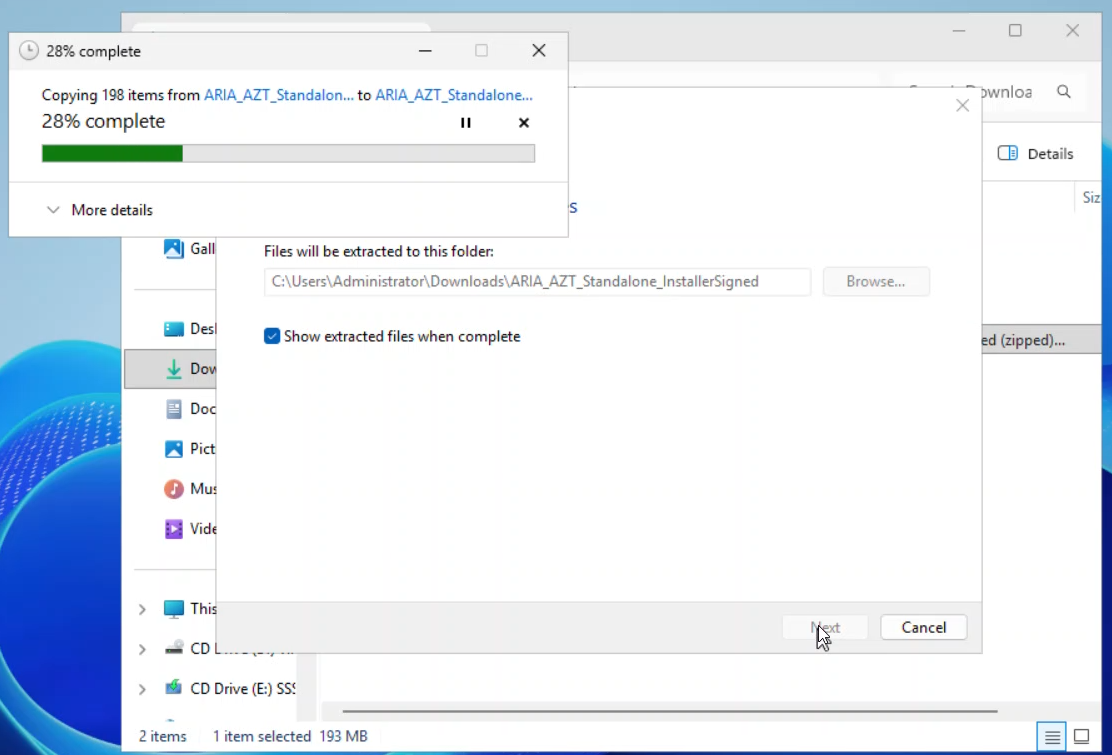
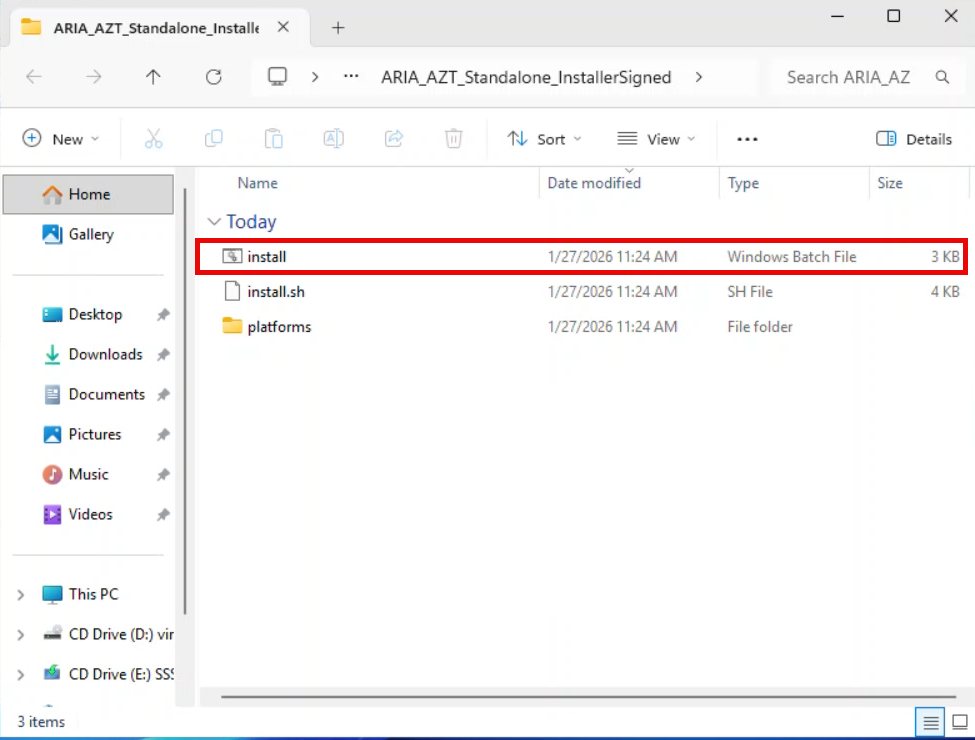
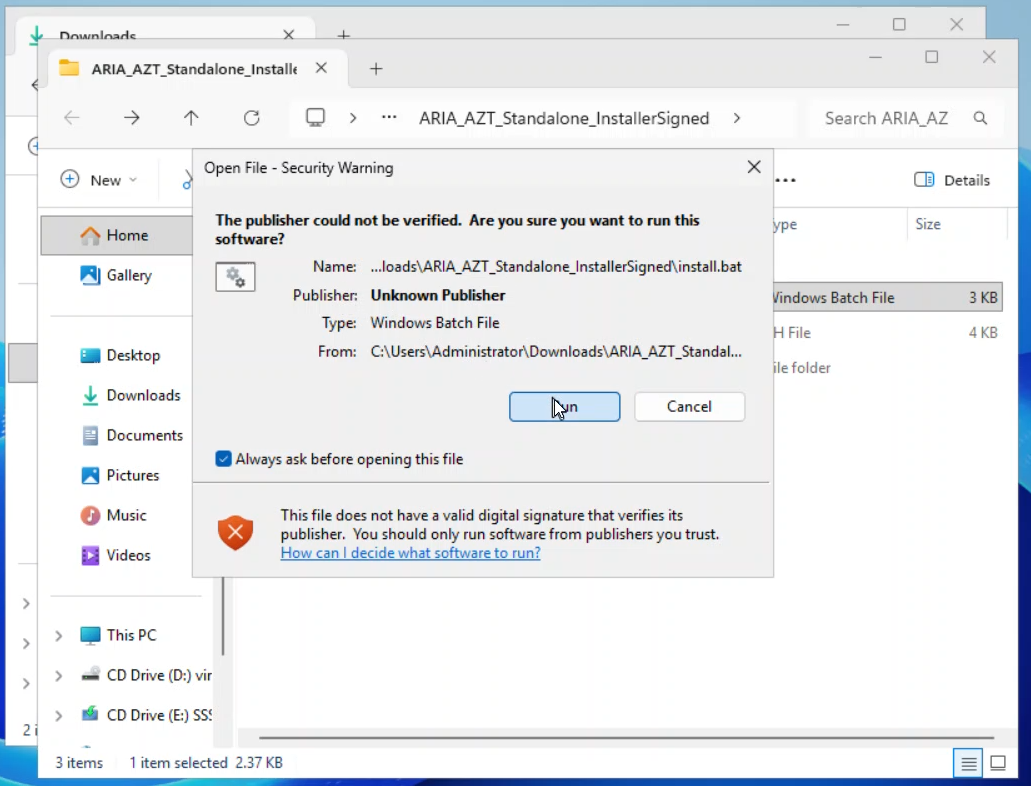
- In the extracted folder, right-click on the Windows Batch File and install the file as Administrator.
- On the Security Warning, select Run to proceed. This will kick-off the install process. The AZT Local Console will be installed once the installer is finished.
Request a License
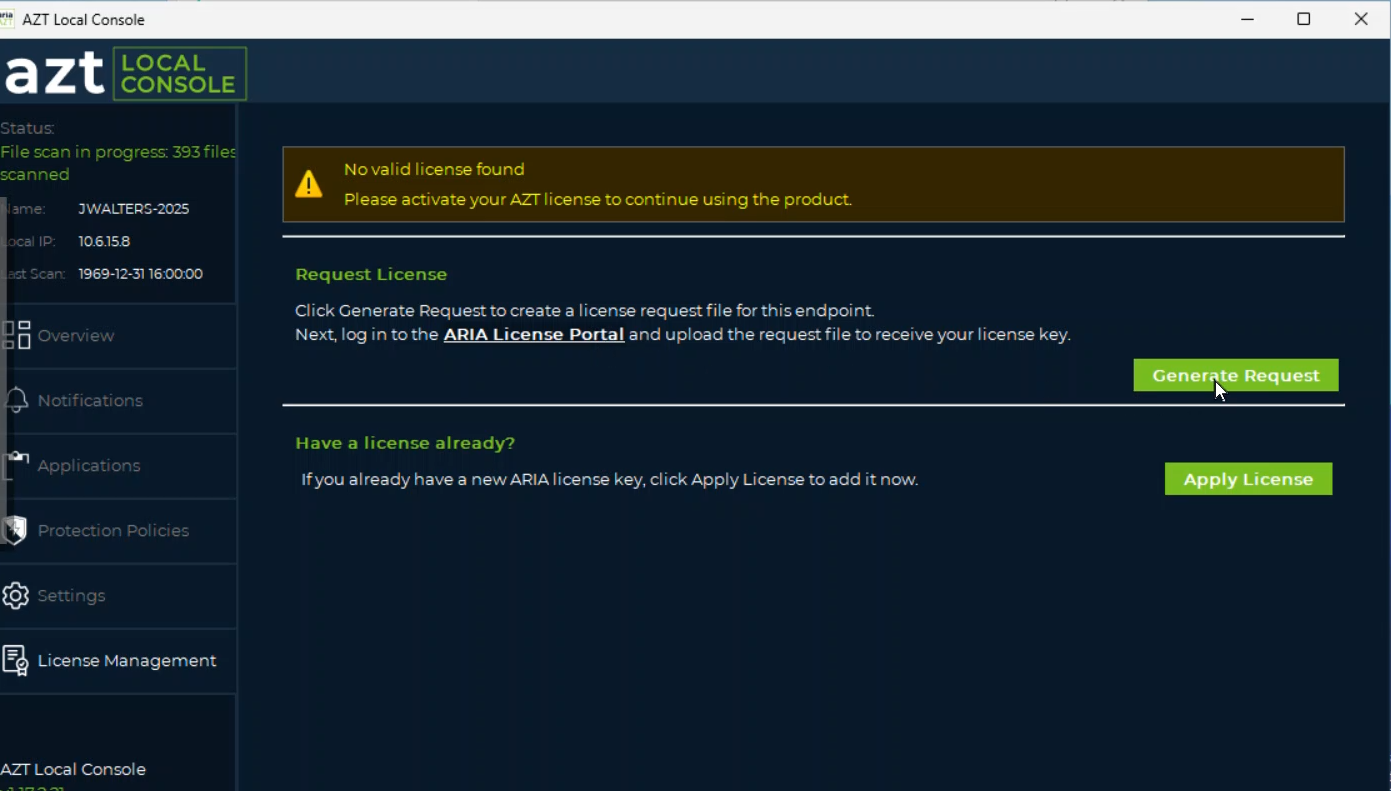
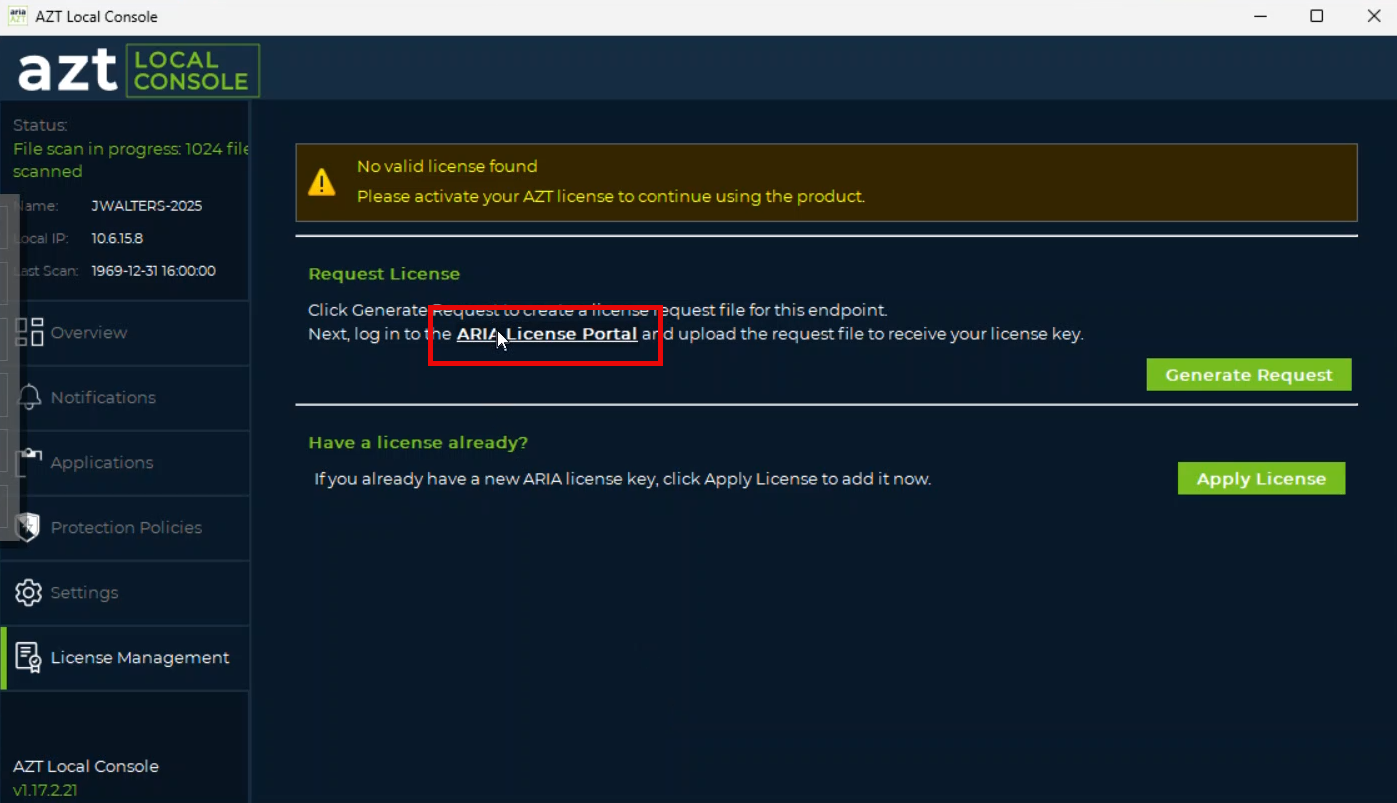
- In the AZT Local Console, go to License Management.
- Select Generate Request to generate a license request file.
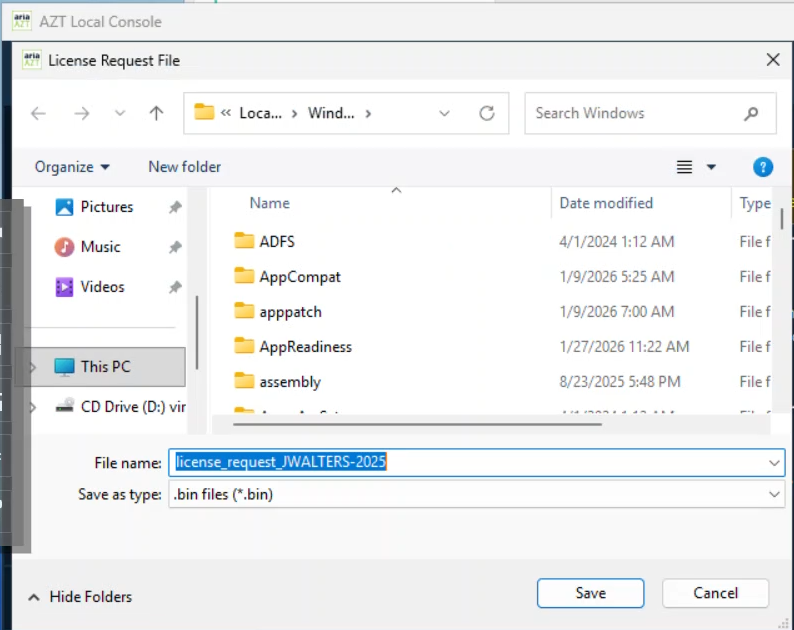
- A license request file will be generated. Select Save.
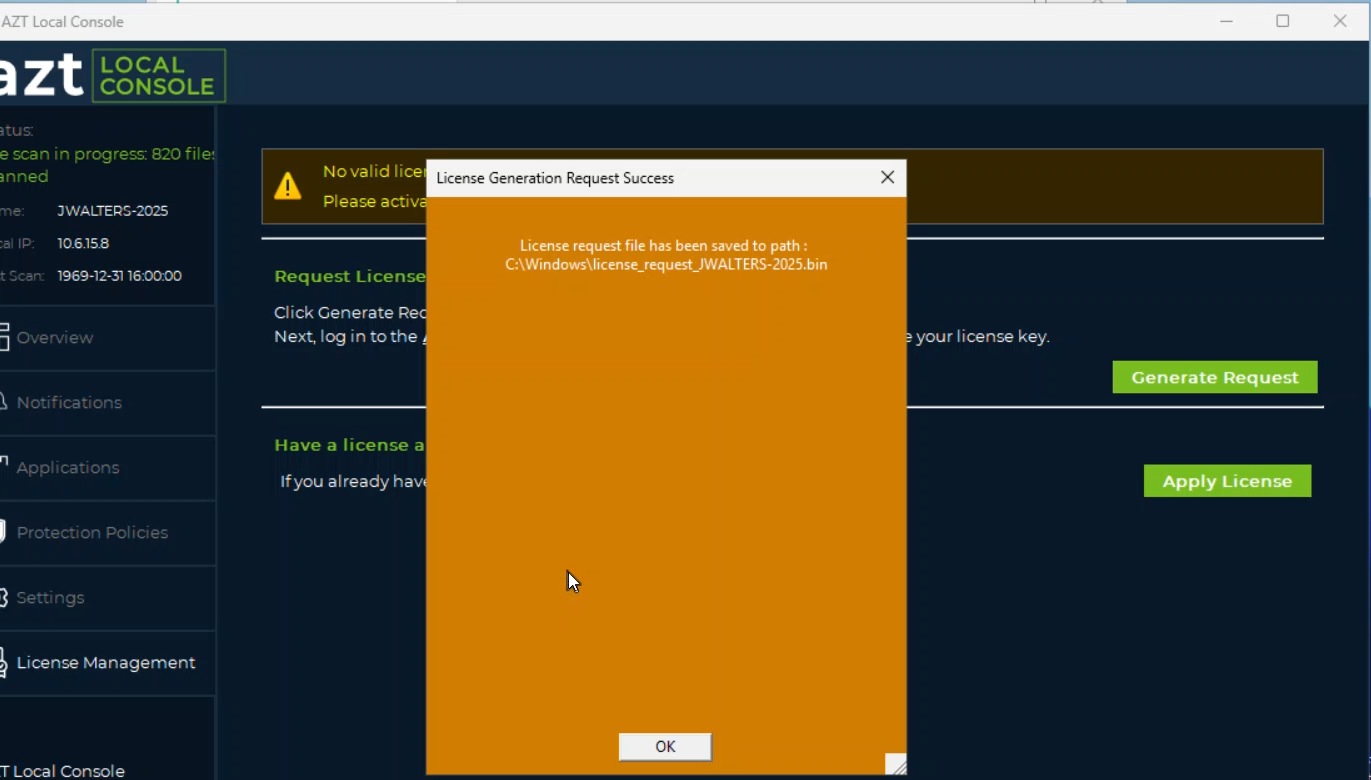
- Select OK.
- Click on the ARIA License Portal link to go to the license portal.
Note: If you system is airgapped and not connected to the internet, you will need to move the license request file to a flash drive and separately upload the license request file using a device connected to the internet. - Enter the username and password provided to you by ARIA or your sales representative. Select Login.
If you do not have a username and password, you can email your license_request .bin file to license@ariacybersecurity.com.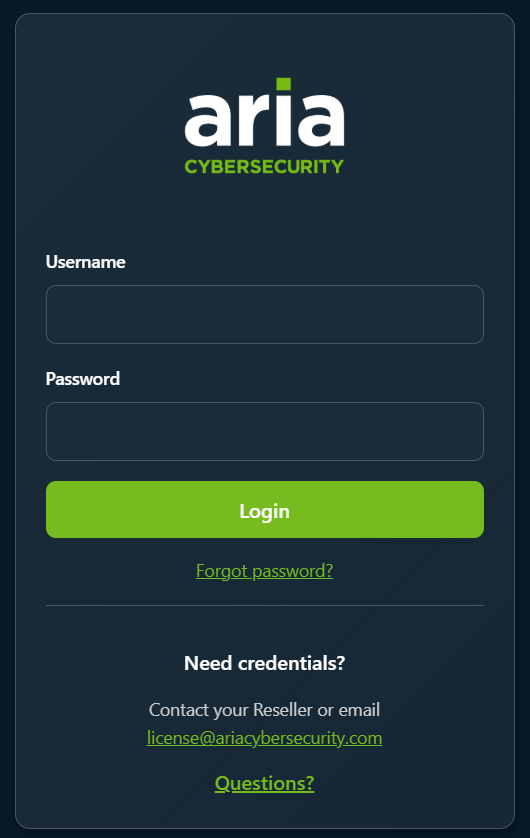
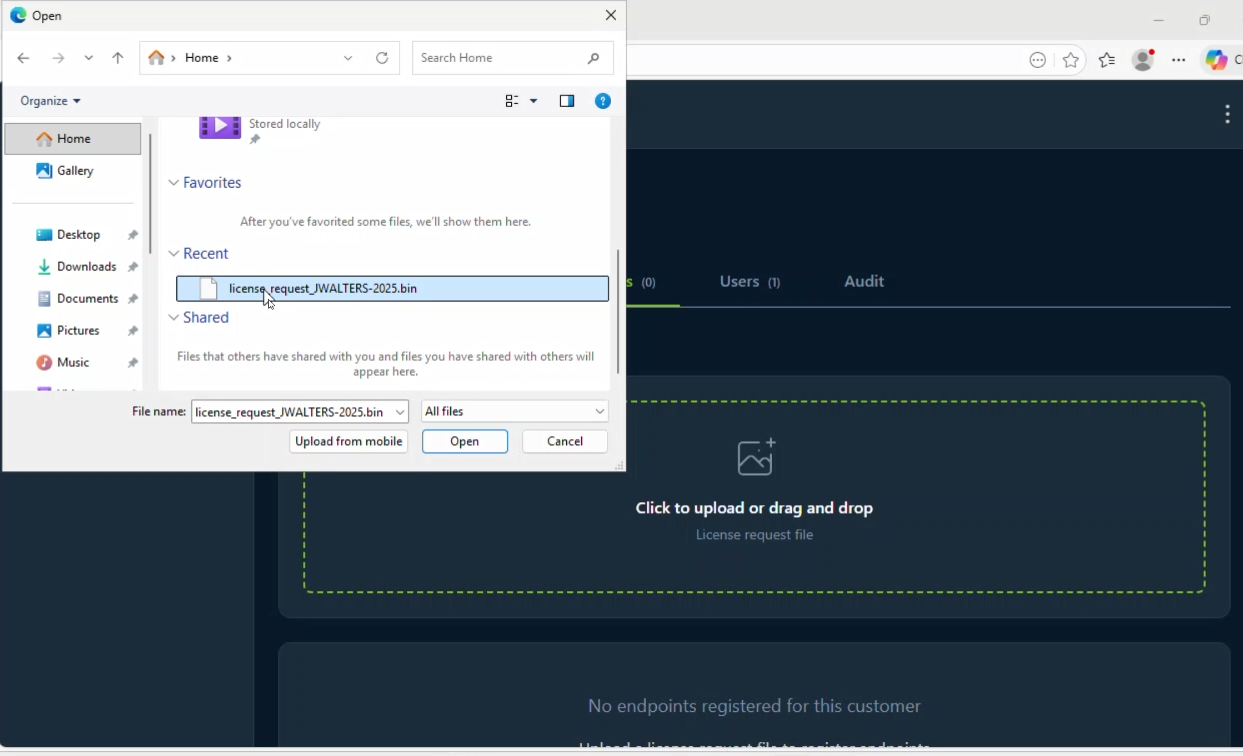
- On the Endpoints tab, upload your license request .bin file to the uploader. Select Open.
- Select the license pool and endpoint(s) you would like to generate licenses for. Select Download to download the file to your computer or Email to send it to your email.
Note: If your system is airgapped, you will need to move the file via a flash drive back to the endpoint.
Note: If you are generating licenses for multiple machines, a bundle file will be generated with multiple licenses. You will be able to use this same file to apply licenses to the machines you selected on this screen.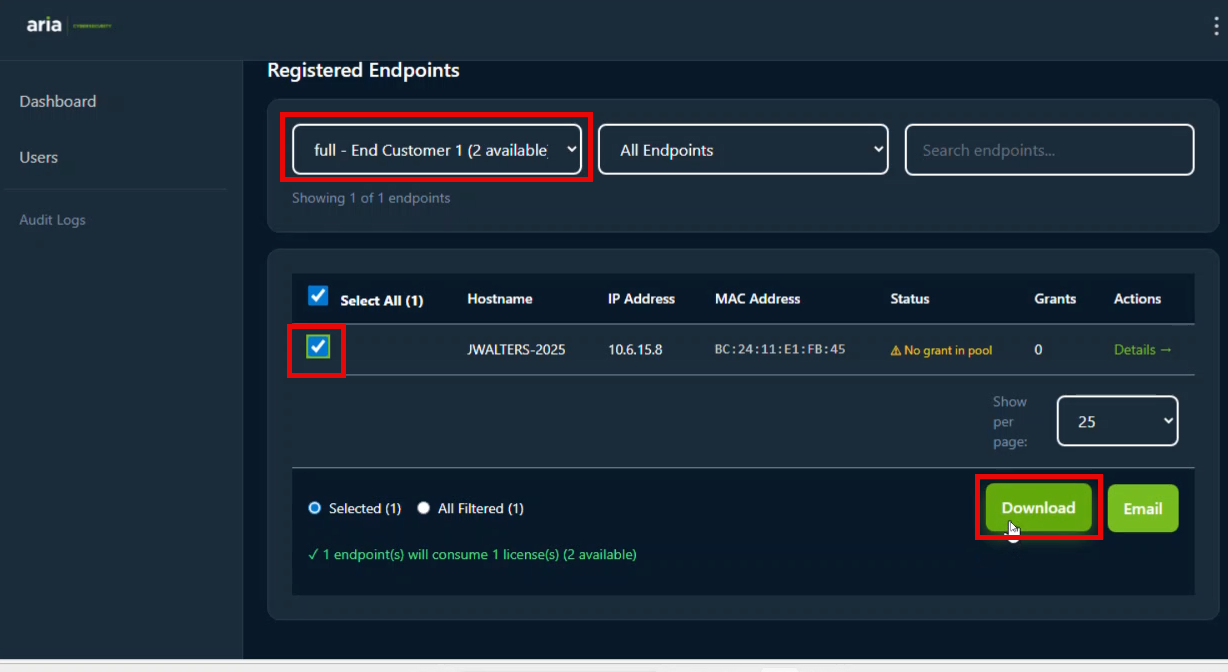
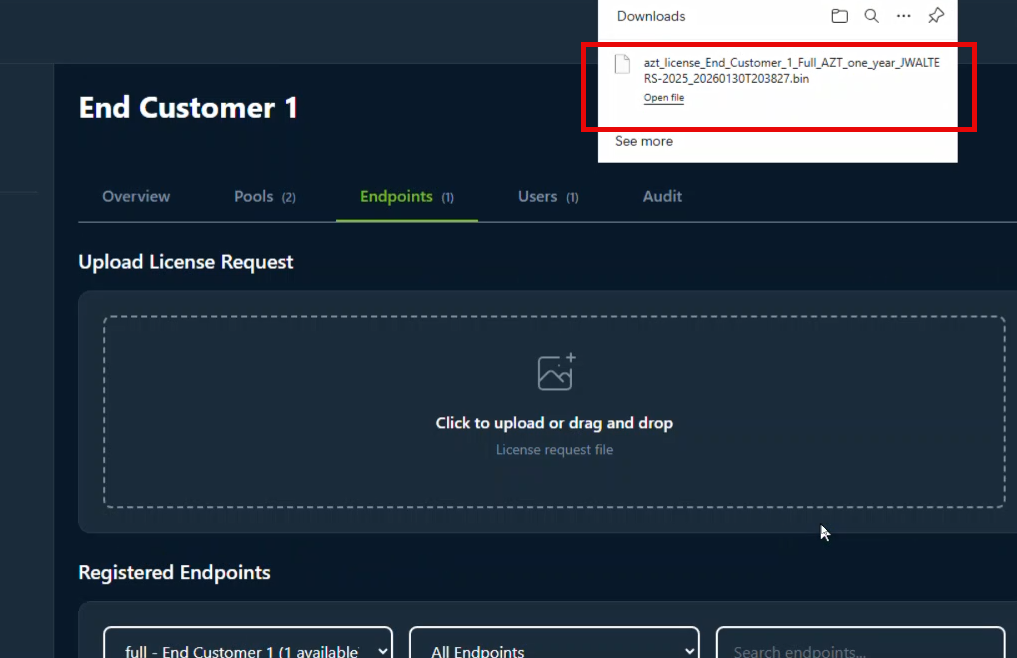
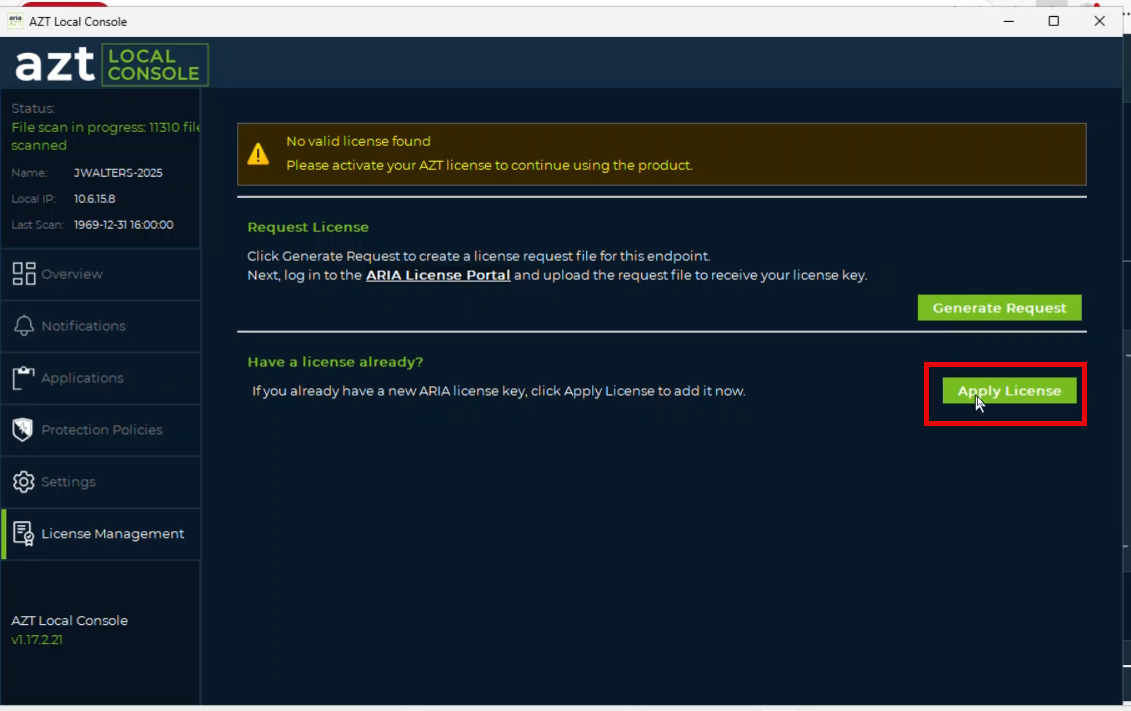
- Once you have the license file, go back to AZT Local Console. Click Apply License to apply the license.
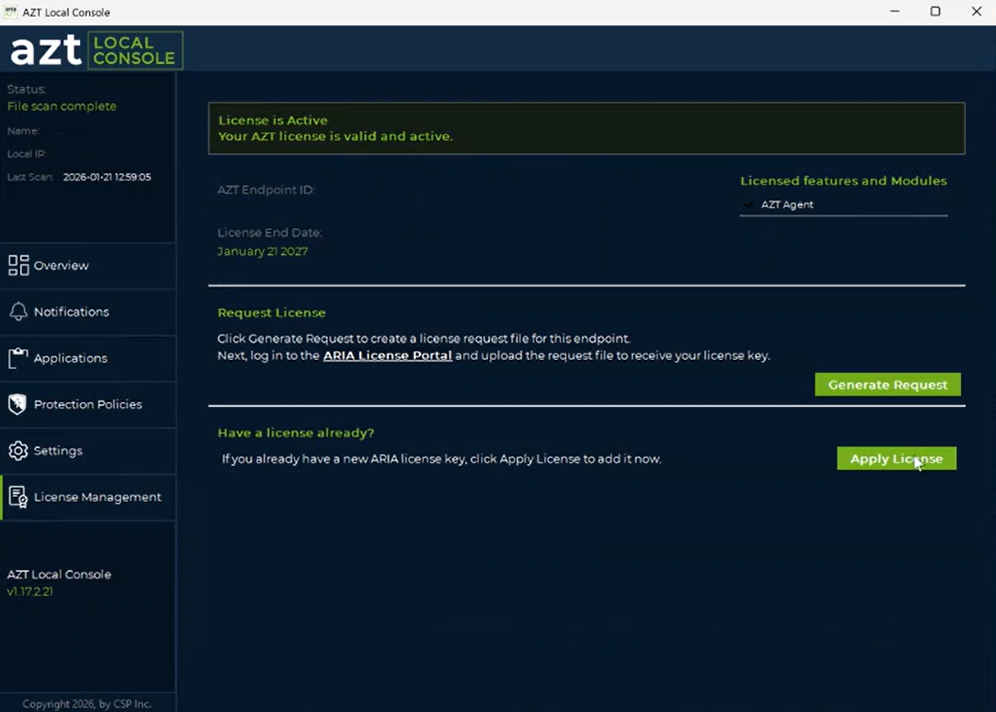
- Once the license is applied, the banner message at the top will change to let you know the license is now active.
Was this article helpful?
That’s Great!
Thank you for your feedback
Sorry! We couldn't be helpful
Thank you for your feedback
Feedback sent
We appreciate your effort and will try to fix the article