TABLE OF CONTENTS
- Overview of the License Server Portal
- First-Time Login
- Dashboard
- Customers and Users
- Viewing License Information
Overview of the License Server Portal
The ARIA License Server Portal provides resellers with a centralized, streamlined environment for managing all of their customer organizations and the licenses assigned to them. Each customer maintains its own set of users, while resellers retain full visibility and administrative control over license allocation, activation, and lifecycle management.
Through the portal, resellers can easily provision and manage licenses count for each customer. The platform allows resellers to activate licenses directly on a customer’s AZT Local Console.
First-Time Login
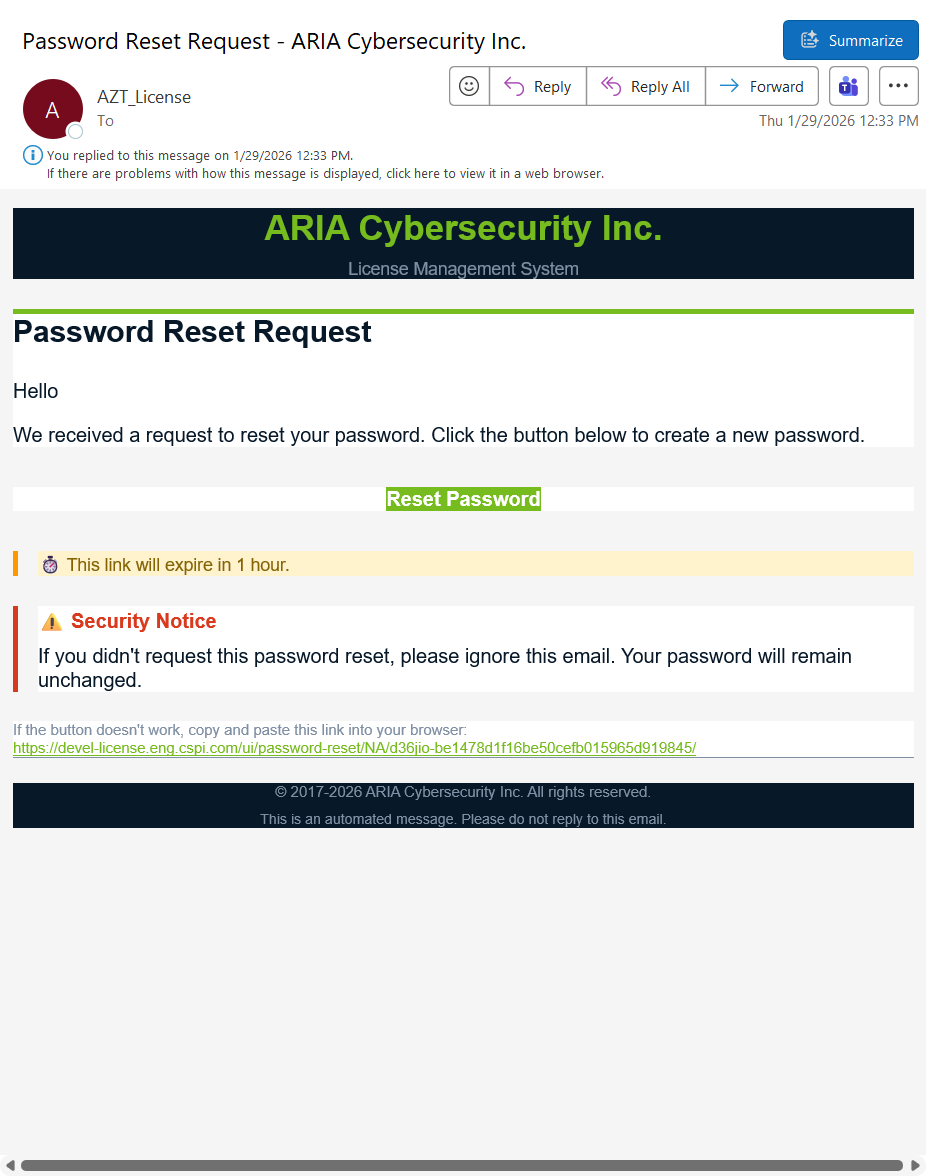
ARIA Support will send you a welcome email that you can use to reset your password. Follow the directions below to get started.
- In the welcome email, select Reset Password. This link will take you to https://license.ariacybersecurity.com/
Note: If you were given credentials instead, go to https://license.ariacybersecurity.com/ and enter the credentials to proceed.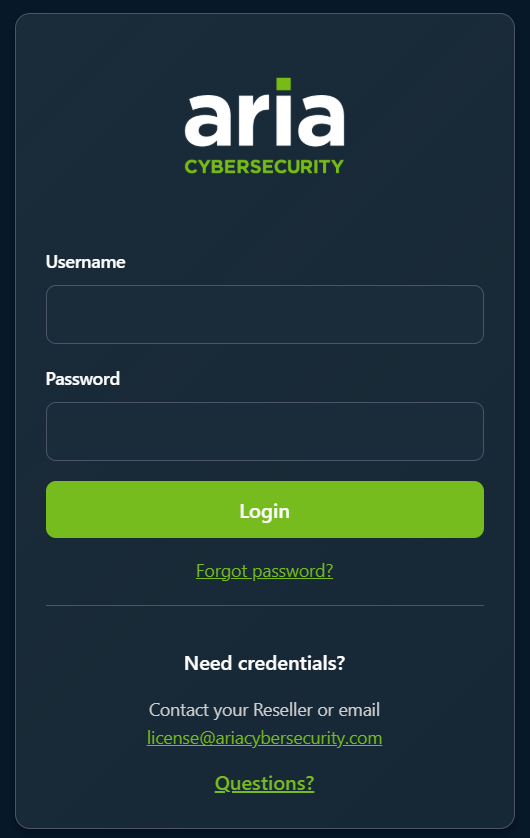
- On the password reset screen, enter a new password that meets security requirements. Select Change Password.
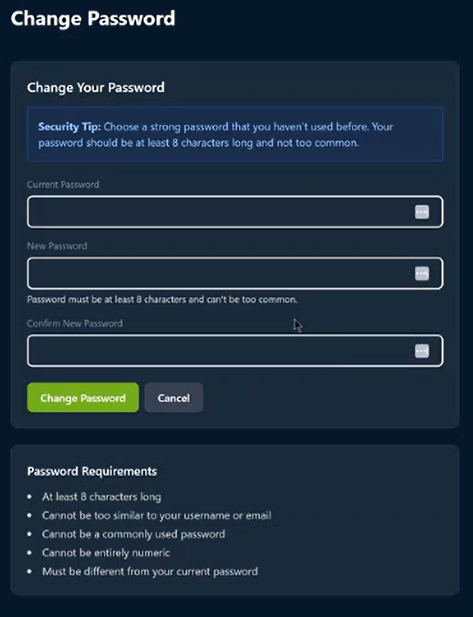
- You should now be logged in to the license server portal.
Dashboard
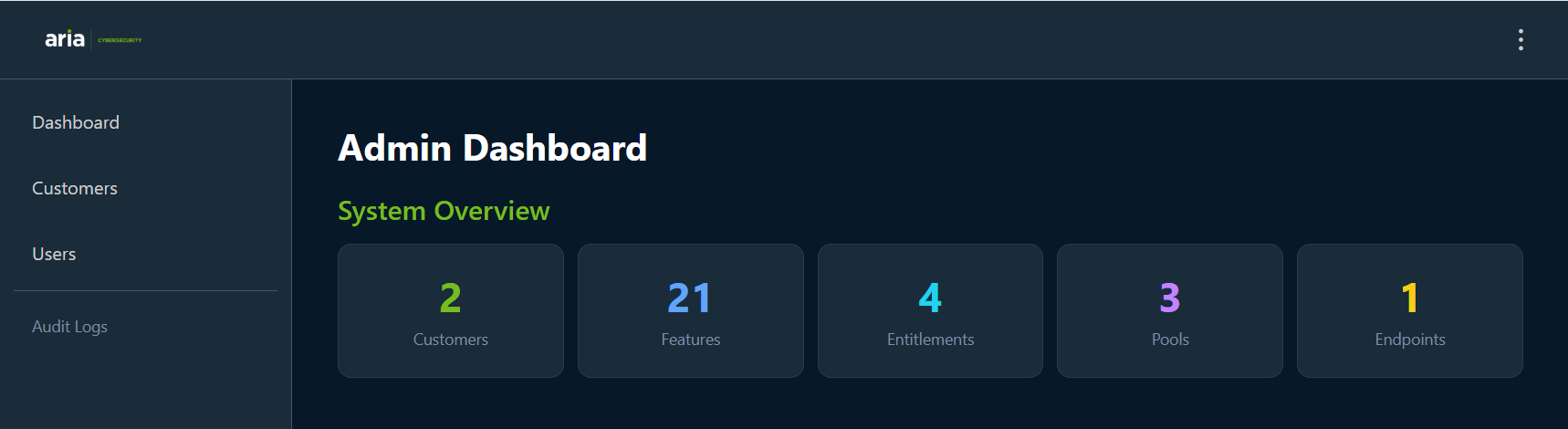
The Admin Dashboard displays an overview for the following information.
- Customers: Number of customer accounts in the license server portal.
- Features: Number of features available.
- Entitlements: Number of feature bundles available.
- Pools: Number of pools that have been created.
- Endpoints: Number of endpoints that licenses have been applied to.
Customers and Users
On the left-hand side, there are two tabs for managing customers and users.
A Customer is an organization that owns and manages licenses. Each customer has their own pools of licenses and devices.
A User is an individual who can request and download licenses to an endpoint.
Customer Types
End Customer
A standard customer who uses licenses for their own devices.
Reseller
A customer who can distribute licenses to other customers (sub-customers).
Customer Properties
All Customers Can:
- View their pools and available licenses
- Assign licenses to their devices
- Download license files
- View license usage and expiration
Resellers Can Also:
- Create sub-customers
- Allocate licenses to sub-customers
- View all sub-customer activity
- Manage sub-customer users
End Customers Cannot:
- Create sub-customers
- Transfer licenses to other organizations
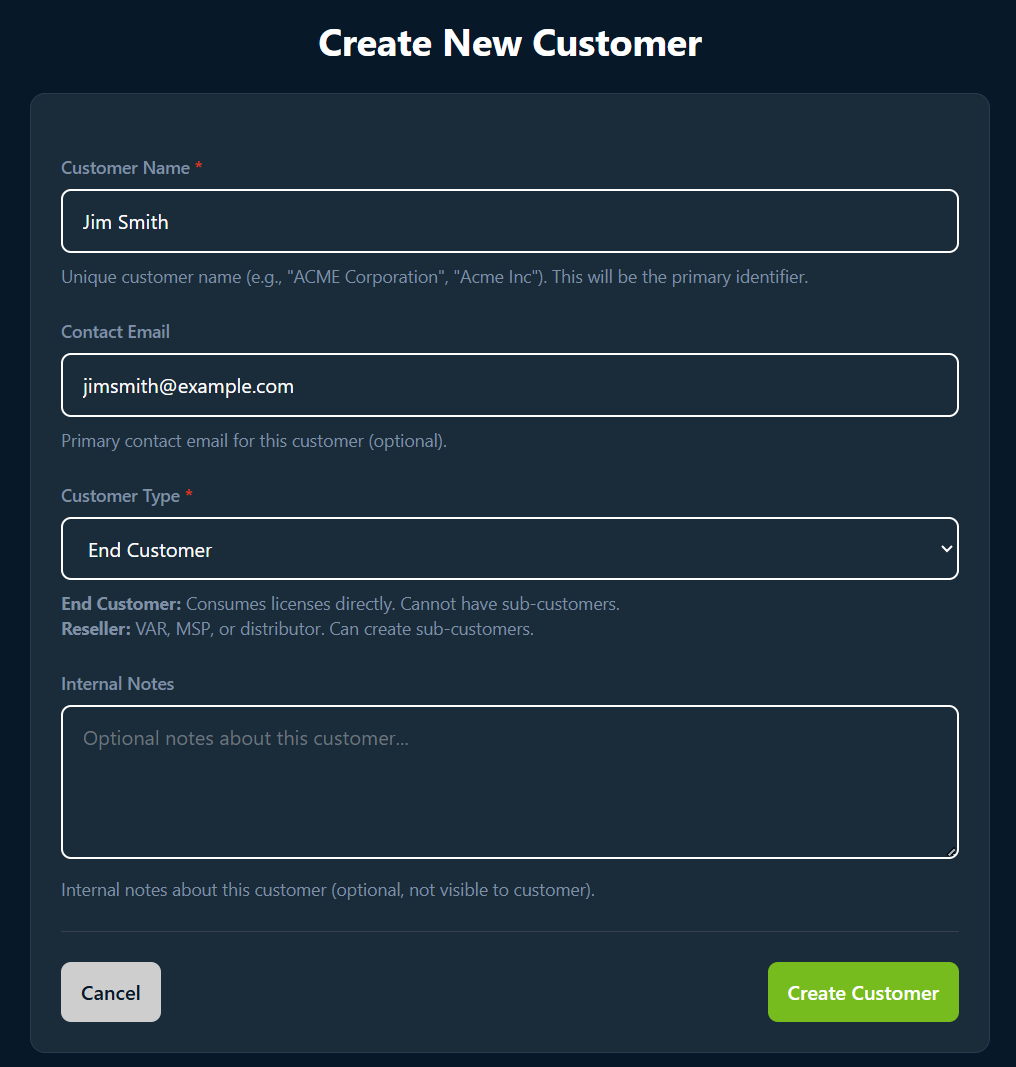
Create a Customer
Follow the directions below to create a customer.
- Go to the Customers tab.
- Select + New Customer.
- Complete the following fields:
- Customer Name
- Customer Email (optional): This email is for informational purposes and is not used to create credentials.
- Customer Type: End Customer
- Internal Notes: Add any notes you would like to have documented for this customer.
- Select Create Customer.
Create a User
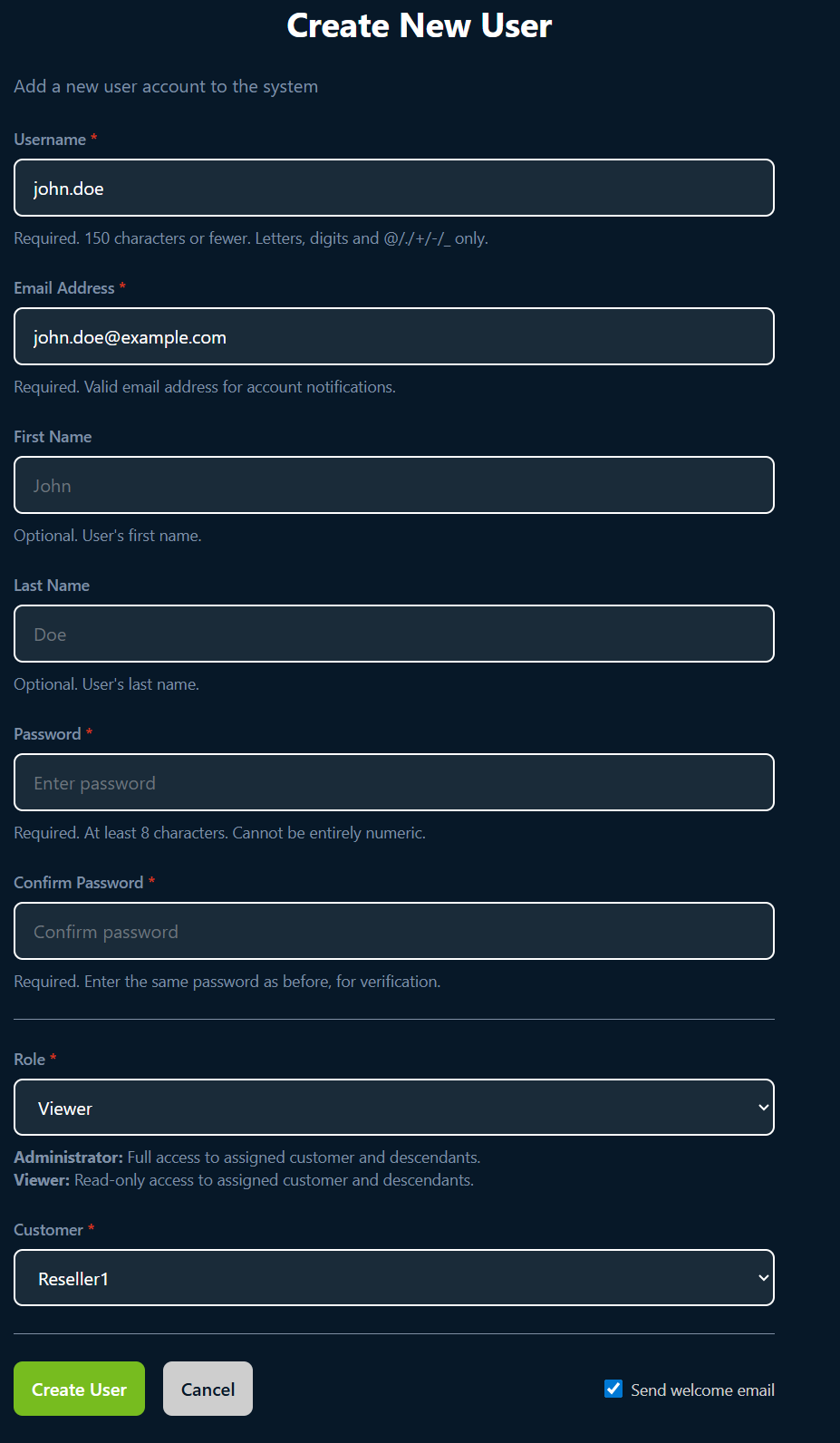
Both resellers and users with administrator privileges can create users. Users are responsible for adding AZT Local Console licenses to the standalone endpoints.
- Go the Users tab.
- Select + New User.
- Complete the following fields:
- Username
- Email Address
- First Name
- Last Name
- Password
- Confirm Password
- Role: You should assign the Viewer role to users who only need to add licenses. If you would like the user to be able to create other users and manage licenses in the pool, assign the Administrator role.
- Customer
- Confirm the Send welcome email checkbox is selected if you would like to send the user a welcome email.
- Select Create User.
- The customer will receive an email with their username and temporary password.
Viewing License Information
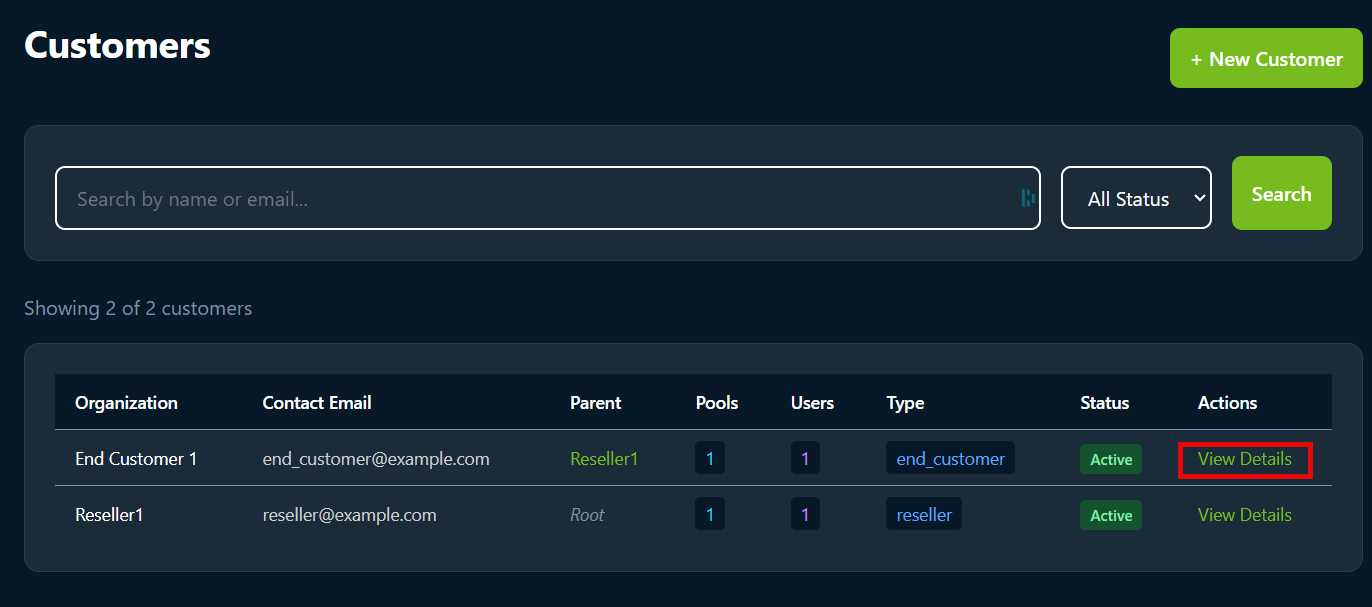
You can manage license information on the Customer tab by following the directions below.
- Go to the Customers tab.
- Next to the customer you would like to manage, select View Details.
- Below is a breakdown of what information is available on each tab.
- Overview: This screen includes a high-level view of customer status, profile information, and KPI usage callouts. You can also deactivate the customer account on this page.
- Pools: This screen includes how to create and manage license pools.
- Endpoints: This screen is where license requests can be uploaded to register an endpoint.
- Users: This screen is where you can view all the users assigned to a customer. You can also create users from this screen.
- Audit: Audit history for what actions have been taken under this customer's account regarding creating users, updating users, and applying licenses.
Understanding Pools
A Pool is a container of purchased licenses for a specific entitlement. Think of it as a "bucket" of licenses that a customer owns and can distribute to their devices.
An Entitlement is a collection of features that can be licensed together. Entitlements define what capabilities a customer receives when they purchase licenses.
Create License Pool
On the Pool tab under a Customer account, you can create a license pool. Follow the directions below.
- Select + Create Pool.
- Complete the following details:
- Source Pool: Select the pool you want to move licenses from.
- Destination Customer: This is the customer you want to assign licenses to.
- Quantity: Number of licenses to transfer.
- Destination Pool: You can create a new pool or add to an existing pool.
- Pool Name: You can name the pool or let a pool name be auto-generated.
- Select Transfer Licenses.
Note: If you would like to purchase more license pools, contact the ARIA Sales team separately to create a purchase order.
Was this article helpful?
That’s Great!
Thank you for your feedback
Sorry! We couldn't be helpful
Thank you for your feedback
Feedback sent
We appreciate your effort and will try to fix the article